Introduction
Transitioning from Forms 1.0 (Legacy Forms) to Forms 2.0 is an important step to ensure the organization's online giving experience continues without interruption. Forms 2.0 introduces modern templates, faster form creation, and an improved donor checkout experience. Forms 1.0 (Legacy Forms) will be retired on December 31, 2026, and all forms must be running on Forms 2.0 by that date. This article outlines how to create a new form in Forms 2.0, move an existing legacy form to Forms 2.0, determine which legacy forms can be retired instead of migrated, and review best practices for a smooth transition.
Important Notes
- Forms 1.0 (Legacy Forms) will be retired on December 31, 2026. All forms must be running on Forms 2.0 by this date.
- New forms are created in Forms 2.0 by default. Existing legacy forms can still be edited until the retirement date.
- The organization does not need to redesign forms to transition. Forms 2.0 includes basic layouts that mirror current form designs.
- Recreating a standard donation form in Forms 2.0 typically takes 5 minutes.
Table of Contents
Prerequisites
No prerequisite required. Forms 2.0 is enabled by default for all organizations.
What is Forms 2.0?
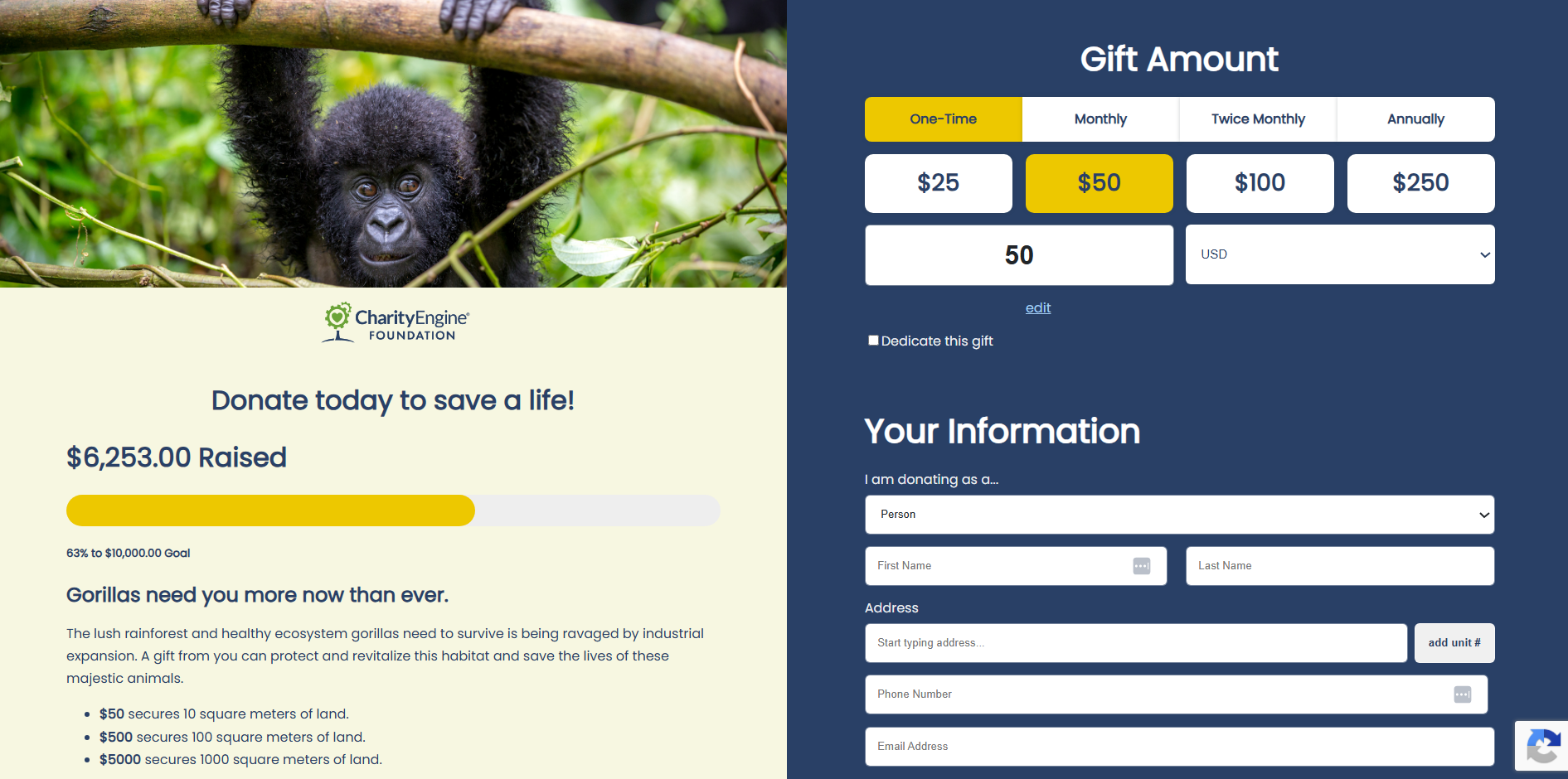
Forms 2.0 is the next evolution of CharityEngine forms. With Forms 2.0, the organization can:
- Build donation experiences with modern, conversion-focused templates
- Personalize the giving journey for different donor segments
- Launch and edit forms faster, with fewer steps
- Give donors a smoother, faster checkout
- Rely on improved performance, security and stability
Key Features
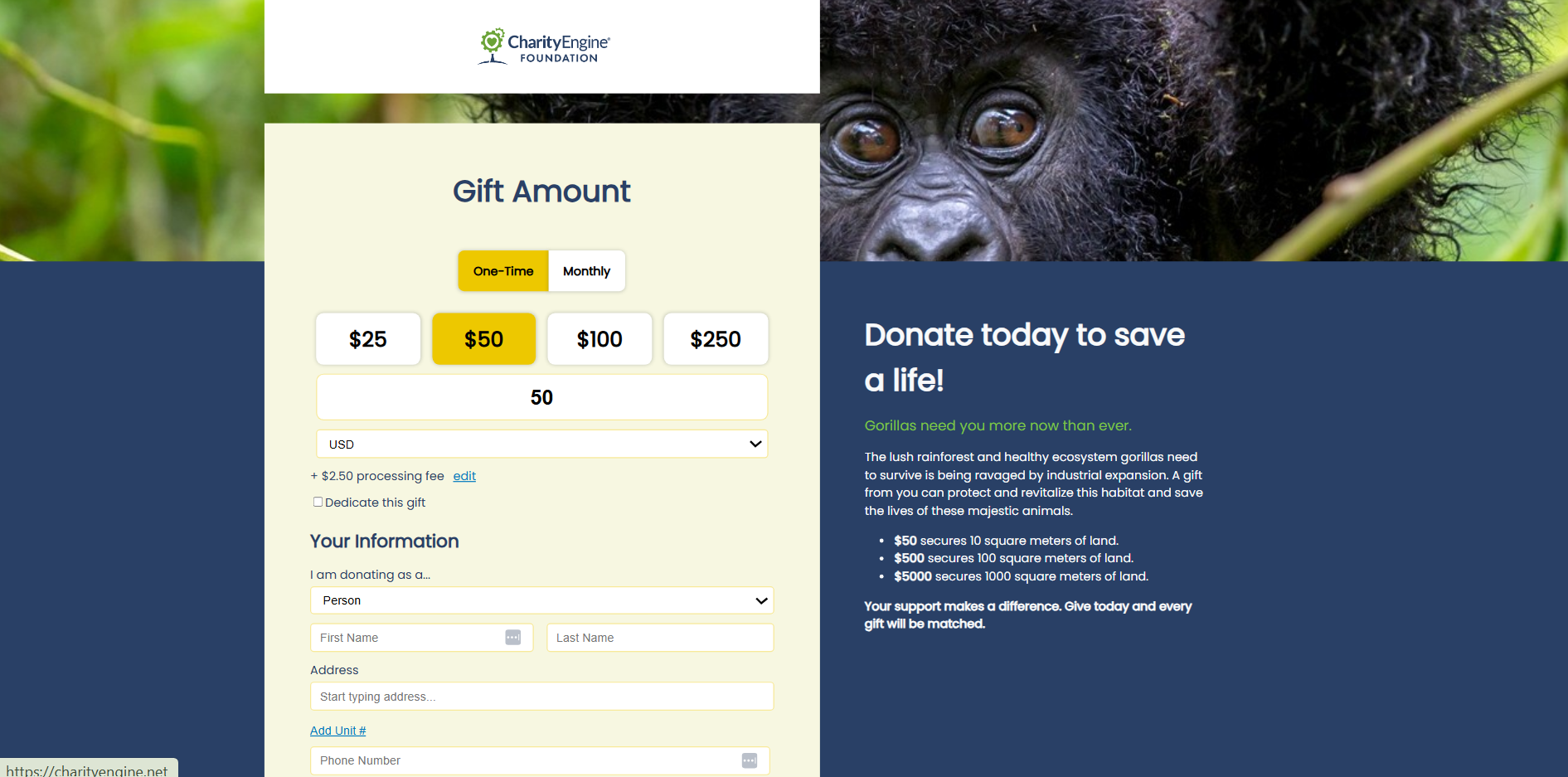
- Modern Templates Built for Conversion: Forms 2.0 includes updated templates intended to help organizations create visually engaging and conversion-focused donation experiences.
- Faster Form Creation: The updated experience is designed to streamline form configuration and management workflows for users creating online engagement experiences.
- Personalized Giving Pages: Organizations can create more customized donor experiences through personalized layouts and giving experiences.
- Dynamic Ask Strings: Forms 2.0 supports adaptive donation suggestions intended to improve donor engagement and conversion opportunities.
- Donation Widgets & Goal Meters: Organizations can leverage built-in donation widgets and fundraising goal meters to help visually communicate campaign progress to donors.
- Improved Donor Checkout Experience: The updated checkout experience is designed to provide a faster and smoother giving process for donors and constituents.
- Improved Performance & Stability: Forms 2.0 includes infrastructure and performance improvements intended to support more reliable online fundraising experiences.
Available Templates
Basic Templates (look and feel similar to current legacy forms):
- Standard
- Left Aligned
- Right Aligned
- Multi-Step
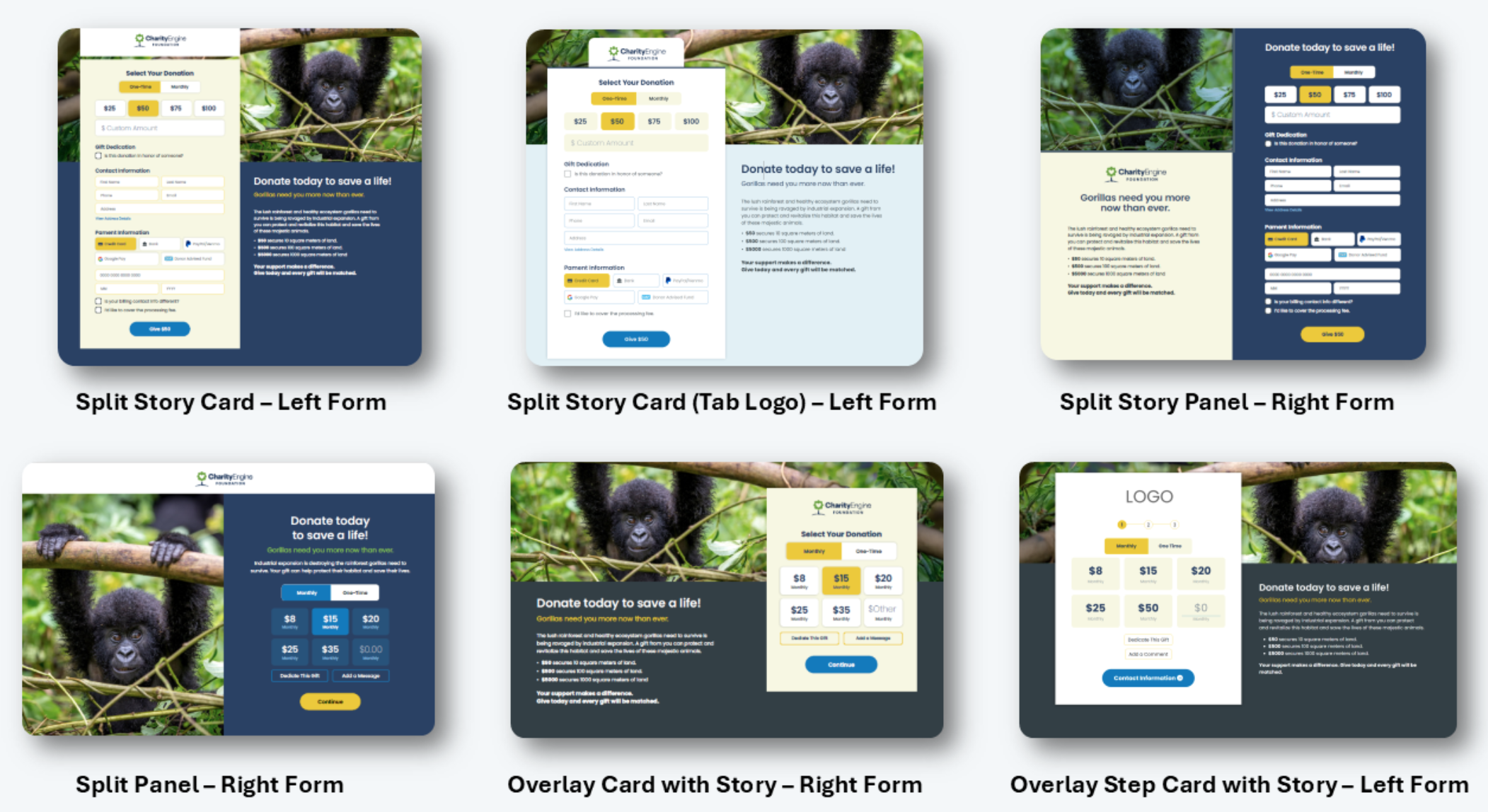
Advanced Templates (more visual, story-driven layouts):
- Split Story Card – Left
- Split Story Card (Tab Logo) – Left Form
- Split Story Panel – Right Form
- Split Panel – Right Form
- Overlay Card with Story – Right Form
- Overlay Step Card with Story – Left Form
Each template provides a starting point that the organization can customize to match its branding and fundraising goals.
How to Create a Forms 2.0 Form
Instruction: Access Forms 2.0
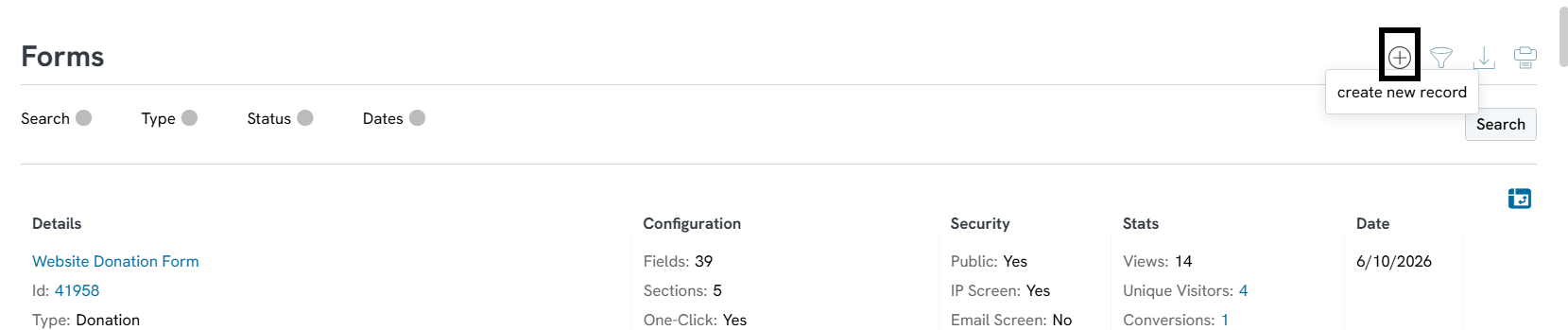
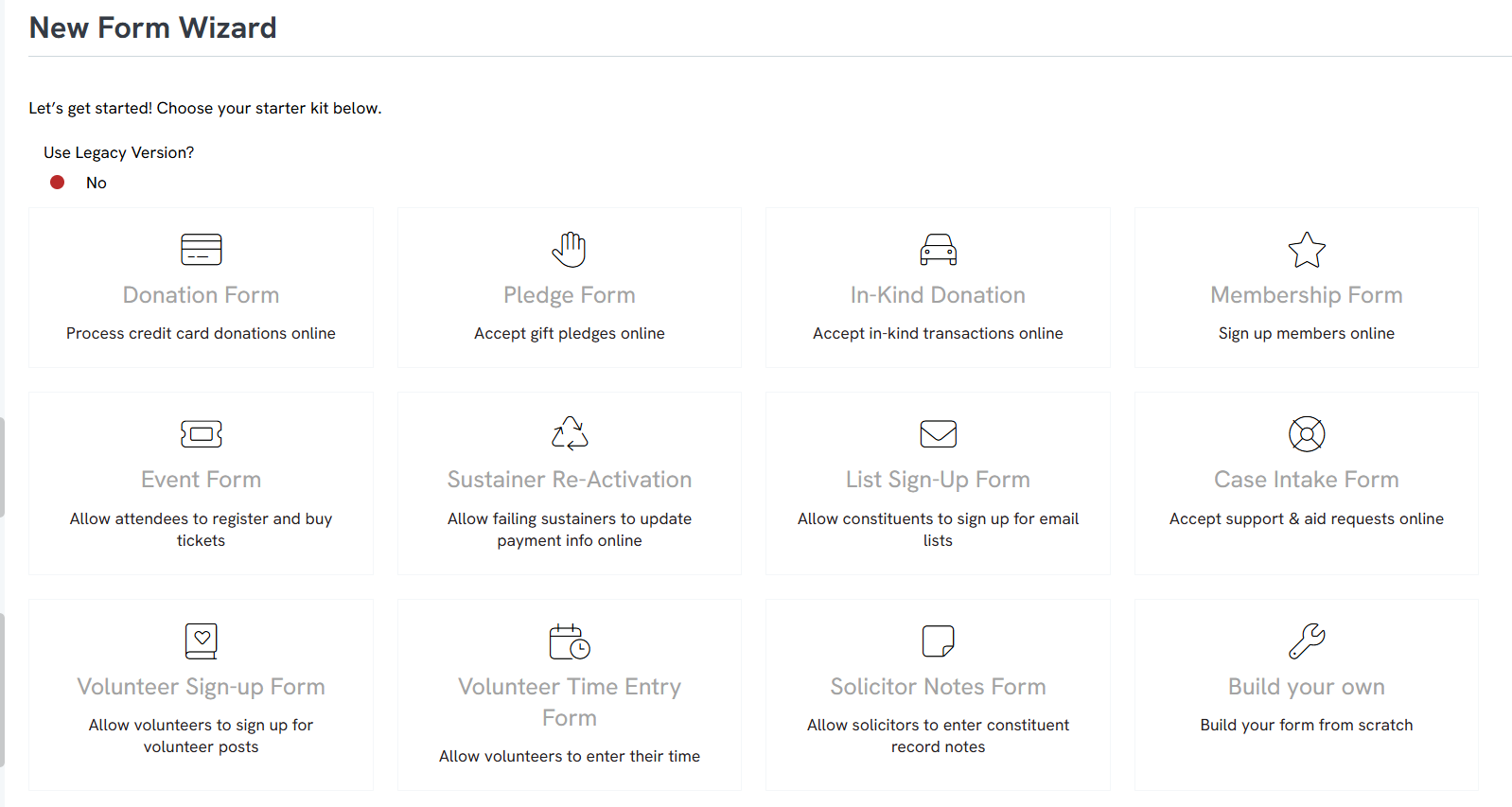
Forms 2.0 is available to all organizations and is enabled by default.
How to Move a Legacy Form to Forms 2.0
The recommended best practice is to recreate forms directly in Forms 2.0. Recreating the form allows the organization to fully take advantage of the updated layouts, design tools, donor experience improvements, and performance enhancements available in Forms 2.0.
Please Note: The organization does not need to redesign forms to make the switch. In addition to new design templates, Forms 2.0 offers basic layouts that look similar to legacy forms while delivering the benefits noted above.
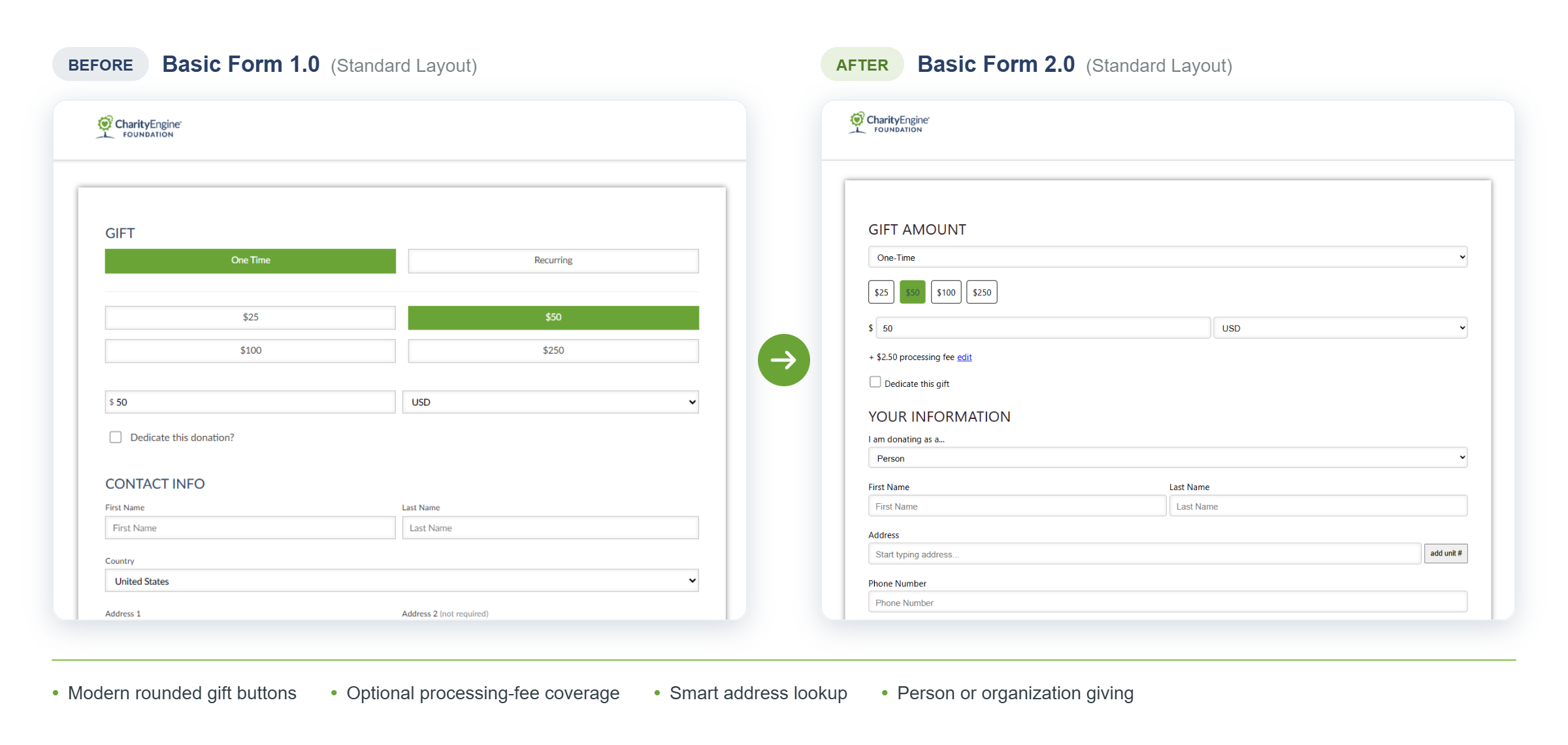
How to Convert a Basic Legacy Form to Forms 2.0
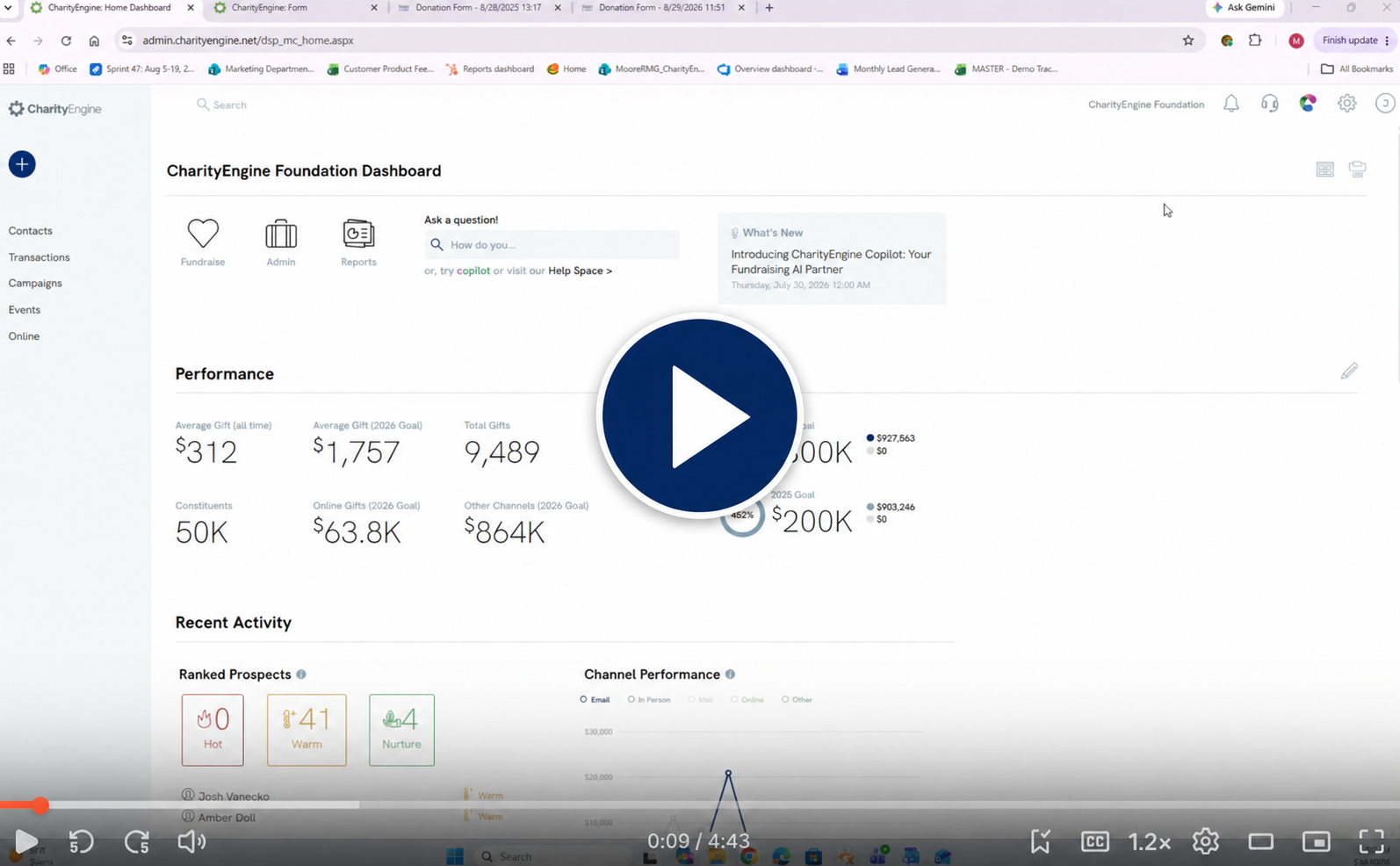
Follow the steps below or watch the short video tutorial to move a legacy form to Forms 2.0.
Instruction: Convert a Basic Legacy Form to Forms 2.0
How to Tell Whether a Form Is Legacy or Forms 2.0
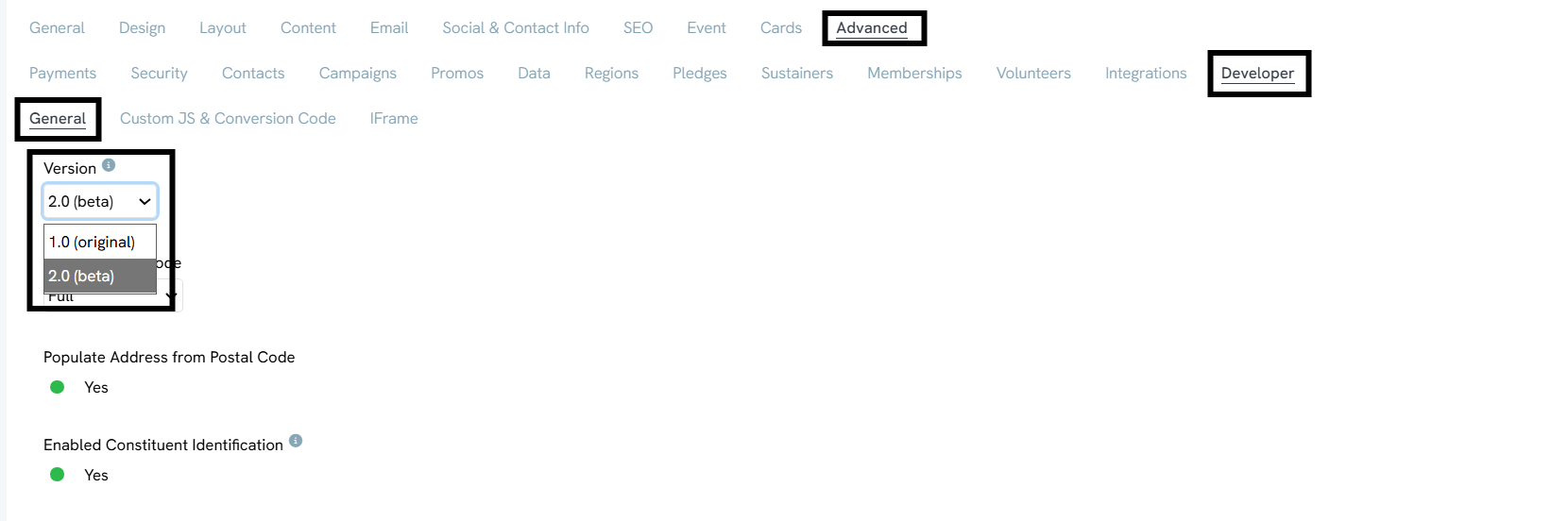
Open the form editor, navigate to Advanced > Developer, and check the Version field. Forms 2.0 forms also typically use rounded gift-amount buttons.
How to Know If a Form Can Be Retired (Not Migrated)
Not every legacy form needs to be rebuilt — some can simply be deactivated. Before migrating a form, review whether it still needs to exist at all. A form is usually safe to retire if:
- It hasn't received a submission in the last 3–6 months
- It isn't driving meaningful traffic or revenue (review the organization's reporting)
- It isn't linked from any live web page, email, or social post
- It isn't tied to a current campaign, appeal, or event
- It duplicates another form already in use
Retiring these forms first gives the organization an accurate, shorter list of what actually needs to move to Forms 2.0..png)
Important Considerations
Custom Code Compatibility. Organizations using custom scripts, styling, or legacy modifications should fully test all functionality prior to deployment in Forms 2.0 environments. Custom code compatibility is not guaranteed and may require updates or rewrites depending on the implementation.
Styling Differences. Out-of-the-box styling may differ from product demonstrations or template examples. Organizations may need to manually configure colors, buttons, layouts, and branding settings to achieve the desired experience.
Incremental Adoption Recommended. Organizations may choose to gradually adopt Forms 2.0 by testing specific donation experiences before replacing all existing production forms.
2.0 Template and Layout Considerations. Forms 2.0 introduces additional template and layout configuration options. Review the Template Style Guide before beginning the transition to understand how to manage templates and layouts.
Link to the 2.0 Template Style Guide
Best Practices for Adoption
Test Before Publishing. Check donation processing, mobile display, auto-responders, confirmation pages, integrations, dynamic ask strings, goal meters, and any custom scripts.
Start With Lower-Risk Forms. Migrate a simple, low-volume donation form first before moving complex event or peer-to-peer forms.
Match Organizational Branding. Update colors, fonts, and layout so the new form looks consistent with the organization's site and other materials.
Walk the Full Donor Journey. Click through from the landing page to the confirmation page as a donor would, to catch anything that feels off.
FAQ & Further Reading
Q. Is Forms 2.0 available now?
A. Yes. Forms 2.0 is live and enabled by default for new forms.
Q. Can organizations still use legacy forms?
A. Forms 1.0 (Legacy Forms) will be retired on December 31, 2026. All forms must be transitioned to Forms 2.0 before that date.
Q. Will existing custom code automatically work in Forms 2.0?
A. Not necessarily. Organizations using custom scripts or legacy modifications should fully test all functionality before deployment. Some implementations may require updates or rewrites.
Q. Why might forms look different than demo examples?
A. Demo environments may include additional styling and branding customization. Organizations may need to manually configure layouts, colors, buttons, and branding settings.
Q. Should organizations immediately migrate all forms to Forms 2.0?
A. No. Forms can be migrated incrementally — just ensure every form is moved to Forms 2.0 before December 31, 2026.
