How to Submit for Assistance via Support Request Ticketing Process:
You can submit a support request ticket even if you’re not able to log into the system by Calling: (866) 737-8222 or Emailing: Support@CharityEngine.net
If you are logged into the CharityEngine, it’s very quick and easy to submit a ticket from any screen you are working on within the system. You can access the ticket submission form the main dashboard OR any other page you are working on in the system.
You can see the Headphone icon  (on the top right corner) – when you click on that, a form will appear any allow you describe what’s going on and what you need some assistance with.
In order to help our team investigate, please be as specific as possible and provide examples of what you’re seeing, the steps you took or anything else that would help us get to the root of the situation faster.
Instructions
Anywhere you are working within the CharityEngine CRM, you can ask for help. On the upper right-hand corner, you will always be able to submit a support request ticket directly from the section that you have a question about/ need assistance with.
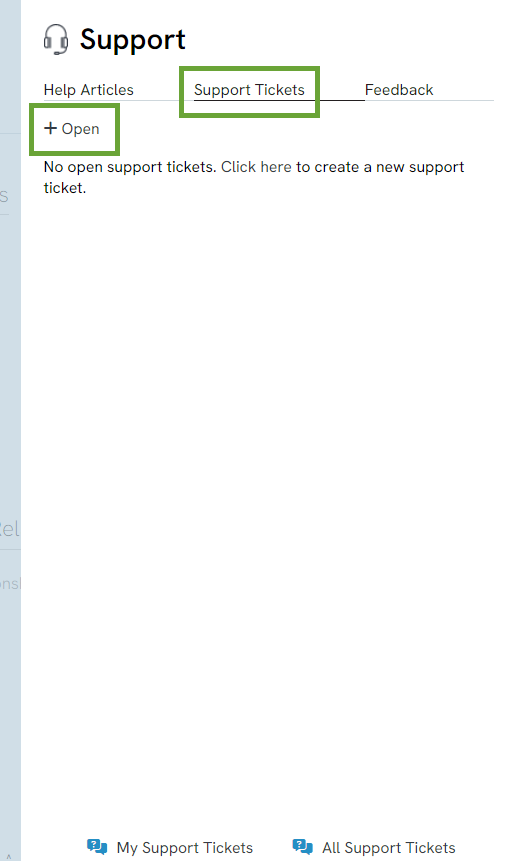
Click the headset icon on the top right of the screen > Support Tickets > Open
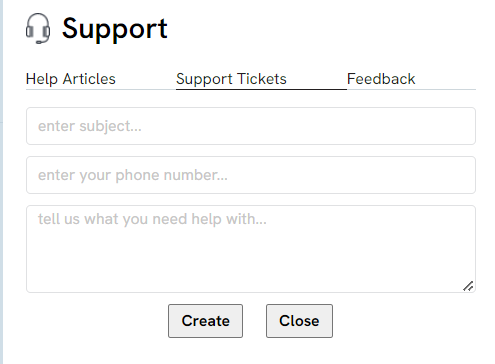
Additionally, you can manage your tickets by adding additional helpful information such as files, screen shots and/or further information to help our team investigate this more efficiently.
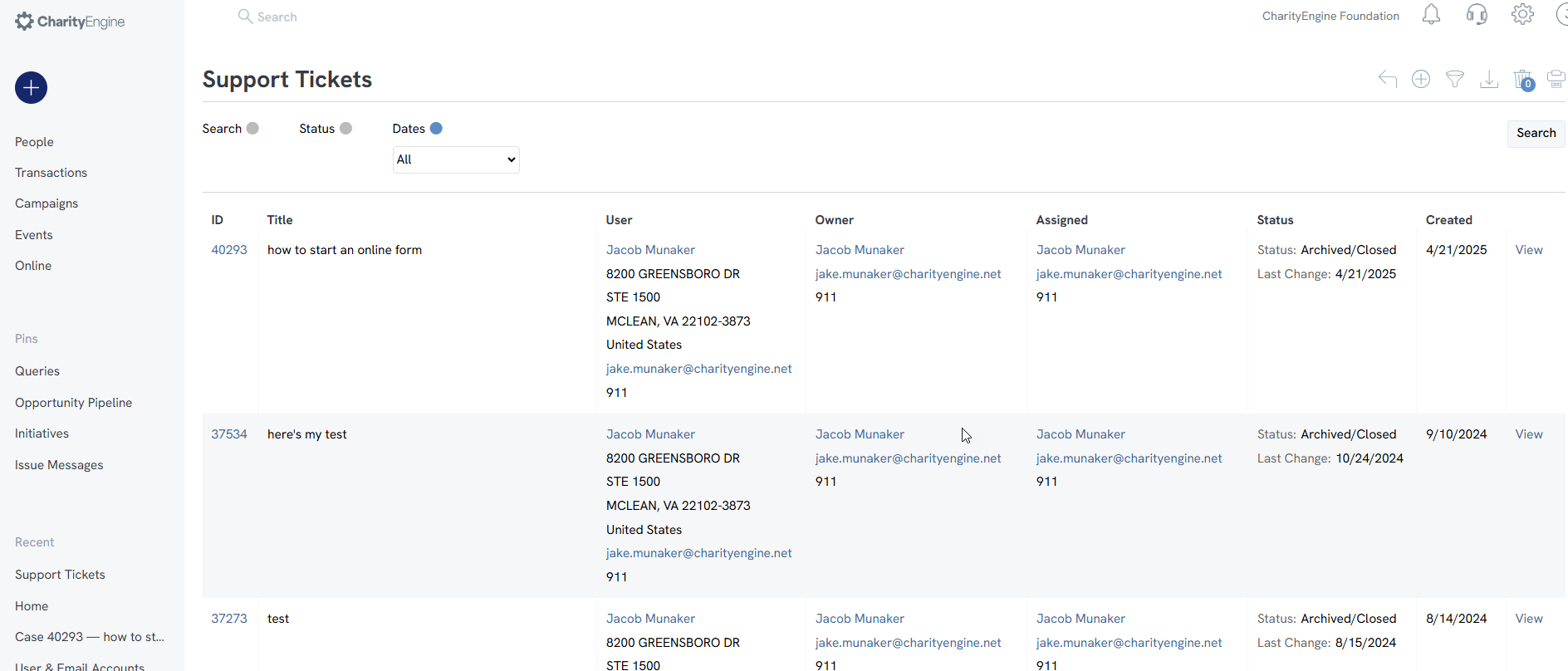
Look for the "My Tickets" link in the bottom corner where you look to submit a ticket and you can see all of the previous requests you've made to Customer Support.
In this section, you can view the status of the ticket, in case we are waiting for more information from you and/or the feedback that we provided to assist.
In this space, you can also view your colleague’s support tickets.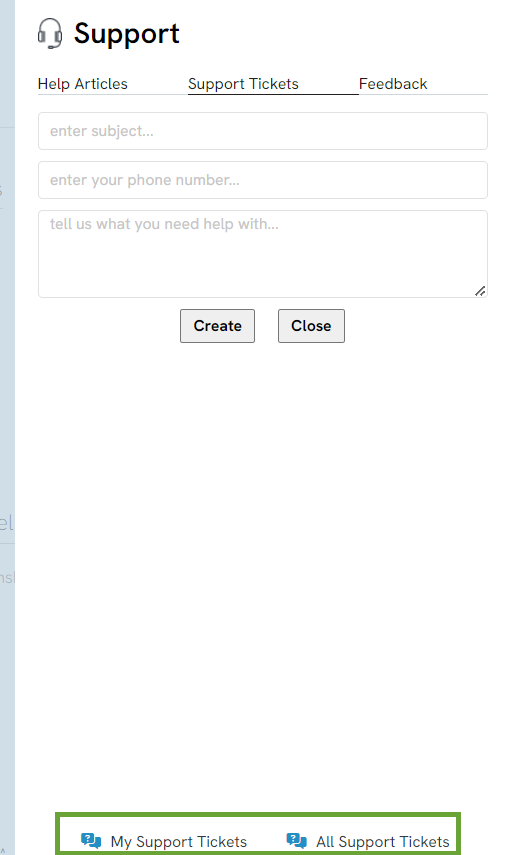
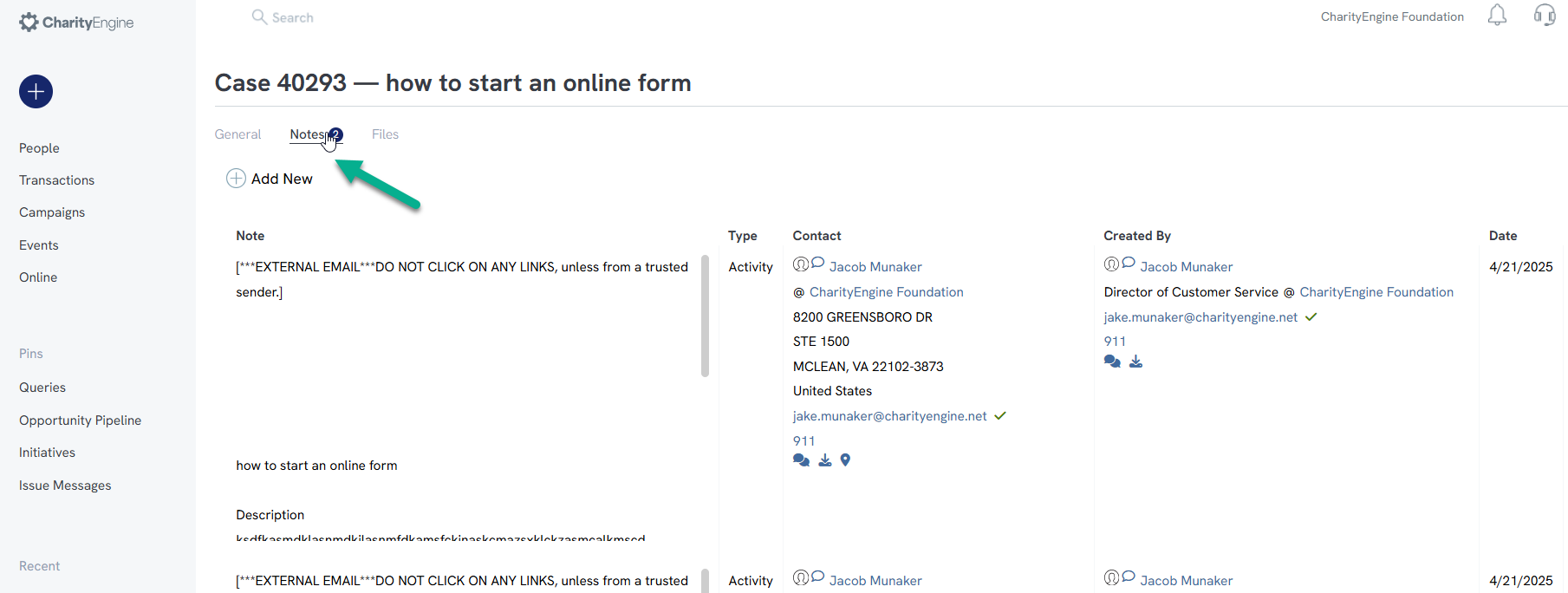
You can check back on the communication around this ticket and add in new commentary/ responses in the NOTES tab.
Adding in FILES, is easy too (we always love additional screenshots, videos of what you're experiencing, files, etc.).