How to Submit for Assistance via Support Request Ticketing Process:
You can submit a support request ticket even if you’re not able to log into the system.
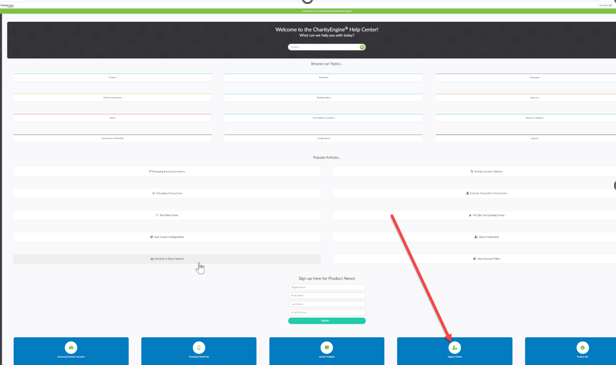
You can find the option to submit a ticket in our Help Center that can be found on our main website (without having to login)
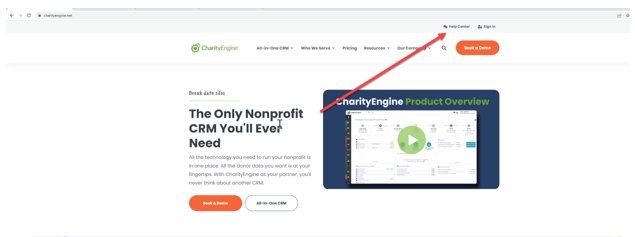
If you are logged into the CharityEngine system, it’s very quick and easy to submit a ticket from any screen you are working on within the system. You can access the ticket submission form the main dashboard OR any other page you are working on in the system (sometimes this helps us see what you were last working on when you encountered any trouble)
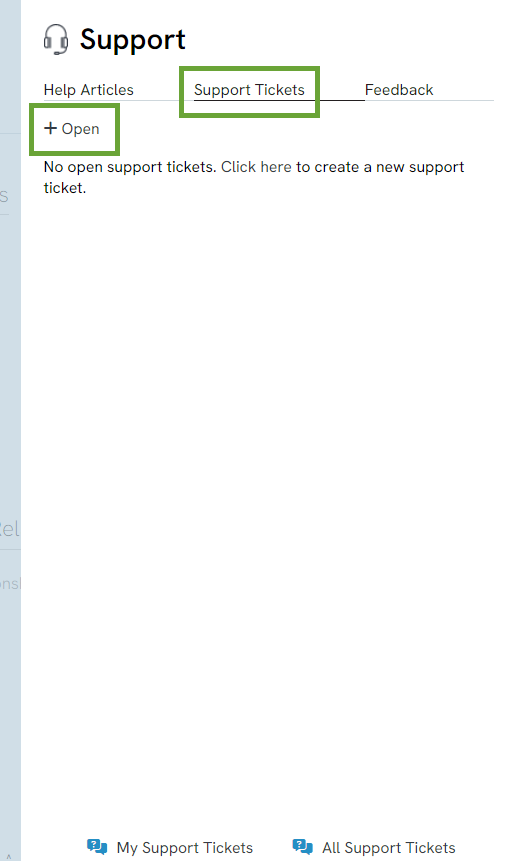
You can see the Headphone icon  (on the top right corner) – when you click on that, a form will appear any allow you describe what’s going on and what you need some assistance with.
If you need assistance, you want to get the right answer as fast as possible – we understand that and agree.
In order to help our team investigate, please be as specific as possible and provide examples of what you’re seeing, the steps you took or anything else that would help us get to the root of the situation faster.
Think if you were planning a big party, you’d want to give time, location, but then you need to think about the type of food, music, seating, etc… give us that type of detail, so we can help you faster.
It is imperative that you include as much specific detail as possible when submitting tickets, so our team can assist. Our intention is to resolve each inquiry on the first pass, but we may require more information, in order to properly investigate. Please be on the lookout for a response from our team, with the resolution or the need for more information.
Instructions
Anywhere you are working within the CharityEngine system, you can ask for help. On the upper right-hand corner, you will always be able to submit a support request ticket directly from the section that you have a question about/ need assistance with.
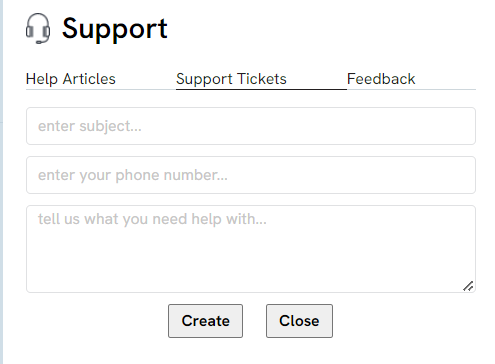
Additionally, you can manage your tickets by adding additional helpful information such as files, screen shots and/or further information to help our team investigate this more efficiently.
Look for the "My Tickets" link in the bottom corner where you look to submit a ticket and you can see all of the previous requests you've made to Customer Support.
In this section, you can view the status of the ticket, in case we are waiting for more information from you and/or the feedback that we provided to assist.
In this space, you can also view your colleague’s support tickets.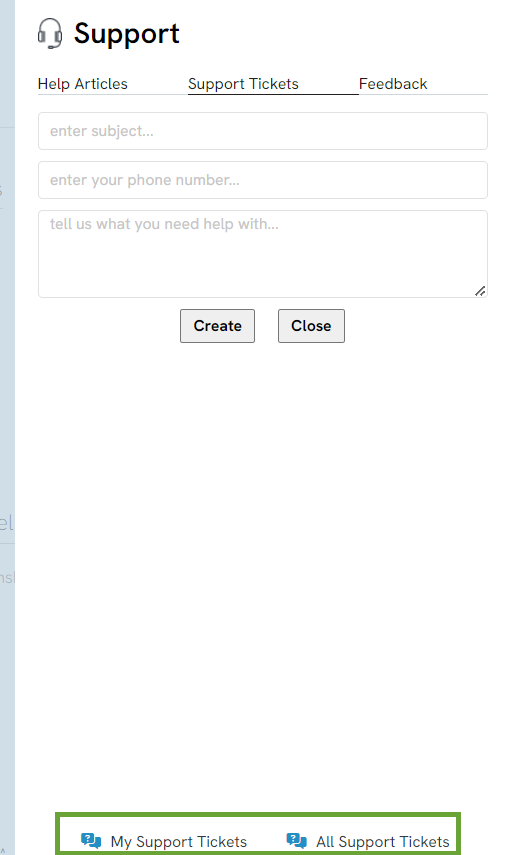
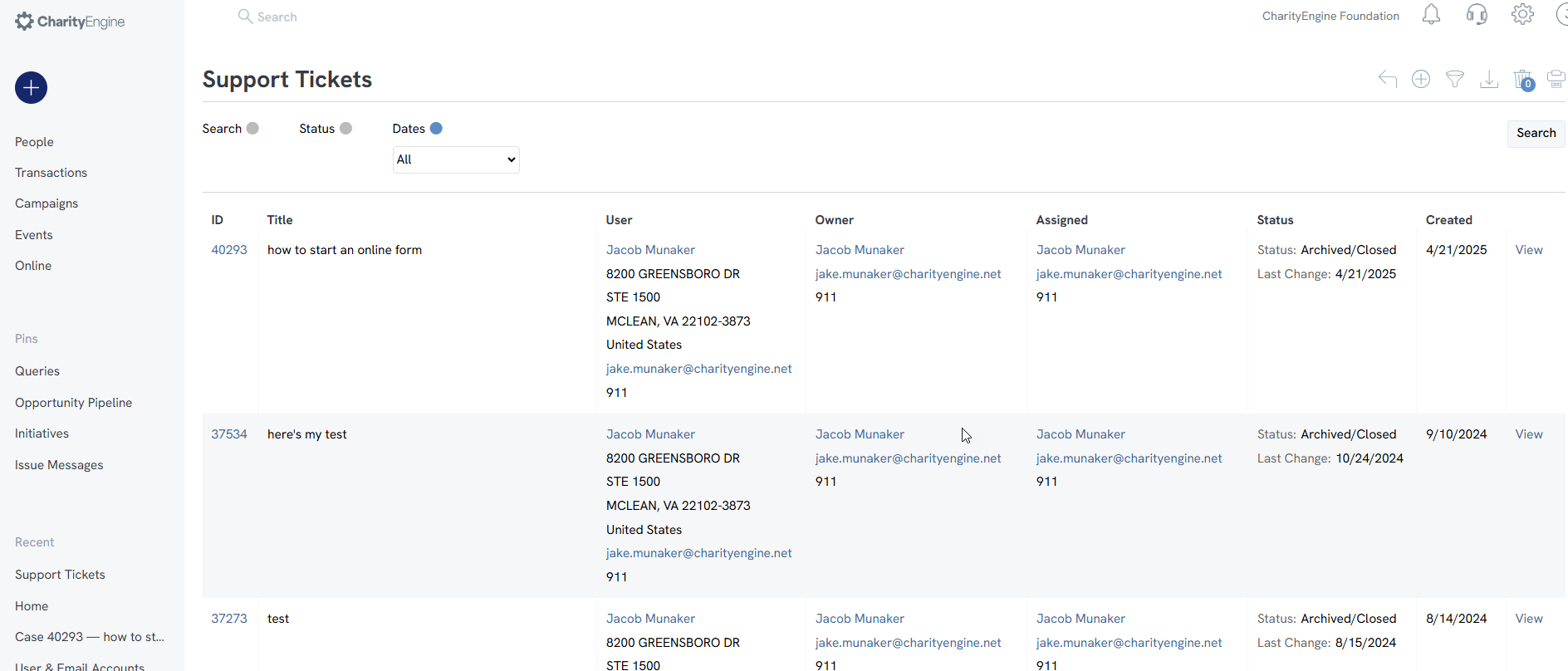
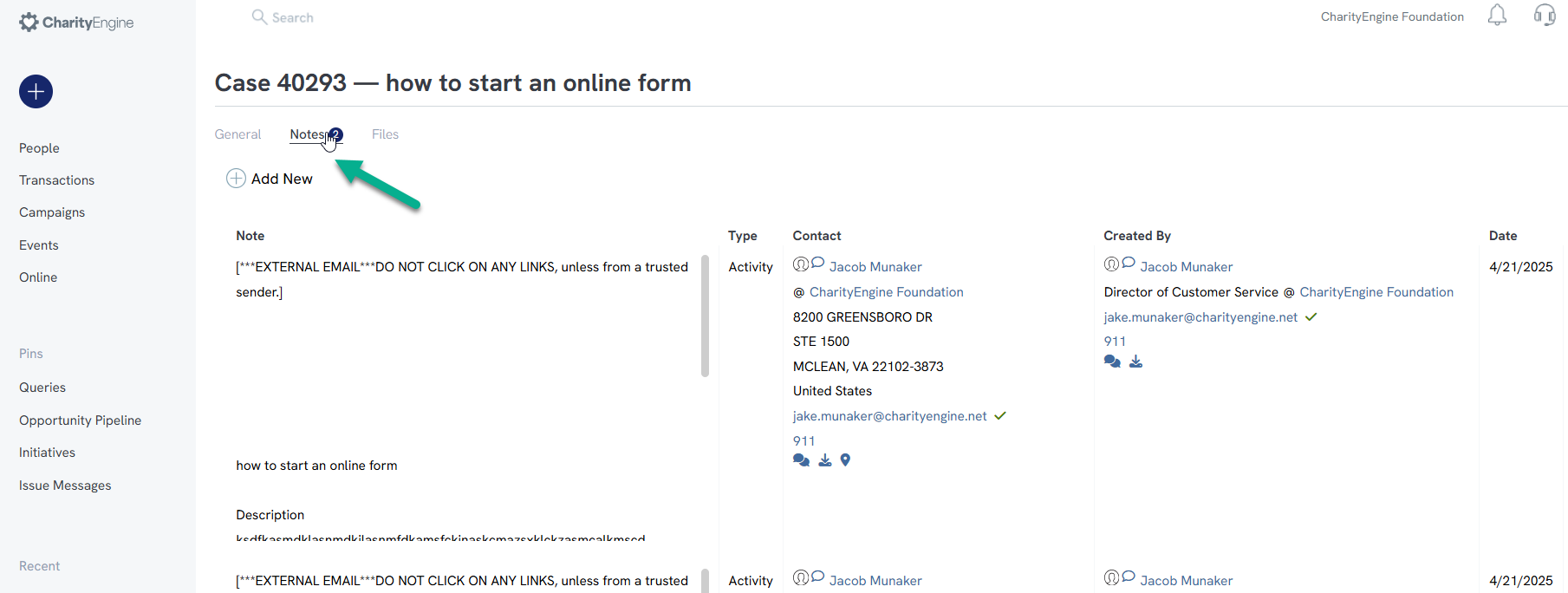
You can check back on the communication around this ticket and add in new commentary/ responses in the NOTES tab.
Adding in FILES, is easy too (we always love additional screenshots, videos of what you're experiencing, files, etc.).