Introduction
Users can add a hidden tracking code to a web form that automatically writes a value into one of a transaction's custom code fields on every submission, without any visible field or interaction from the donor. This is useful for tagging every transaction that comes through a specific form so it can later be pulled into reporting. This article assumes familiarity with web forms and creating custom fields – it covers only how to add, hide, and map this field, not how to build a form from scratch.Table of Contents
Why Use a Hidden Tracking Code?
A hidden custom section can house as many custom code fields as needed. Each field is given a default value, so it submits automatically on every transaction without the donor ever seeing or filling it in, and each is mapped to a transaction's custom code field at the time of submission. Once hidden and mapped, these codes are available for reporting using Report Builder in the Transactions module.
Instruction - Create and Configure the Hidden Custom Code Field
Step 1: Manage the web form and click the Layout tab.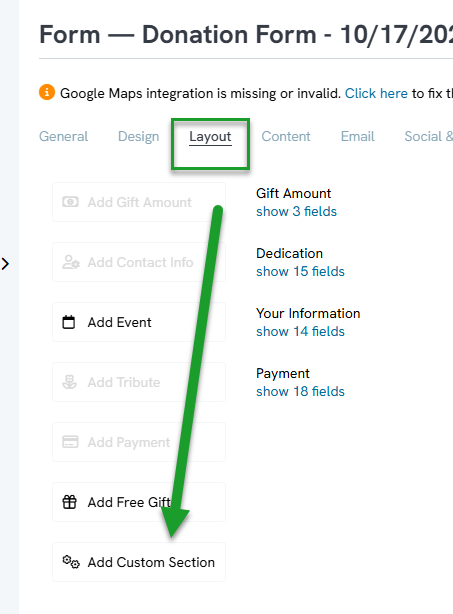
Step 2: Click Add Custom Section, give it a label (for example, "Custom Codes"), and click Save.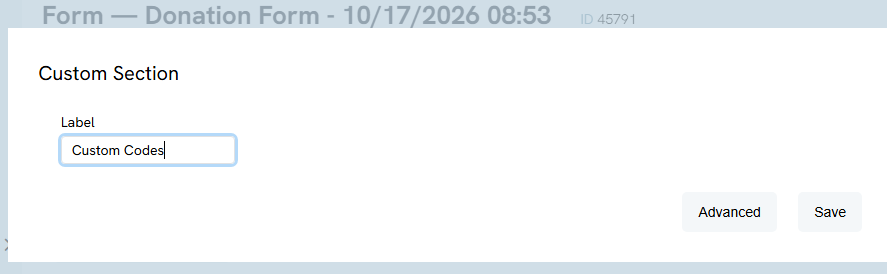
Step 3: Within this new section, click the plus icon on the edit bar to create a custom field. Name it (for example, "Code One") and click Create Field.
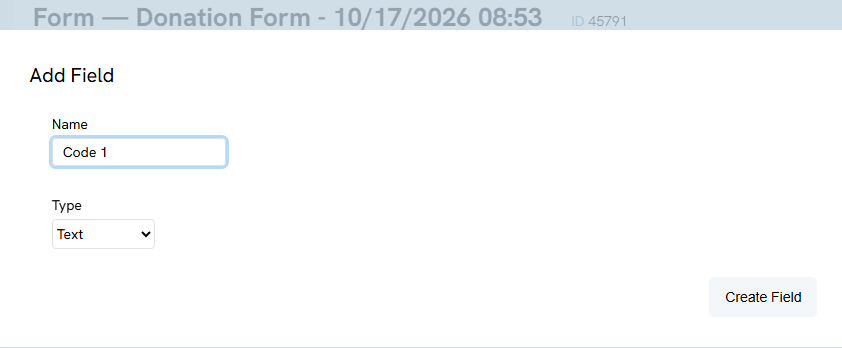
Step 4: Expand the section (Show 1 Fields) and click the pencil to edit.
Step 5: Click the Display tab > General tab, scroll to the bottom, and enter the code into the Default Value field.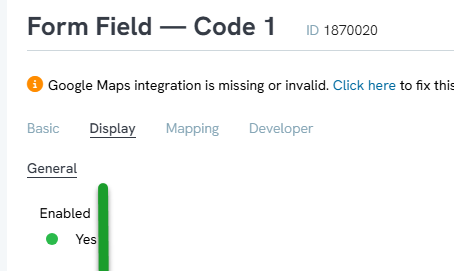
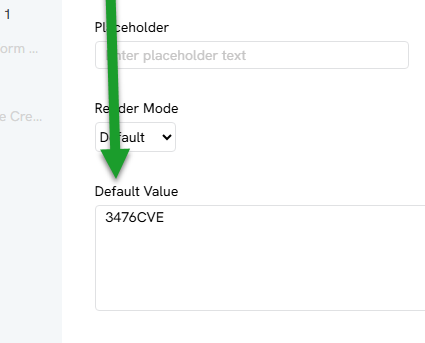
Step 6: Click Save on the field.
Step 7: Back to the form, click the General tab, click the form's link to view it live, and confirm the custom code section displays the default value text at the bottom of the form. This confirms the field is set up correctly and ready to be mapped.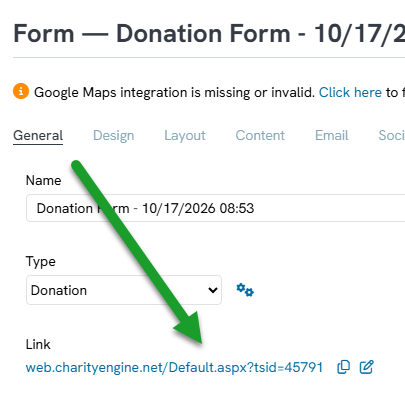
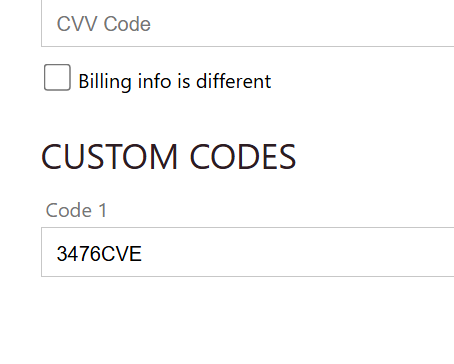
Step 8: Return to the Layout tab, expand the custom code section, and click the pencil to edit Code 1 field.
Step 9: Click the Mapping tab, then the Transaction tab, and scroll down to map this field to a tracking/custom code (for example, Tracking Code 1).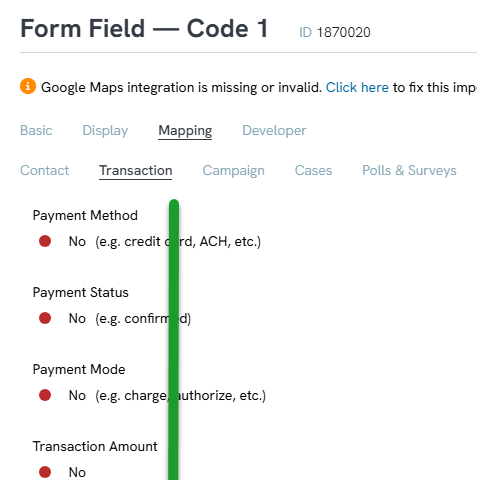
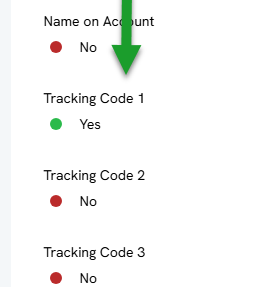
Step 10: Click Save on the field.
Instructions - Hide the Custom Code Section
Step 1: Return to the Layout tab, find the custom code section, and click the pencil to edit the entire section.
Step 2: Click Advanced to access the section's advanced display settings.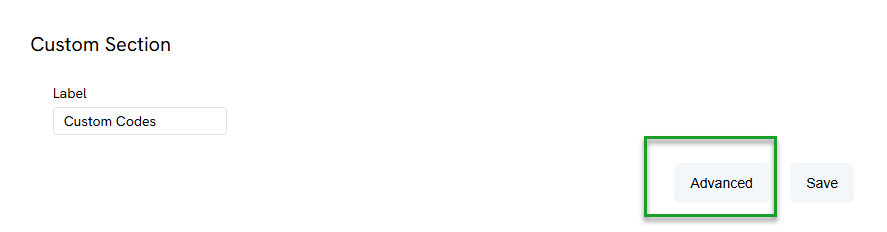
Step 3: Remove the section from display across all pages of the web form.
Step 4: Click Save on the section.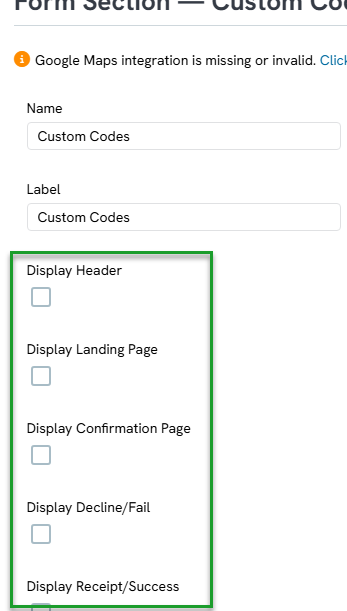
Step 5: Click Save on the form.
Step 6: View the form again to confirm the custom code section no longer appears anywhere on it.
Instructions - Test and Verify the Mapped Custom Code
Step 1: Click the Advanced tab > Payments tab > General tab and disable Payment Processing to put the form into test mode. Click Save.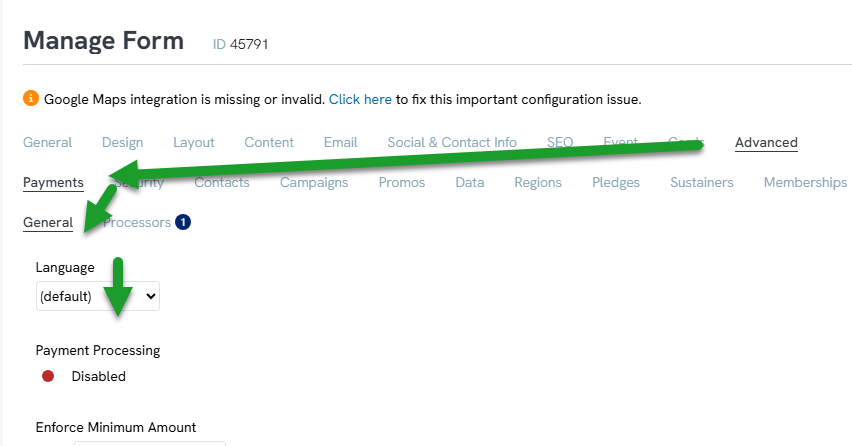
Step 2: Open the form and complete a test donation.
Step 3: Navigate to Transactions > Transactions > Search and Manage, filter for today's transactions, and locate the new transaction.
Step 4: Hover over the ellipsis (three dots) menu and click Manage.
Step 5: Click the Detail tab, then Attribution, then Custom, to confirm the custom code value was written to the transaction.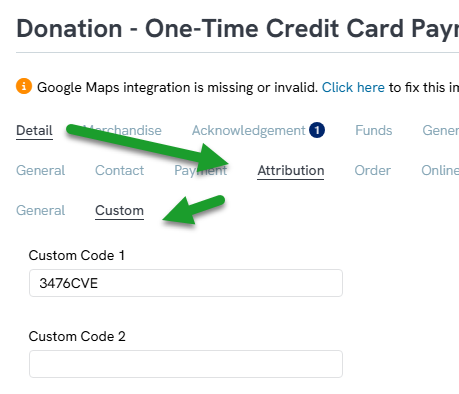
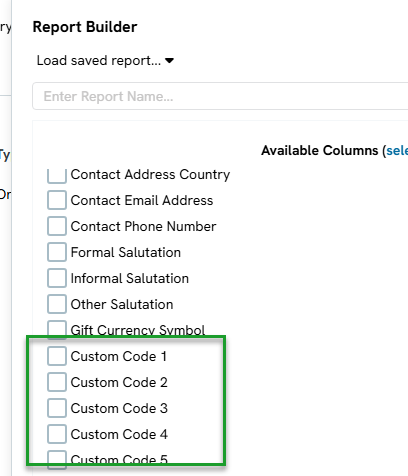
Step 6: From the transaction listing screen, click Report Builder and confirm the custom code field is available for selection, so its values can be pulled into reporting.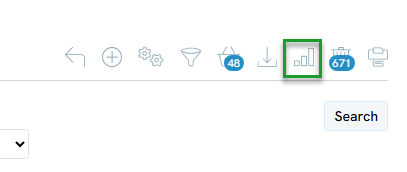
Note: Remember to turn Payment Processing back on once testing is complete.
FAQs & Additional Reading
Q. Will donors see this hidden tracking code on the form?
A. No. Once the custom section's display is removed, the field (and its code) submits automatically on every transaction without appearing anywhere on the visible form.
Q. Why set a Default Value on the field instead of leaving it blank?
A. The Default Value is what automatically gets submitted and written to the mapped transaction custom code every time the form is used. Since there's no visible field for a donor to fill in, the default value is the only way the code gets passed along.
Q. How can I verify the hidden code is working correctly?
A. Test the form with payment processing disabled, then check the resulting transaction's Detail > Attribution > Custom tab to confirm the code was written there.
Q. How is this data used after it's captured?
A. It can be pulled into reporting using Report Builder in the Transactions module, by selecting the mapped custom code field.
Articles
- Shopping Cart: Custom Fields and Variants for Products
- Calculated Custom Fields
- How to Make an Image Responsive on a Form
- Customizing Form System Blocks and Fields
- Promoting Custom Fields on Contact Summary Page
- Developer: Integration with Google Analytics and Google Tag Manager (Legacy
- Web Froms: How to Create an Internal Form (for a Telethon, Radiothon, or Conference) (Legacy)
- Contact Records: Creating Custom Field Groups and Custom Fields
- Creating Custom Fields
- Online: Widgets - Embedding Donation, Sign-Up, and Legislature Look-up Forms (Legacy)
- Updating Forms Issue
