Introduction
Many organizations want to take an email creative, such as a newsletter, and add it to their website so visitors can read the exact same content that was sent to their audience – without recreating it. The View Online special link makes this possible: it generates a URL that displays the creative exactly as it was sent, so prospective donors or members who aren't yet part of the audience can view the same content.Table of Contents
Instruction - Add a View Online Link to an Email Creative
Step 1: Navigate to Campaigns > Create and Publish Creatives.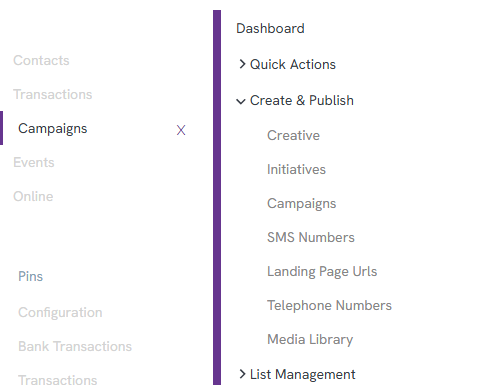
Step 2: Click the plus icon to Create New, then select Email Message.
Step 3: Give the creative a subject line (for example, "View Online Link") and click Save.
Step 4: In the message body, find a text block and highlight some text. The Special Links button will appear on the toolbar.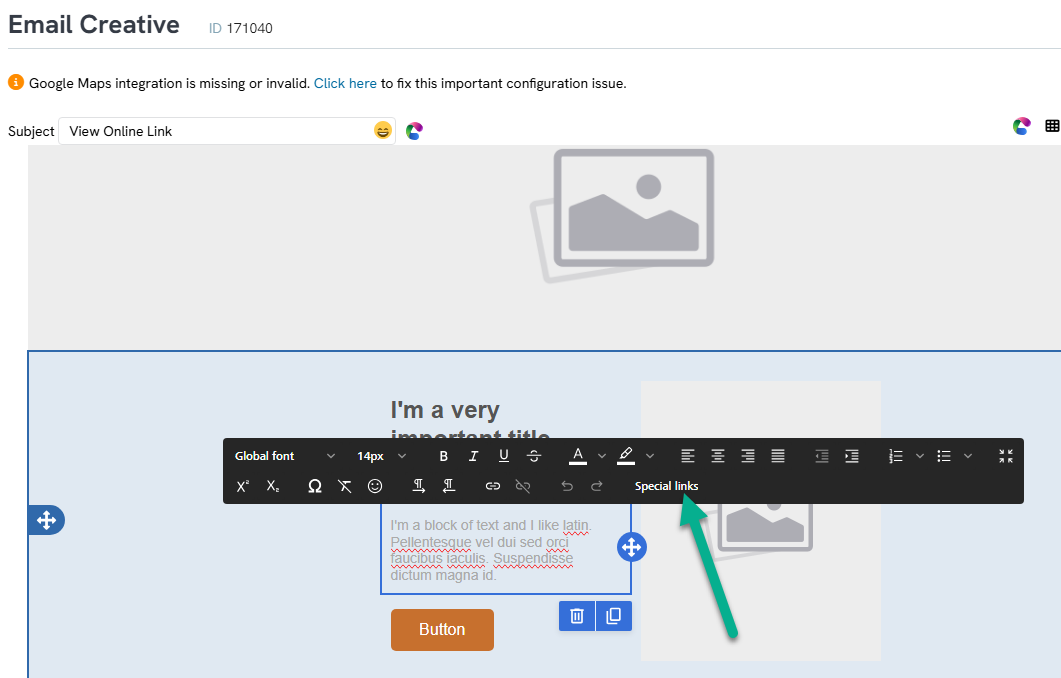
Step 5: Click Special Links on the toolbar. Several link options will appear, including View Online.
Step 6: Click View Online, then click View Message Online Link.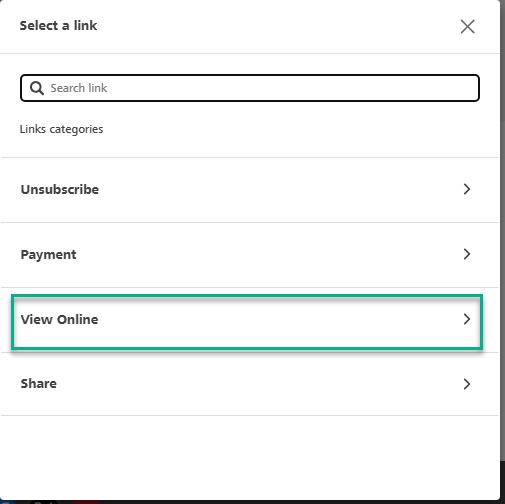
Step 7: A URL link is inserted into the highlighted text. Clicking on the inserted link shows that it is actually a token called Message View Online Link. This token will populate with the live View Online URL for this creative once the email is sent.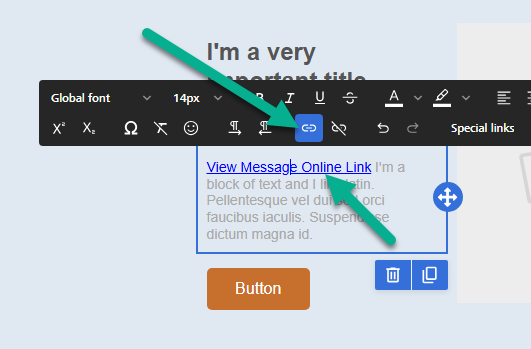
Step 8: Click Save on the link, then click Save again on the creative.
Step 9: Click the ellipsis (three dots) menu and select Save and Send Email Blast.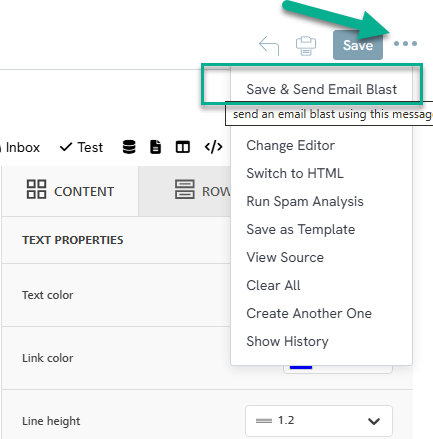
Step 10: In the Email Blast editor, since the goal here is only to generate the live View Online URL (not to send the newsletter to the full audience), select Manual mode under the Quick Email Blast options and enter your own email address into the Recipients box.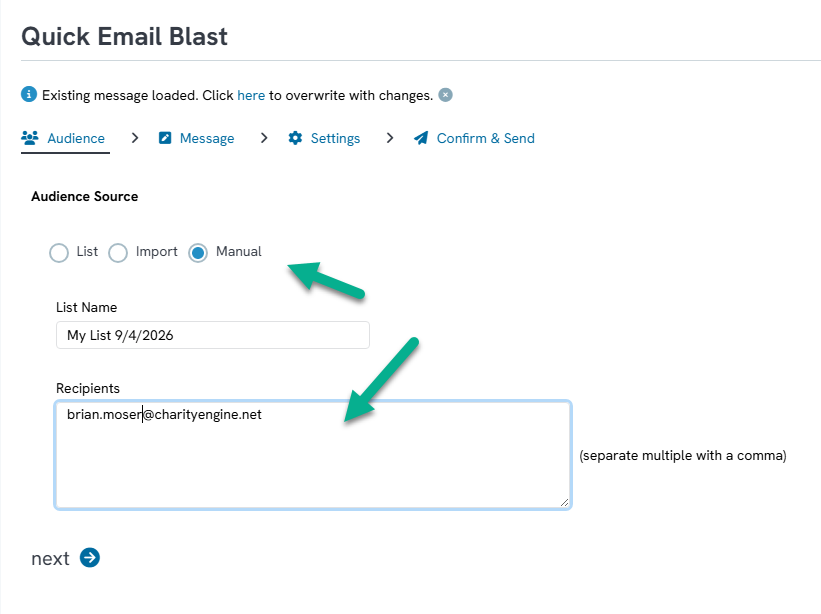
Step 11: Click Next to move to the Message step, where the message created – including the View Online Message link – will be visible for review.
Step 12: Complete the remaining Email Blast steps to send the test message to yourself. Once received, the Message View Online Link token will be replaced with the creative's live View Online URL. That URL can then be used elsewhere – for example, linked from an image on the organization's website – so visitors can view the exact newsletter content.
Here is the completed email: 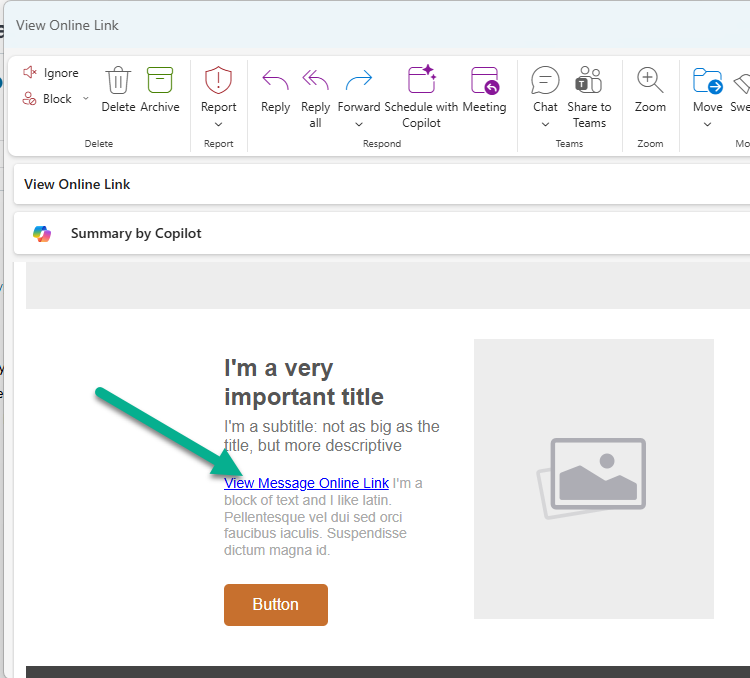
Step 13: Click the link to obtain the View Online URL. Use this URL to post to your website or socials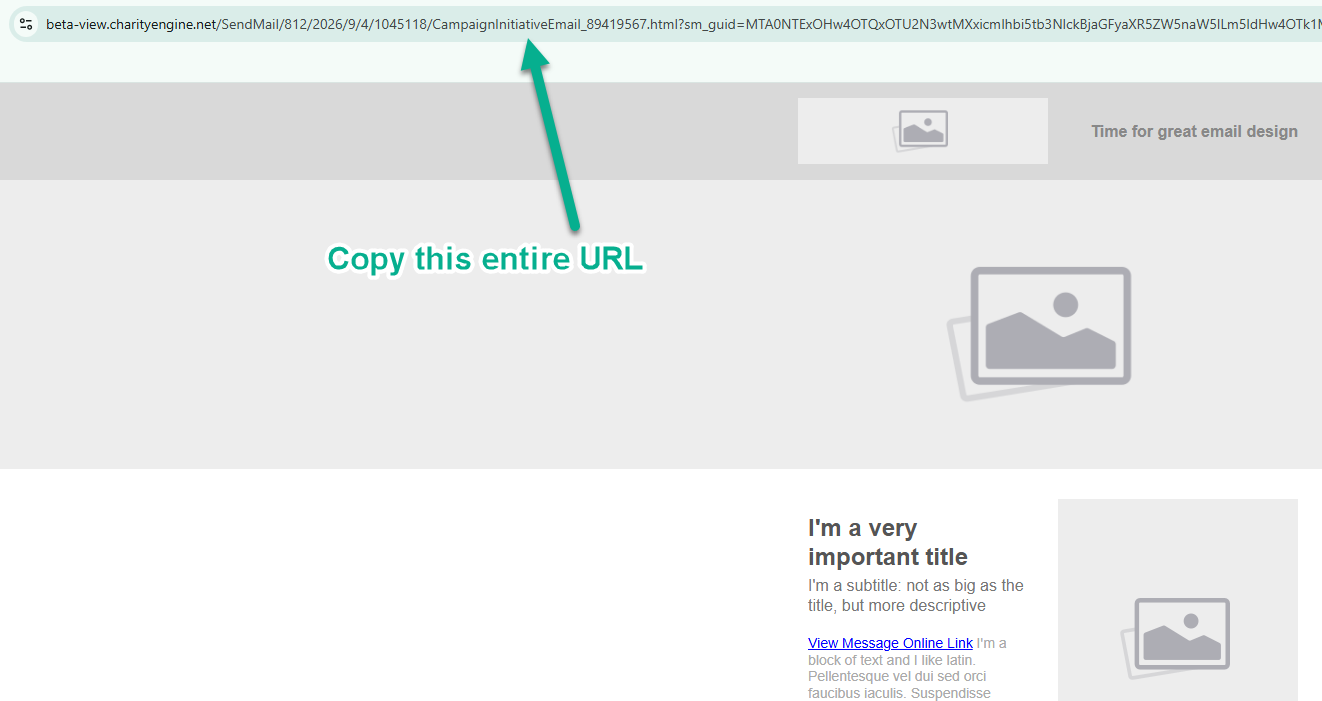
FAQs & Additional Reading
Q. Do I need to send the email to my full audience to get the View Online URL?
A. No. Sending a manual test to yourself is enough – the Message View Online Link token will resolve to the same live URL regardless of who receives it. But, if you want to add the View Onlink link as a courtesy to your email recipients, please feel free to do so.
Q. Can I reuse this URL outside of CharityEngine?
A. Yes. Once retrieved from a sent copy of the creative, the URL can be linked from a website, social post, or anywhere else an organization wants to point visitors to the exact content that was emailed.
