Introduction
CharityEngine for Excel is a Microsoft Excel add-in that syncs an individual CharityEngine query to an individual Excel sheet, where the data can then be further manipulated using Excel's own formula-based tools. CharityEngine for Excel is a paid add-on; to have it added to an organization's contract, reach out to your Client Experience Coordinator, or open a case with Support if you're not sure who that is.Table of Contents
Why Use CharityEngine for Excel?
Two common cases come up for using CharityEngine for Excel:
1. Transitioning to a new CRM: A smaller organization using CharityEngine as its first large CRM may not have its reporting fully configured yet. Since the raw data is already accessible, that data can be synced out to Excel so the organization can continue monitoring performance and donor activity during the transition, until reporting is fully settled inside CharityEngine.
2. Reporting Your Way Across Large Data Sets: When an organization needs to report across multiple large data sets or perform analysis beyond typical CRM reporting, CharityEngine for Excel provides greater flexibility. Sync each data set to its own worksheet, then use Excel’s formulas, PivotTables, and other familiar tools to combine and analyze the data based on the organization’s unique needs. Organizations can also incorporate data from other systems to create more comprehensive reports.
Instruction - Install and Log In to CharityEngine for Excel
Step 1: Open Excel. From the Home tab, click Add-ins.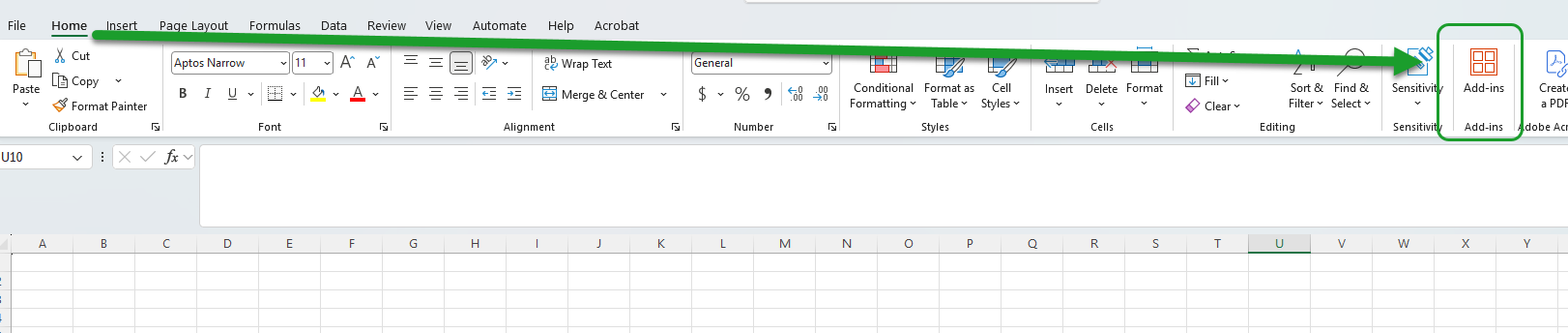
Step 2: In the add-ins search bar, search for CharityEngine. Under More Search Results, CharityEngine for Excel will appear.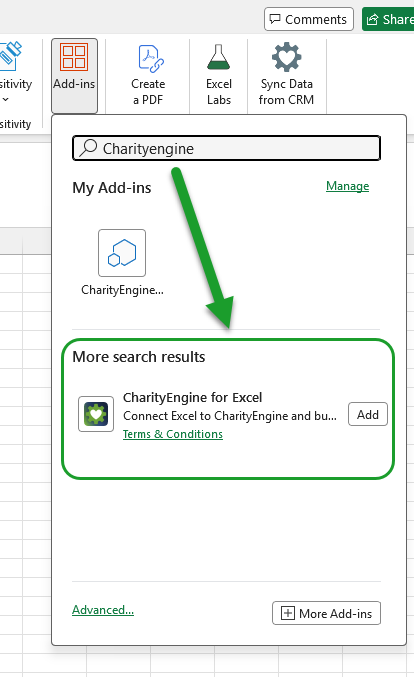
Step 3: Click Add on CharityEngine for Excel. This begins the installation process.
Step 4: Once installed, the Sync Data from CRM icon will appear on the Home toolbar, confirming the add-in installed successfully.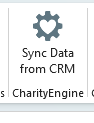
Step 5: Click the Sync Data button and the Excel connector panel will also pop out, showing a login screen. 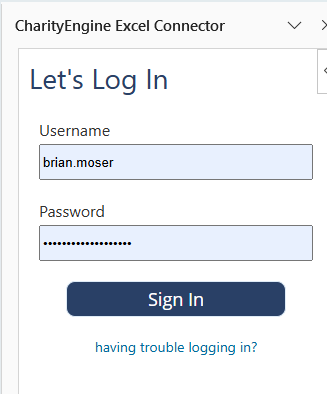
Note: If clicking Sign In does not allow login, this is an indication that CharityEngine for Excel has not yet been added to the organization's contract. Reach out to your Client Experience Coordinator, or open a case with Support if you're not sure who that is.
Step 6: Once signed in, the Sheet 1 connector panel appears, confirming Excel is fully set up and ready to connect a query.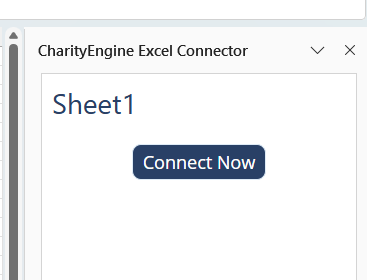
Instruction - Build a Query to Sync
NOTE: This article is not about building queries. If you are interested in this Excel feature, we are assuming you are already familiar with the query module for simple reporting.
Step 1: Navigate to Automation > General > Queries.
Step 2: Click the plus icon to create a new query record and select the Transactions query type. Give it a descriptive name (for example, "Donation Transactions") and click Continue.
Step 3: Add filters as needed (for example, filtering to transactions with a most recent transaction date in the last 30 days).
Step 4: Add the fields to return in the query's select list (for example, transaction amount, payment method, and settlement date).
Step 5: Click Run to confirm the query returns the expected results, then Save the query.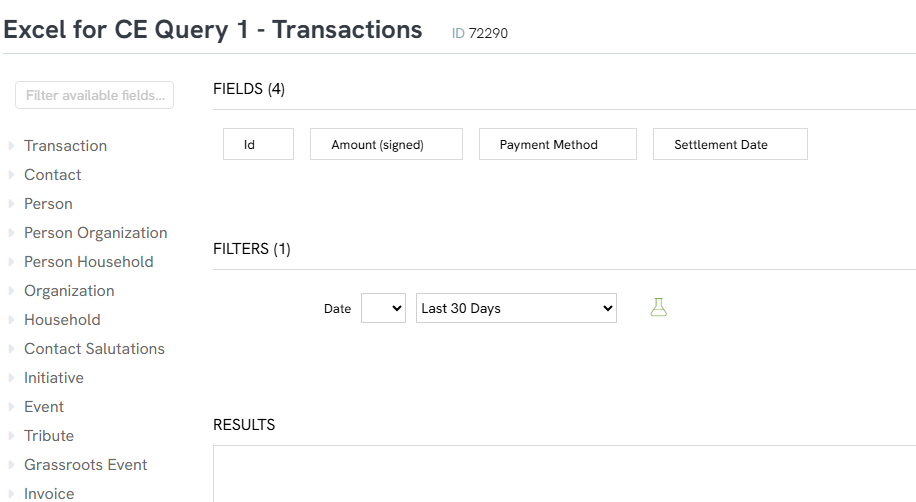
Instruction - Connect and Sync a Query in Excel
Step 1: In Excel, open the CharityEngine for Excel sidebar and click Connect Now.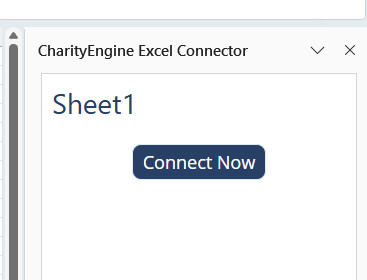
Step 2: Enter the query's dataset ID into the search bar and click Search (for example, a five-digit ID such as 72290). The matching query will appear in the results.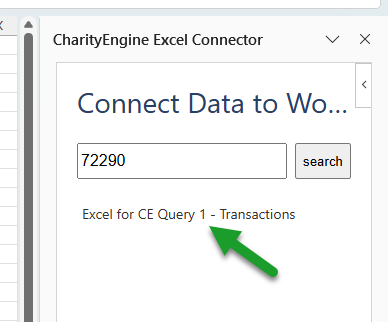
Step 3: Click the query to connect it.
Step 4: Configure the sync options: choose whether to sync the column names, set where the data should start on the sheet, and choose which optional columns to include. Leaving the optional columns field blank syncs all columns; specific columns can be selected instead if only a subset is needed.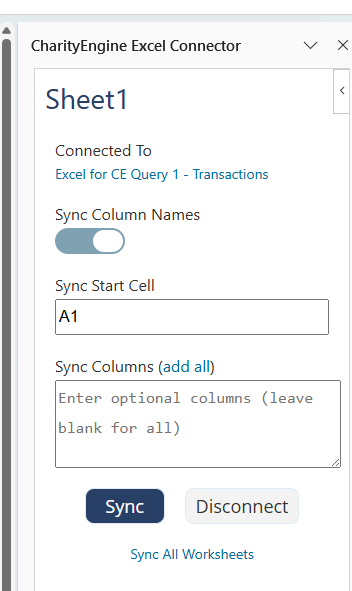
Step 5: Click Sync. The query's data will populate into the active Excel sheet.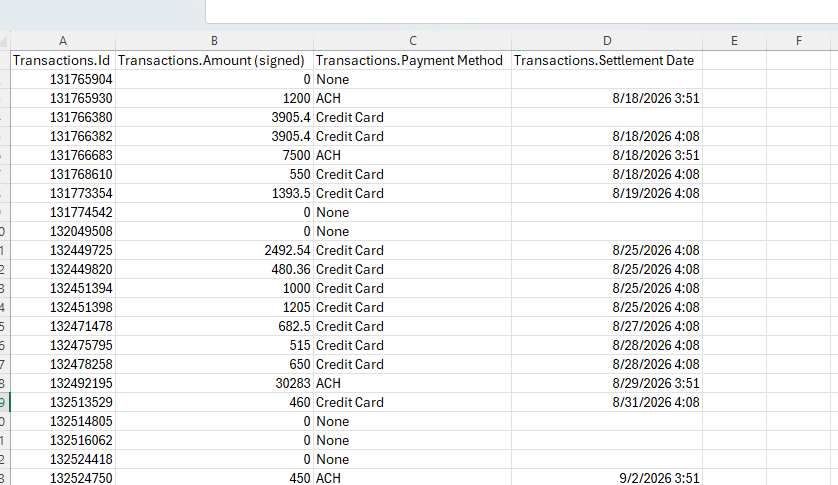
Step 6: To sync an additional query, add a new sheet in Excel. The new sheet will prompt to connect a query as well. Repeat Steps 1–5 to complete the connection.
Note: Any number of sheets can be added, each syncing its own query. Once the data is in Excel, it can be combined and analyzed using standard Excel tools such as pivot tables and formulas.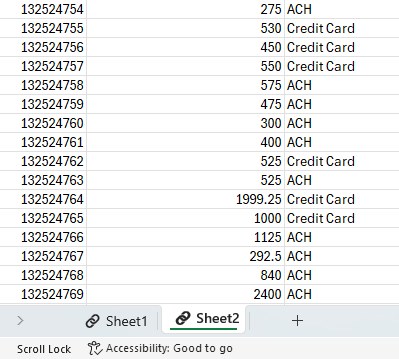
FAQs & Additional Reading
Q. I clicked Connect Now but can't log in – why?
A. This usually means CharityEngine for Excel hasn't been added to your organization's contract yet. Reach out to your Client Experience Coordinator, or open a case with Support.
Q. Can I sync more than one query at a time?
A. Yes. Each sheet in an Excel workbook can connect to its own query – add as many sheets as needed and connect a query to each one.
Q. What does leaving the optional columns field blank do when syncing?
A. It syncs every column from the query. Specific columns can be entered instead to sync only a subset of the query's fields.
