Introduction
Users may need to create a single contact list that includes both organizations and individual constituents while excluding people who have been marked as deceased. This can be useful when creating email recipient lists, exports, Communication Series audiences, or other communication and fundraising lists.
This article explains how to create a Contact Query that returns:
-
All Organizations that can receive email
-
All People who are not marked as deceased and can receive email
-
Only contacts with a Primary Email Address
Prerequisites
Before creating the query, ensure:
-
Contacts intended to receive email have a valid Primary Email Address.
-
The Receive Email field is enabled for contacts intended to receive email.
-
Deceased contacts have been appropriately marked as deceased on their contact record.
Instructions – Creating the Contact Query
Step 1: Create a New Contact Query
Navigate to Queries and select New Query.
Select the Contacts data source.
Step 2: Add the Output Fields
Add the fields that should be returned in the query results.
Common output fields may include:
-
ID
-
Full Name
-
Company Name
-
Type
-
Active
-
Receive Email
-
Primary Email Address
-
Deceased
Additional fields can be added based on how the query results will be used.
Step 3: Add the Email Filters
Add the following filters to ensure the query only returns contacts who are configured to receive email and have an email address.
Filter 1
Field: Receive Email
Operator: Equals
Value: 1
This filter limits the results to contacts with Receive Email enabled.
Filter 2
Field: Primary Email Address
Operator: Not Equals
Value: Leave blank
This filter excludes contacts that do not have a Primary Email Address.
Step 4: Build the Contact Type Logic
Create an OR group to include both Organizations and eligible People.
Within the OR group, add the following condition:
Field: Type
Operator: Equals
Value: Organization
Next, create an AND group beneath the OR group.
Within the AND group, add the following conditions:
Field: Type
Operator: Equals
Value: Person
Field: Deceased
Operator: Not Equals
Value: 1
This logic returns all eligible Organizations or People who are not marked as deceased.
Step 5: Review the Filter Structure
The completed filter hierarchy should be configured as follows:
Receive Email = 1
AND
Primary Email Address is not blank
AND
(
Type = Organization
OR
(
Type = Person
AND
Deceased does not equal 1
)
)
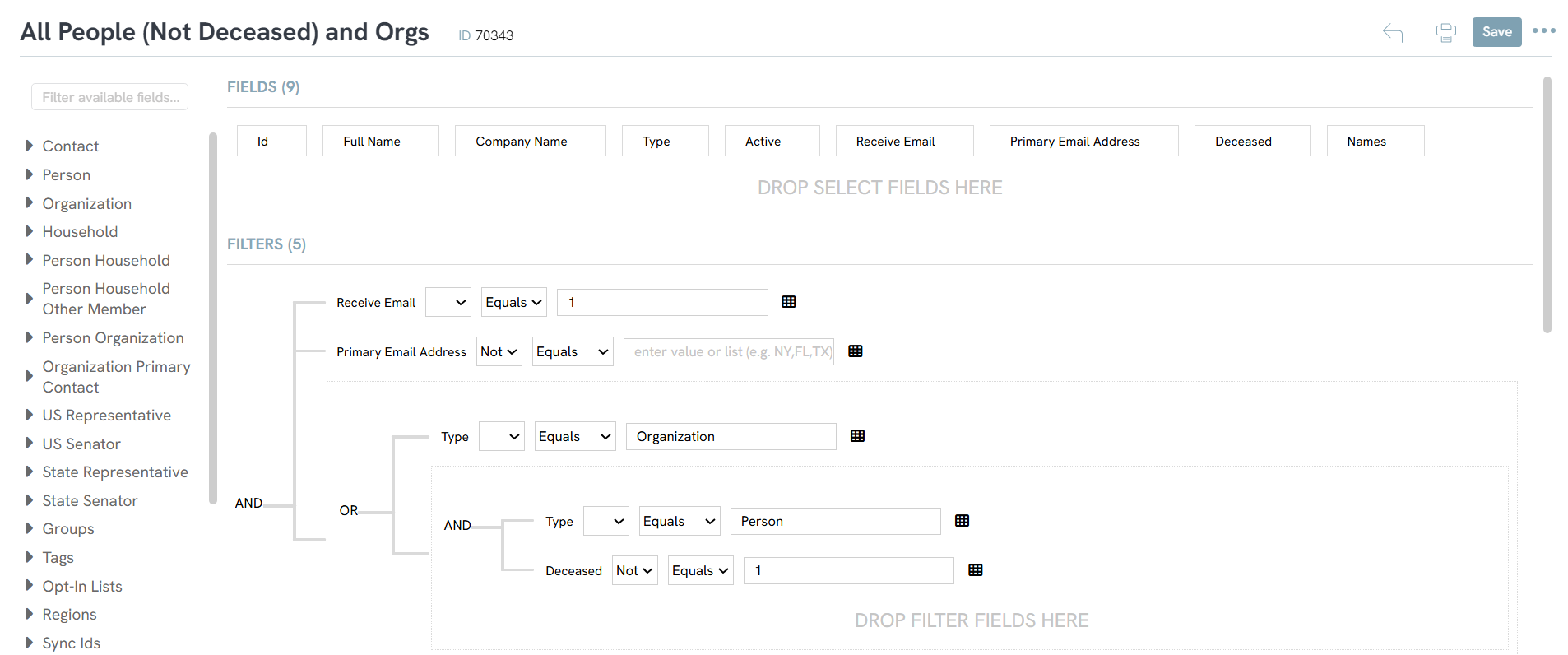
The visual filter structure should resemble:
-
Receive Email = 1
-
Primary Email Address is not blank
-
OR
-
Type = Organization
-
AND
-
Type = Person
-
Deceased does not equal 1
-
-
Outcome
Once the query is configured, the results will include Organizations with a Primary Email Address that are configured to receive email.
The results will also include People who:
-
Are not marked as deceased
-
Have a Primary Email Address
-
Are configured to receive email
The query will exclude deceased People, contacts without a Primary Email Address, and contacts with Receive Email disabled.
This query can be used to support email recipient lists, exports, Communication Series audiences, and other marketing or fundraising communication lists.
FAQ & Further Reading
Q. Why are some Organizations missing from the query results?
A. Verify that the contact's Type is set to Organization, the contact has a Primary Email Address, and Receive Email is enabled.
Q. Why are some People missing from the query results?
A. Confirm that Receive Email is enabled, a Primary Email Address exists, and the contact is not marked as deceased.
Q. Why are deceased contacts appearing in the query results?
A. Confirm that the Deceased field is correctly configured on the contact record. The query filter should be configured as Deceased > Not Equals > 1 rather than Equals > 0, as blank values may also represent contacts who are not marked as deceased.
Q. What can this query be used for?
A. The query can be used to create master email lists, newsletter recipient lists, Communication Series audiences, contact exports, and marketing or fundraising communication lists.
Articles
- Queries: What Can I Do with Queries - Locating Contacts Within X Miles
- Queries: What Can I Do with a Query: Donations Within X Days
- Queries: What Can I Do with Queries - Event Registration
- Queries: What Can I Do With Queries - Resend Initiatives to Contacts Who Have Not Opened Them
- People App: Managing Contact Status Types and Priority
- Sustainer Records: How to Deactivate Sustainers in Mass
- Automation & Workflow
- API Configuration: How to Configure your WealthEngine API Key
- Data Governance: Updating Contact Records Through the Transaction or Contact Screen
- Workflows: How to Bulk Delete Transactions Using Transformation Tool
- Data Importing: How to Import Relationships
- Tributes: How to Clean Up Tributes without Acknowledges
- Workflow & Automation: Data Governance - Transaction Management (Duplicate Transactions)
- Automation & Workflow: A Basic Understanding of Triggers
- Data Import: How to Import Soft Credits
- Email Activity Tracking within CharityEngine
- Automation & Workflow: Manually Sending Year End Statements to Households
- Automation & Workflow: Using the Import Functionality to Append Data
- Data Enrichment Job: How to Update Address with the Zip +4 and USPS Address Correction feature
- Trigger Tool: How to Auto Assign Contacts to a Household
- Opportunities & Moves Management: Comprehensive Guide for Set Up, Configuration & Reporting
- Reporting and Dashboards
- Reports & Analytics: Overview and Usage of the Reports & Analytics Application
- Automation & Workflow: Modifying a Data Job
- Data Importing: How to Import Contact - Organization Data
- Data Importing: How to Import Contact - Household Data
- Learn how to track MobilePay transaction data in CharityEngine to gain insights into donor activity.
- Data Importing: How to Import Pledge Accounts & Historical Pledge Transactions
- Queries: What Can I Do with Queries - Creating A Comm List including People, Households, Orgs
- In-Kind Gifts: How to Create and Manage In-Kind Gifts - A Comprehensive Guide
- Data Governance: Change Logs
- Data Importing: External Bulk Verification Services
- Automation & Workflow: An Introduction to Queries
- Developer: API - Installing the CharityEngine Public Web API
- Data Importing: How to Import Contact - People Data
- Assigning Groups, Tags, and Opt- In Lists Through Importer
- Data Importing: Contacts & Use of Contact Matching
- Exporting Data: How to Schedule an Export Data Job
- Workflow & Automation: Data Governance – Contact Management (Merge, Delete, Inactive)
- Email Campaigns: How to Build Opt In List - Using Query Builder to Segment Existing Lists
- How to Clear Contacts from Groups, Tags, and Lists Using Trigger Tool
- Reports & Analytics: An Introduction to Frequent Reporting Options within CharityEngine
- Trigger Tool – Creating an Opt-In List
- Data Governance: Best Practices for Backing Up Data
- API Integration: Configuring API User Account
- Automation & Workflow: Merge History
- Reports & Analytics: How to Use the Report Builder Tool
- Data Importing: How to Import Transactions
- Automation & Workflow: An Overview of Triggers & Use Case - Examples
- NCOA & Data Enrichment Services
- CharityEngine for Excel (Excel Connector - New)
- CharityEngine for Excel
