Introduction
The Funds Raised Report is an event reporting tool that breaks out the different revenue types generated from a single event transaction – for example, the tax-deductible versus non-tax-deductible portions, or the individual amounts for a registration, an additional donation, and a covered processing fee. A single event transaction can carry more than one of these revenue types at once, and the Funds Raised Report is where users can see that breakdown.Table of Contents
Why Use the Funds Raised Report?
There is a one-to-many relationship between revenue types and a single event transaction. For example, one transaction entered against an event registration form may natively include an event registration amount(Type = Registration), an additional donation amount(Type = Donation), and a covering processing fee amount(Type = Donation). Each of these needs to be treated and reported on differently, even though they all came from the same transaction.
Here is an example transaction that includes two event registration ticket purchases for $25, and a cover processing fee amount for $2.50. As you can see we accumulate all the revenue types under one transaction for payment processing. 
This is also why the Funds Raised Report is not the same as drilling in through the Donations column on the Events screen. Clicking the amount under the Donations column shows all of the raw transactions that included a donation for that event – but it shows each one as its full transaction amount, without breaking out the individual revenue types inside it. To see the actual breakdown between a registration amount, an additional donation amount, and any covered fees within a single transaction, users need to use the Funds Raised Report specifically, accessed through the raised amount in the Summary column.
Instruction - View the Funds Raised Report for an Event
Step 1: Navigate to Events > Events > Search and Manage.
Step 2: Search for and locate the event to report on.
Step 3: Under the Three Dots on the event asset, you can select "Funds Raised Report". Or alternatively, look at the Summary column for that event, click the raised amount. This opens the Event Fundraise Detail reporting screen.
Three Dots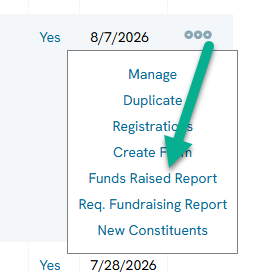
Summary Column
Step 4: On this screen, review the ID column, which shows either a Transaction ID or a Registration ID, along with the Type column showing whether each line is a Donation or a Registration, plus its amount and date. A single transaction that included both a registration and an additional donation will appear broken out into separate lines here.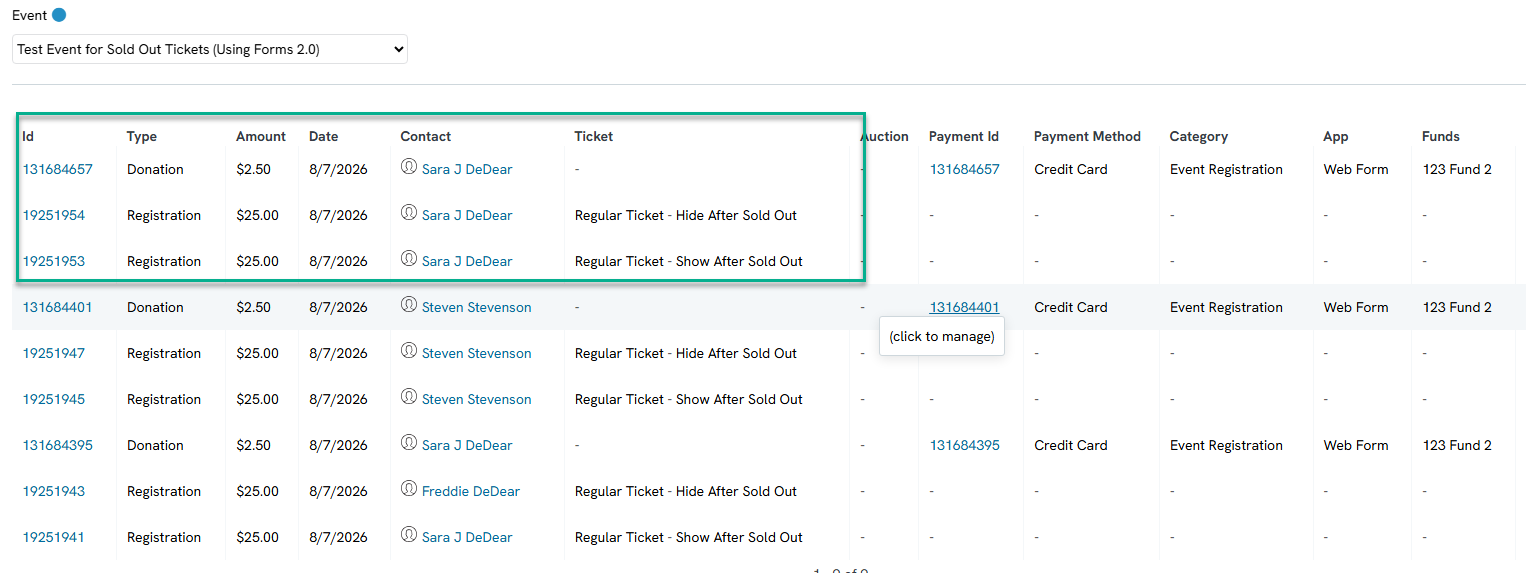
Step 5: Use the event filter on this screen to switch to a different event, if needed.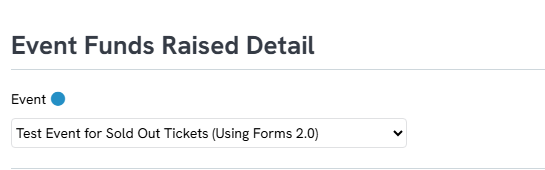
Step 6: To export the report, click the Export Results (download) button in the top right, then click Continue. This sends the report to Excel, where it can be further refined or formatted to meet the organization's needs.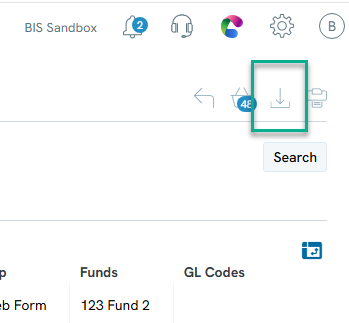
FAQs & Additional Reading
Q. What's the difference between clicking the raised amount in the Summary column versus the amount in the Donations column?
A. The Summary column's raised amount opens the Funds Raised Report, which breaks each transaction into its individual revenue types (registration amount, additional donation amount, covered processing fee, etc.). The Donations column instead shows the full raw transaction amount for every transaction that included a donation, without breaking it into those individual revenue types.
Q. Can I export the Funds Raised Report?
A. Yes. Click the Export Results button in the top right, then Continue, to send the report to Excel for further formatting or analysis.
