Introduction
Users can display live fundraising progress during an event with the CharityEngine Event Dashboard. The dashboard works together with paddle assignments at registration and the Quick Pledge workflow to show revenue raised against the event revenue goal, with totals that accumulate in real time. During a paddle raise, users simply enter the paddle number and pledge amount, and the pledge is created for that registrant and reflected on the dashboard immediately. Pledges can then be collected at checkout or at a later time.Table of Contents
How the Event Dashboard Works
A paddle raise is a fast-moving, auction-style moment where attendees compete to make pledges to the event. Because bidding moves quickly, keeping track of who pledged what can be confusing. The Event Dashboard is designed to keep up with that pace:
1. Paddle Assignment: Each registrant is assigned a paddle number, either during manual registration or at check-in for registrations that came through a web form.
2. Quick Pledge: When an attendee raises their paddle, users enter only the paddle number and pledge amount. Because the paddle number is connected to the registrant, the pledge is created for that registrant automatically.
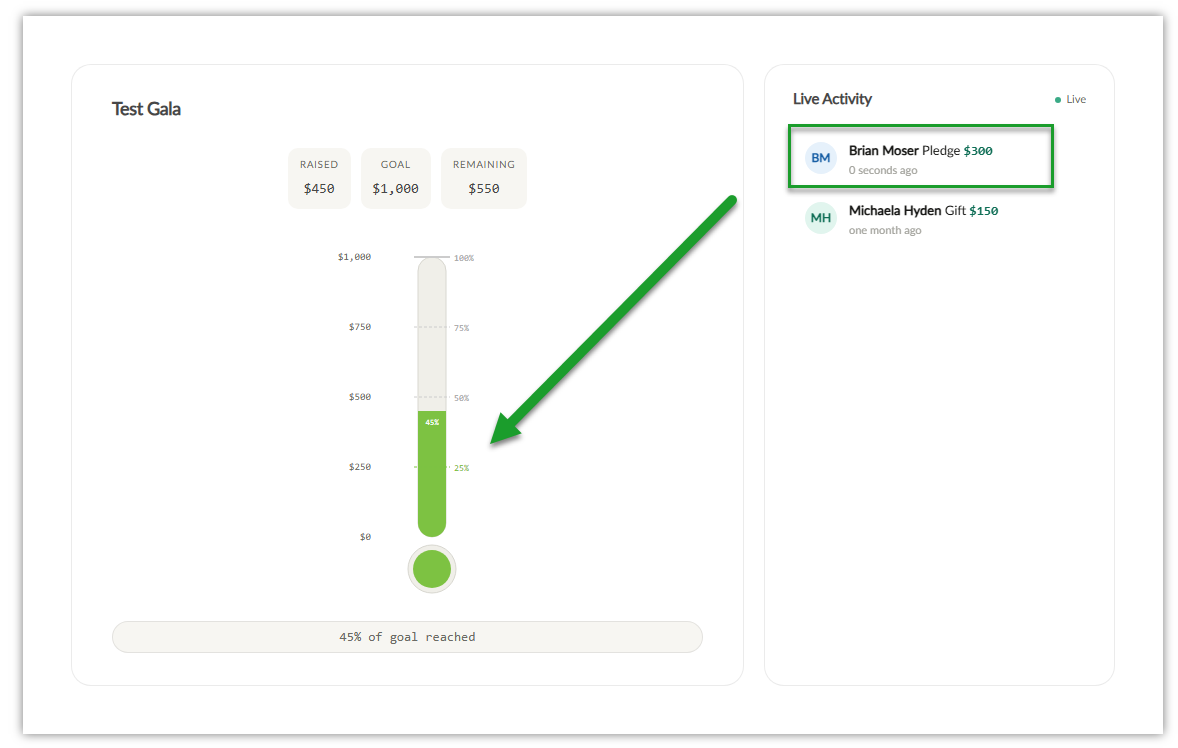
3. Event Dashboard: Displayed on screen during the event, the dashboard shows the amount raised, the event goal, the amount remaining, the percentage of the goal reached, a progress bar, and recent pledge activity, all updating in real time as Quick Pledges are posted.
Instructions - Assign a Paddle Number to a New Registration
Step 1: Navigate to Events > Events > Search & Manage and search for the event.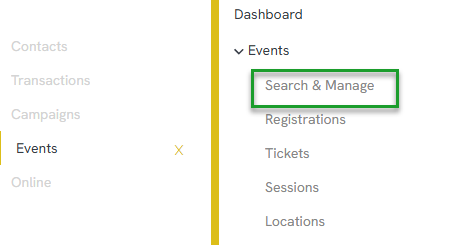
Step 2: Click the Registrations number for the event to open the event's registrations.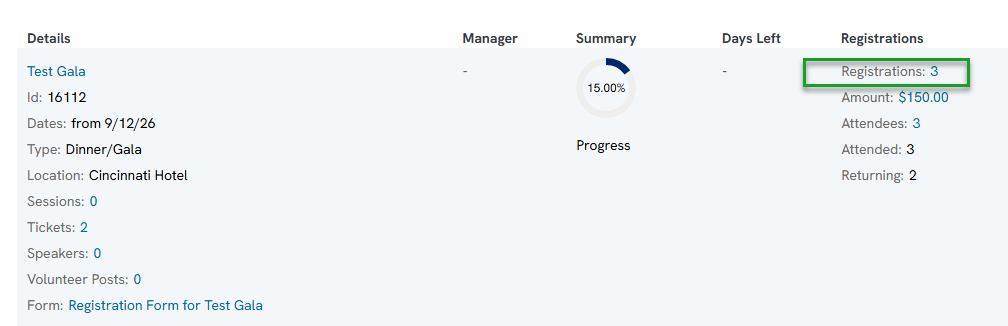
Step 3: Create a new registration for the attendee.
Step 4: In the Paddle Number option, click Assign. The next available paddle number is assigned automatically (for example, if paddle #1 is already taken, paddle #2 is assigned).
Step 5: Click Save.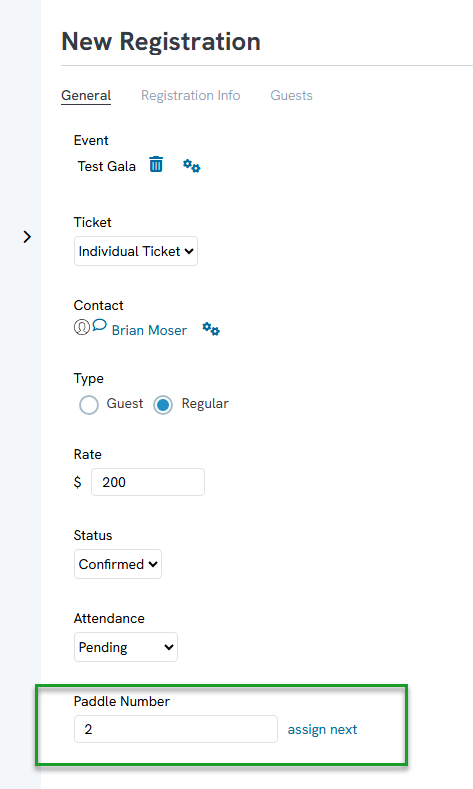
Instructions - Assign a Paddle Number at Check-In (Web Form Registrations)
Registrations that came through a web form can be assigned a paddle number when the attendee checks in to the event.
Step 1: From the event's registrations, locate the attendee's registration and click Manage.
Step 2: In the Paddle Number option, click Assign. The next available paddle number is assigned automatically.
Step 3: Click Save.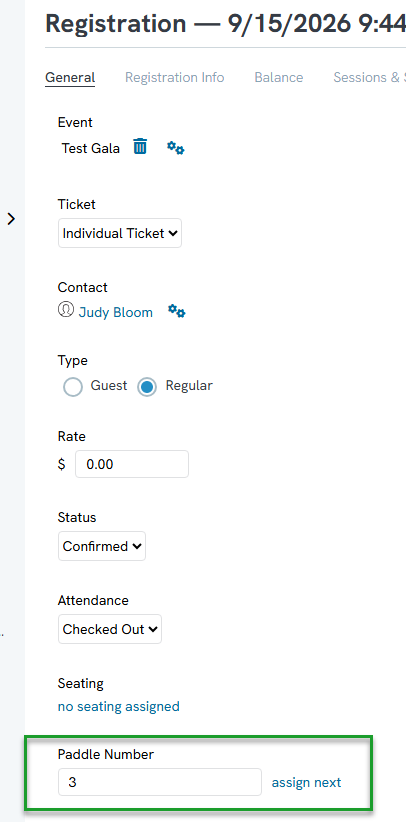
Note: Assigned paddle numbers can be viewed in the Ticket column of the event's registrations.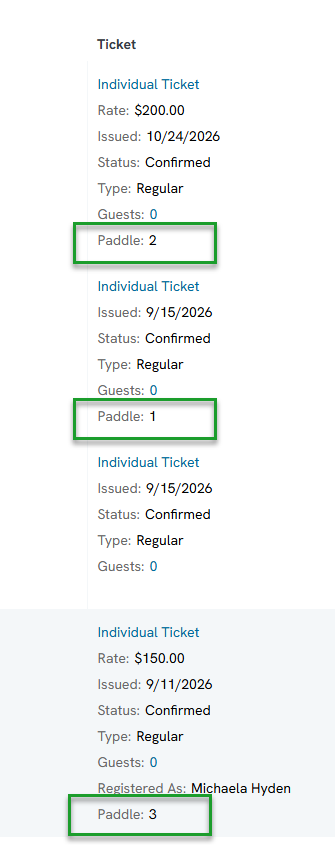
Instructions - Open the Event Dashboard
Step 1: Navigate to Events > Events > Search & Manage, search for the event, and click Manage.
Step 2: Click the ellipses (...) and select Event Dashboard.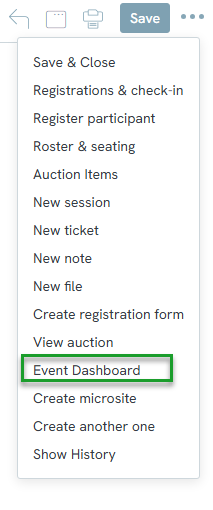
Step 3: Display the dashboard on screen when pledge bidding begins. The dashboard shows the amount raised, the event goal, the amount remaining, the percentage of the goal reached, and the pledge activity as it comes in.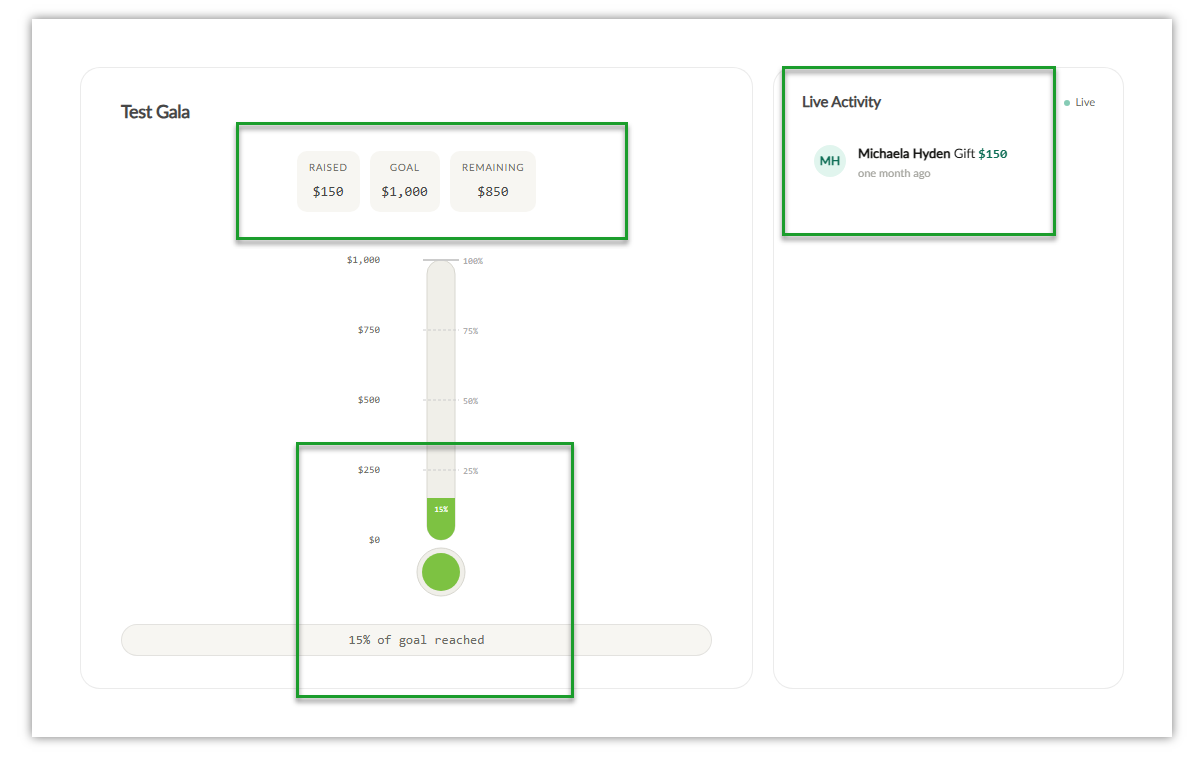
Instructions - Create a Quick Pledge
Step 1: From the event management screen, click the Fundraising tab and select Pledges.
Step 2: When an attendee raises their paddle, enter the amount in the Enter Pledge Amount field and the attendee's number in the Enter Paddle Number field.
Step 3: Click Post Pledge. The pledge is created for the registrant assigned to that paddle number.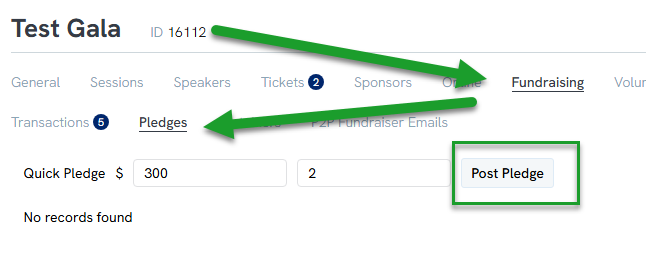
For example, if paddle #2 pledges $300, enter 300 as the pledge amount and 2 as the paddle number, then click Post Pledge. A $300.00 pledge is created for the registrant holding paddle #2, and the Event Dashboard immediately updates the amount raised, the percentage of goal reached, and the activity list.
Note: Users do not need to know the attendee's name to create a Quick Pledge. The paddle number is already connected to the registrant.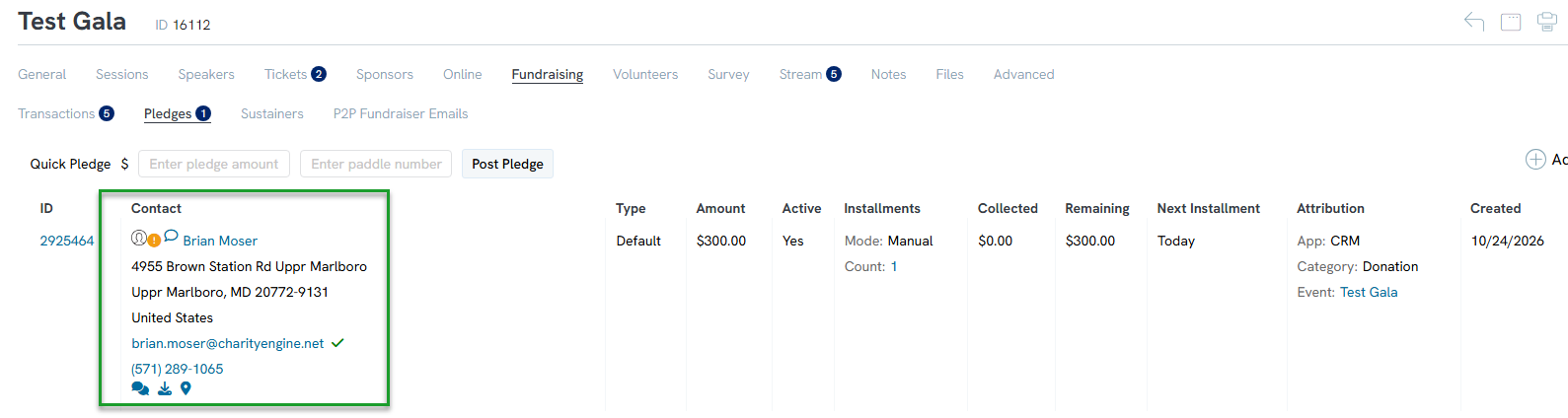
FAQs & Additional Reading
Q. When do attendees pay their Quick Pledge?
A. Quick Pledges can be collected at event checkout or at a later time.
Q. Can a paddle number be assigned to someone who registered through a web form?
A. Yes. When the attendee checks in, Manage their registration and click Assign next to the Paddle Number option.
Q. Where can users see which paddle number belongs to which registrant?
A. Paddle assignments are shown in the Ticket column of the event's registrations.
