Introduction
Users can add a donation thermometer (also called a goal meter) to a web form to display the amount raised against a goal. The thermometer pulls its data from an Initiative connected to the form – the goal shown is the initiative's goal, and the amount raised reflects the total raised by that initiative. There are two ways to add a goal meter: through the wizard when creating a new donation form, or by adding it manually to an existing form.Table of Contents
Instruction - Add a Goal Meter Using the New Donation Form Wizard
Step 1: Navigate to Online > Web Forms > Search and Manage.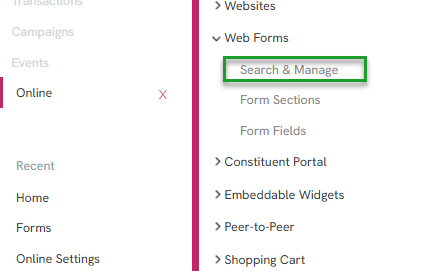
Step 2: Click the plus icon to add a new record. 
Step 3: Select Donation Form and click Continue.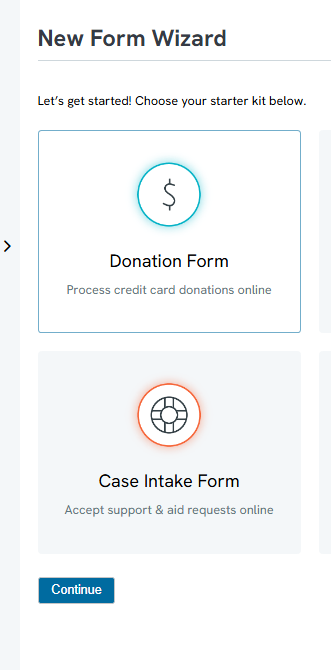
Step 4: In the pop-up that appears, toggle Add a Goal Meter to Yes.
Step 5: When asked whether to connect to an existing initiative, choose Yes and search for the initiative to connect – or, if it doesn't exist yet, create a new one directly from this screen by entering an Initiative Name, a Goal amount, a Media Channel, and a Campaign (a campaign selection is required in addition to the media channel).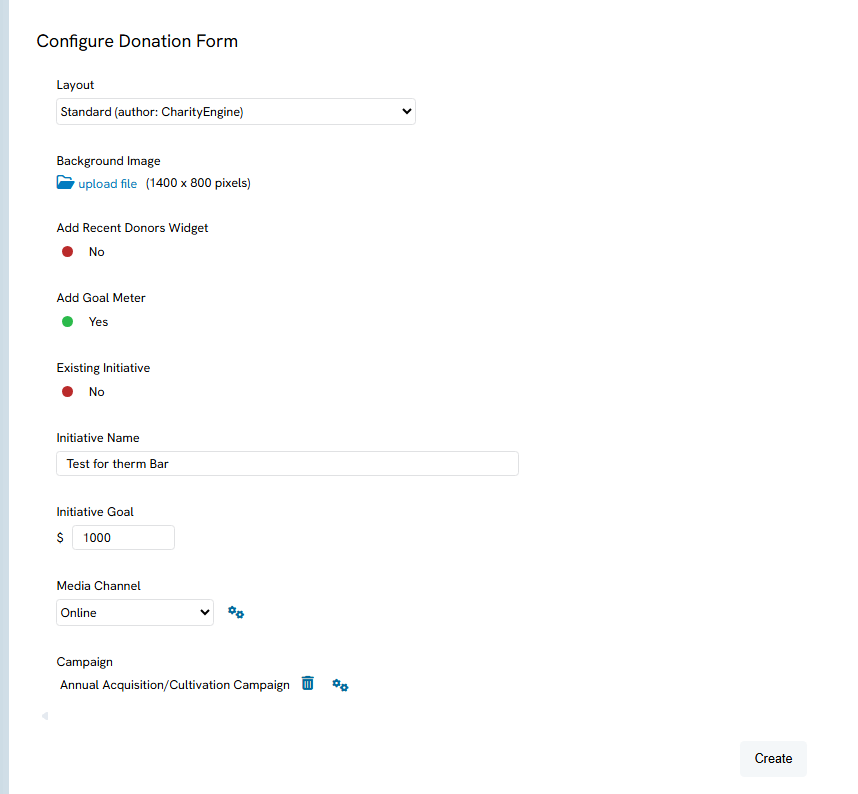
Step 6: Click Create.
Step 7: Open the new donation form using its link. The goal meter (raised bar) will now be visible on the form, reflecting the connected initiative's goal and current amount raised.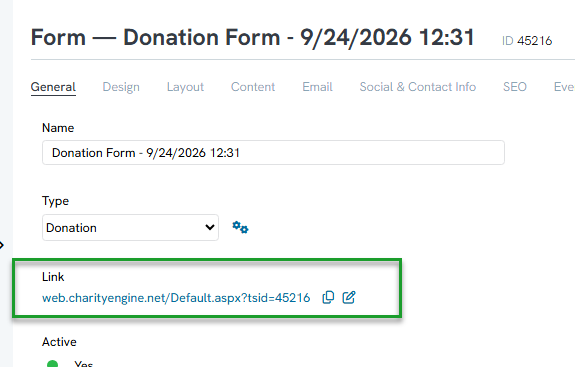
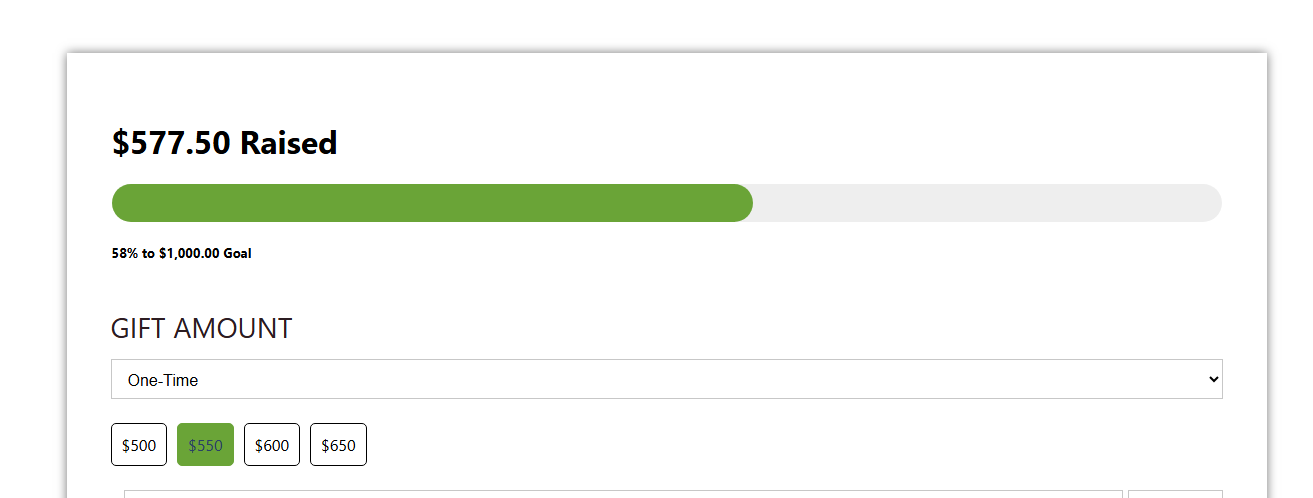
Note: Test mode transactions are not actually processed, so they will not update the goal meter. To see the bar update, a live transaction needs to be run through the form. Once a gift is given, it will appear in the Transactions module associated with the initiative, and the goal meter will update to reflect it – this can take a moment to sync up before the updated amount is visible.
Instructions - Add a Goal Meter to an Existing Form
Step 1: Navigate to Online > Web Forms > Search and Manage.
Step 2: Click the plus icon, select Donation Form, and click Continue.
Step 3: In the pop-up, click Create without enabling the goal meter option. This creates a plain donation form with no goal meter attached yet.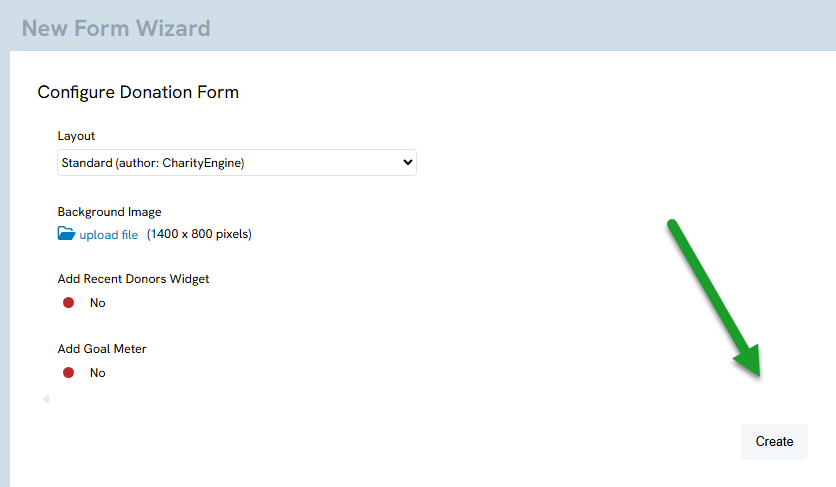
Step 4: Once the new form is created, click the Advanced Tab > Campaigns Tab to search for the initiative to connect to the form (for example, "Test for Therm Bar") and select it. This adds the goal meter to the form.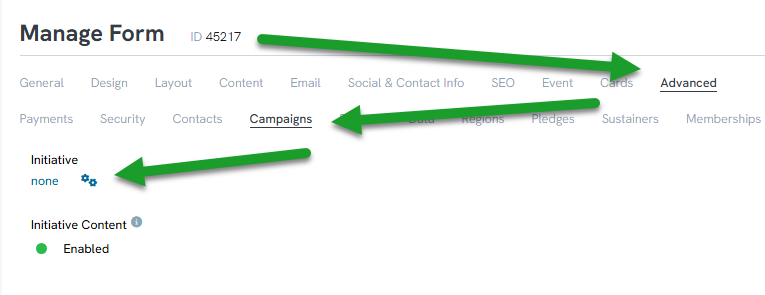
Step 5: Click Save on the form.
Step 6: We have a Goal Bar widget that can be used to add, its here in the web form Contact area: Click the Content Tab > Landing Page > Widgets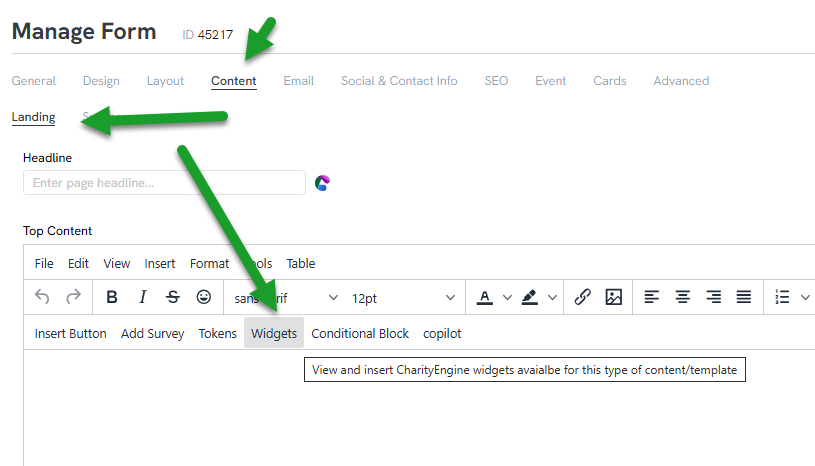
Step 7: Click to add the Initiative Amount Raised Meter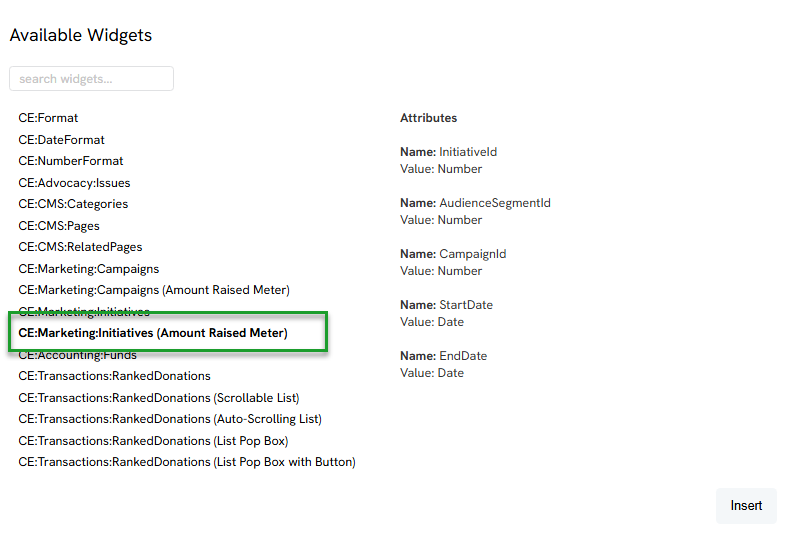
Step 8: You will now see the Goal Bar added to the Contact area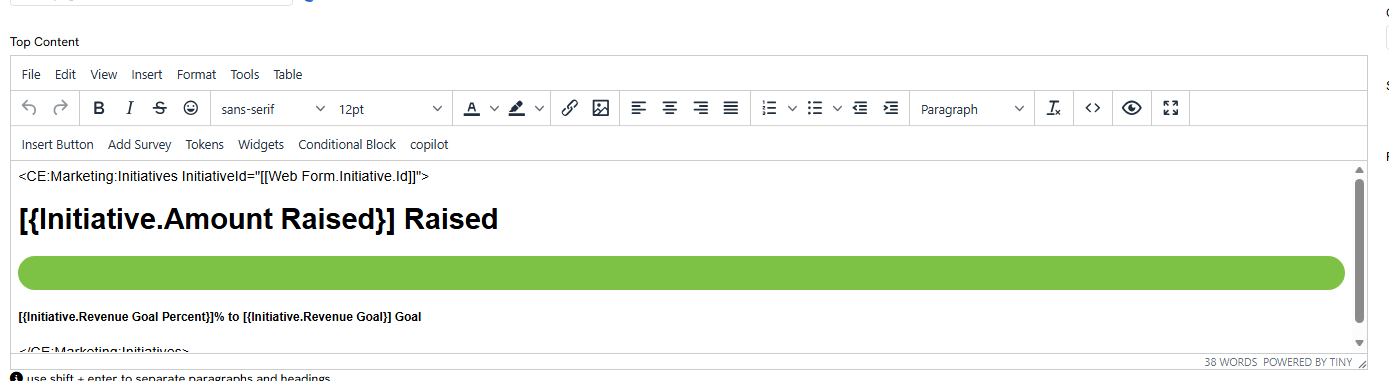
Step 9: View the form link to see the goal bar added: 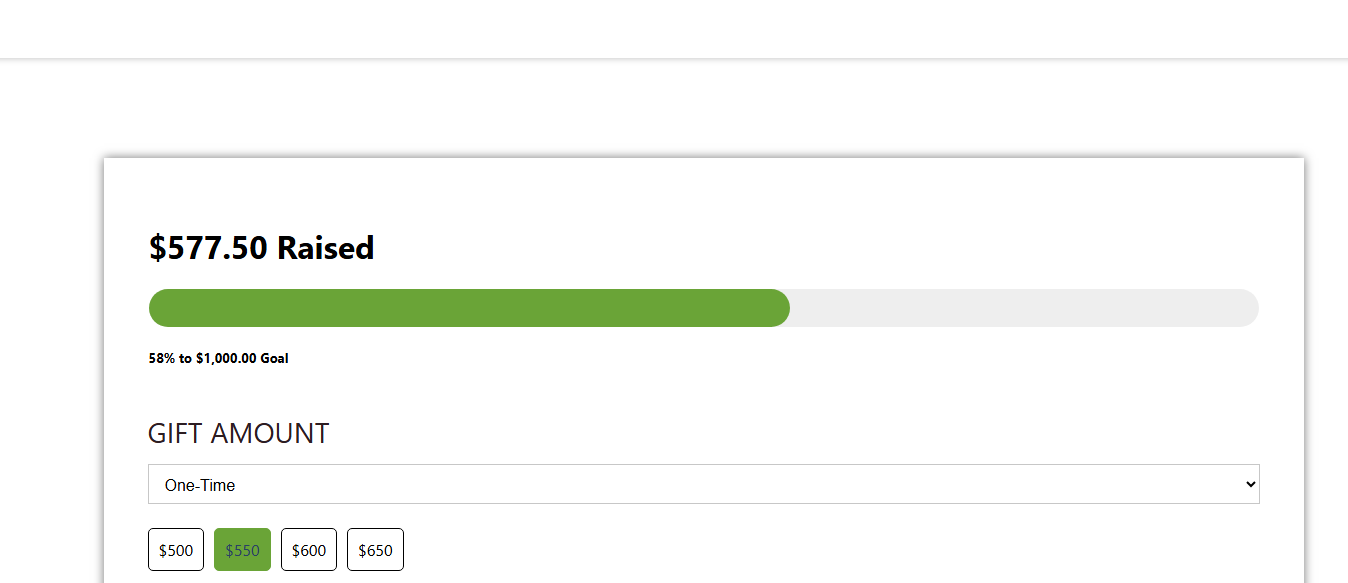
Note: The goal meter bar can update immediately, or it may take a minute or so to catch up and reflect the initiative's current raised amount.
FAQs & Additional Reading
Q. Where does the goal meter get its data from?
A. From the Initiative connected to the form. The meter reflects the goal and total amount raised for that initiative, not just for the individual form.
Q. Can I test the goal meter using the form's test mode?
A. No. Test mode transactions are not actually processed, so they will not update the goal meter. A live transaction is needed to see the bar update.
Q. What do I need if I'm creating a new initiative from the form wizard?
A. An Initiative Name, a Goal amount, a Media Channel, and a Campaign.
