Introduction
Users can add Check as a payment option on a web form. When a donor or registrant checks out using Check, CharityEngine creates an Unconfirmed Check transaction – a placeholder that represents a promise to pay while the physical check is in transit.Table of Contents
Why Add Check as a Payment Method?
An unconfirmed check transaction acts as a placeholder while a check is expected to arrive. It can be used as a reminder to follow up with the donor or registrant, or as a trigger to send an additional electronic invoice if the check doesn't come in or the payer changes their mind. If the check never arrives, the unconfirmed check can simply be deleted, since it remains in a status that allows deletion until it's confirmed.
Instruction - Add Check as a Payment Method on a Web Form
Step 1: Navigate to Online > Web Forms > Search and Manage.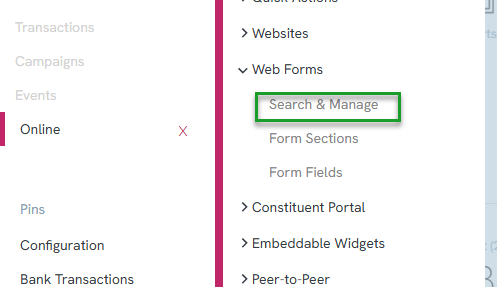
Step 2: Click the plus button (Add New) to create a new record.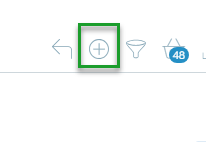
Step 3: In the New Donation Form wizard, select Donation Form and click Continue.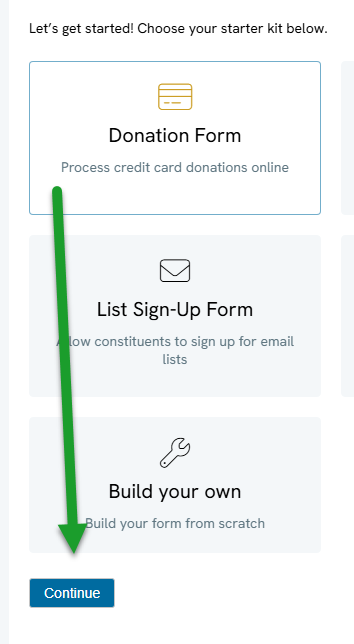
Step 4: When the configuration pop-up appears, click Create.
Step 5: Click the Layout tab and expand the Payment Fields section.
Step 6: Click the pencil icon to edit the Payment Method field.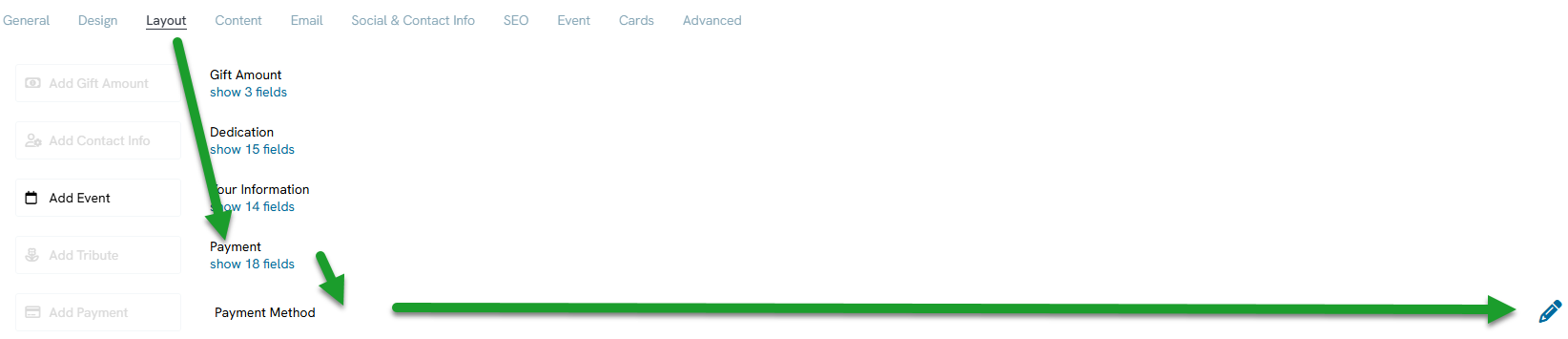
Step 7: With the payment method field open, click the Display tab, then click the Advanced tab. This is where the available payment methods for the form are listed.
Step 8: Click the plus icon to add a new payment method option.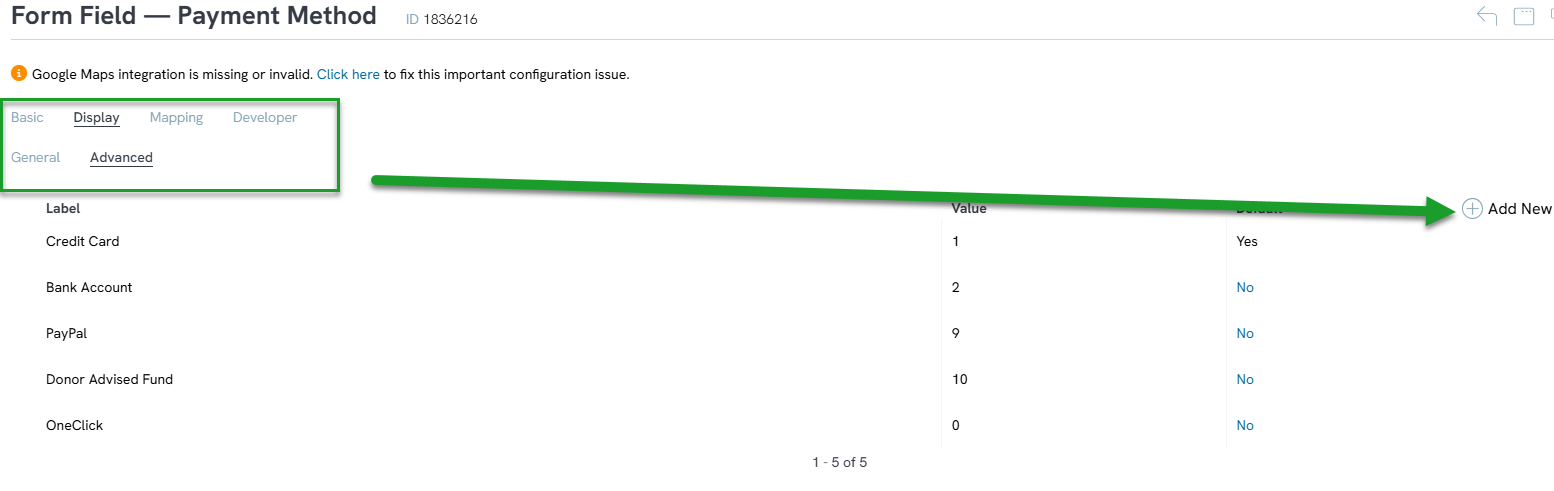
Step 9: In the pop-up, enter a Label – this is what the donor or registrant will see (for example, "Check").
Step 10: Set the Value field to 3. This specific value is what tells CharityEngine to create a check-type transaction, so it must be entered exactly as 3.
Step 11: Leave the option to make this the default payment method unchecked, unless it's intentionally being set as the default.
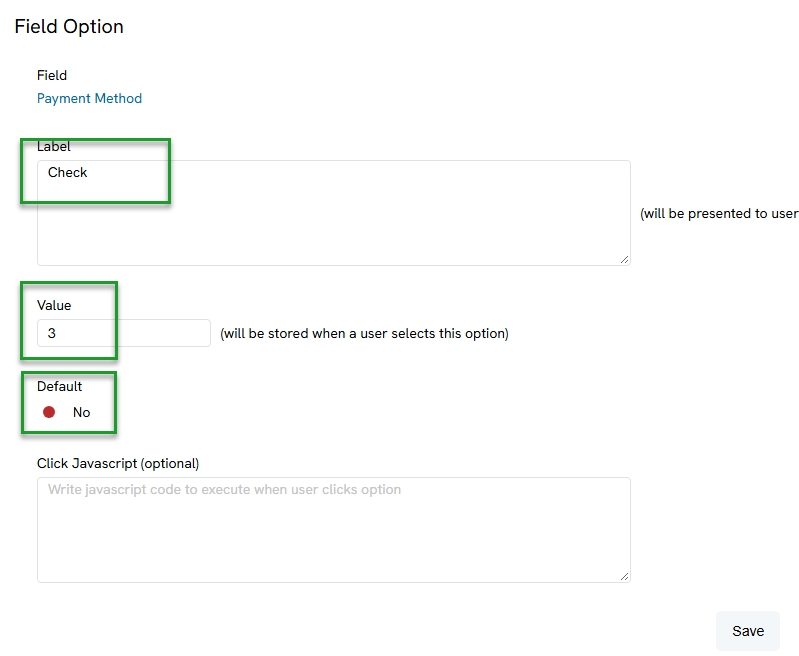
Step 12: Click Save to save the new field option, then close the pop-up. Check will now appear in the list of payment methods.
Step 13: Save the form field, then return to the form. Saving the form itself as well isn't strictly necessary, but can help clear the cache.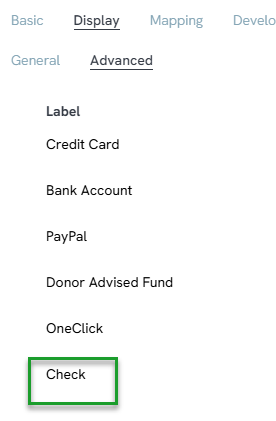
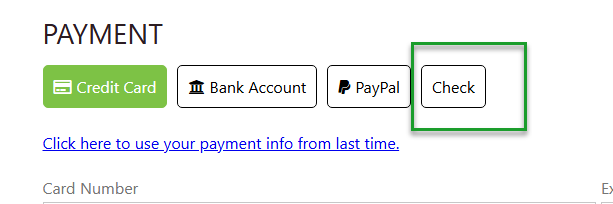
Step 14: Click the General tab and click the form's URL to view it live. Check will now appear as a payment method on the form.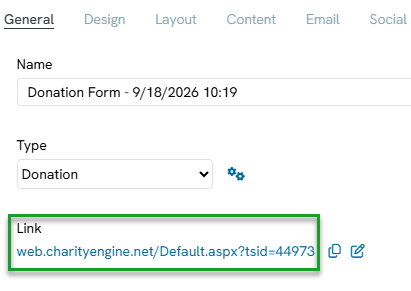
Note: When someone checks out using Check, that transaction will appear in the Transactions listing screen as an Unconfirmed Check. Once the check is received, it can be confirmed; if it never arrives, it can be deleted using the ellipsis (three dots) menu on that transaction.
FAQs & Additional Reading
Q. What happens when someone selects Check at checkout?
A. CharityEngine creates an Unconfirmed Check transaction – a placeholder representing a promise to pay while the physical check is expected to arrive.
Q. Why does the payment method's Value need to be set to 3?
A. The value 3 is what tells CharityEngine to treat this payment method as a check and create the corresponding unconfirmed check transaction. Any other value will not produce this behavior.
Q. What if the check never arrives?
A. The unconfirmed check transaction remains in a deletable status. Use the ellipsis (three dots) menu on the transaction to delete it, or follow up with the donor or registrant – for example, by sending an electronic invoice as a backup.
