CharityEngine Copilot™
Your AI-Powered Fundraising Assistant
CharityEngine Copilot is an integrated AI assistant designed to help users navigate CharityEngine more efficiently, find information faster, and complete everyday tasks with less effort. Built directly into the CharityEngine platform, Copilot combines CharityEngine data, Help Center content, and intelligent assistance into a conversational experience. Rather than searching through menus or documentation, users can simply ask questions in natural language and receive guidance directly within the application.
Copilot is continuously evolving. New skills and capabilities will be added over time, expanding what users can accomplish through a simple conversation with the platform. At launch, Copilot includes two core skills:
- Guide
- Contact Finder
Additional skills are planned for future releases, including functionality such as report building, query creation, constituent insights, automation assistance, content creation, and more.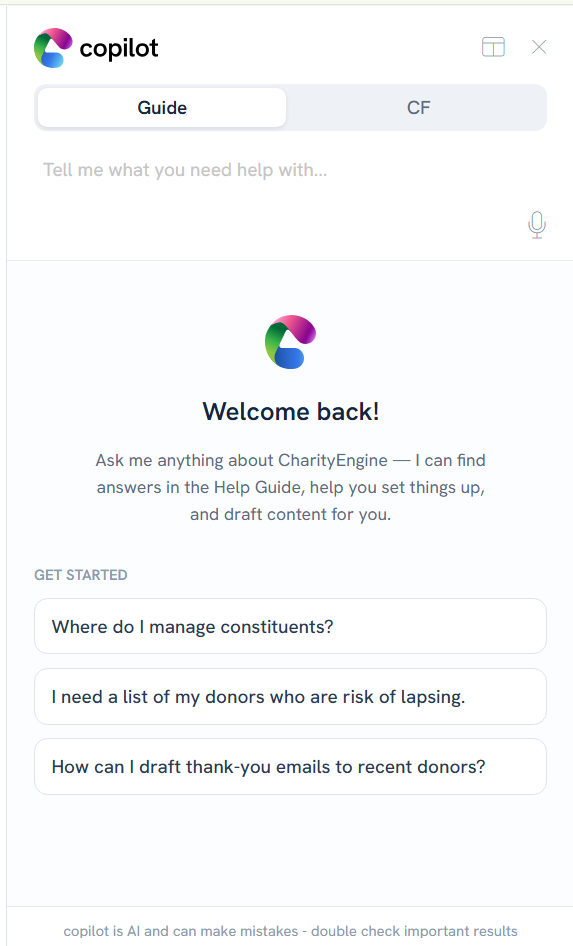
Accessing Copilot
Copilot is available directly within the CharityEngine interface through the Copilot panel.
To begin:
- Open CharityEngine.
- Select the Copilot icon.
- Enter your question, request, or command in the chat window.
- Choose a skill if prompted.
- Review the response and continue the conversation as needed.
Copilot supports natural language, which means you can interact with it as you would a colleague or assistant.
Examples:
- "How do I create an email blast?"
- "Where can I manage campaign settings?"
- "Find the organization that uses info@example.org."
- "Take me to my contacts."
Skill 1: Guide
What Is Guide?
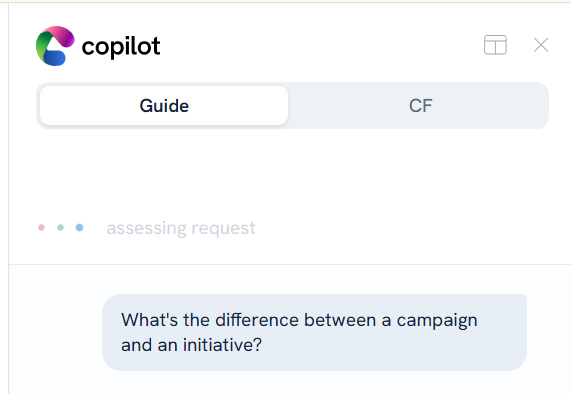
Guide is Copilot's knowledge and navigation skill. It provides answers to questions about CharityEngine features, workflows, and best practices by leveraging CharityEngine Help Center content.
Instead of searching through documentation manually, users can ask Guide a question and receive step-by-step instructions directly within Copilot.
Common Uses
Guide can help users:
- Learn how to complete a task in CharityEngine.
- Understand system functionality.
- Locate configuration settings.
- Navigate to specific areas of the platform.
- Learn recommended workflows and best practices.
- Find explanations for fields, modules, and features.
Example Questions
Try asking Guide:
- "How do I create an online donation form?"
- "Where do I manage opportunity stages?"
- "How do I create a household record?"
- "How can I export contacts?"
- "What is the difference between a person and organization record?"
- "Take me to Contacts."
Best Practices
For the most accurate results:
- Ask clear, specific questions.
- Include the feature or module name when possible.
- Break larger tasks into smaller questions.
- Continue the conversation if additional clarification is needed.
Example
Question:
"How do I create a report?"
Guide Response:
Copilot provides the relevant instructions, recommended navigation path, and related Help Center guidance to help you complete the task.
Skill 2: Contact Finder
What Is Contact Finder?
Contact Finder allows users to search for contacts using conversational language instead of traditional search filters. Copilot interprets your request and performs the appropriate search against CharityEngine contact records.
This skill simplifies finding people, households, and organizations across your database.
Common Uses
Contact Finder can help locate:
- Individual contacts
- Households
- Organizations
- Records by email address
- Records by name
- Records by location
- Records using identifying information stored within the contact record
Example Searches
Try asking:
- "Find Jane Smith."
- "Find the organization that uses donations@example.org."
- "Show me donors in Ohio named Williams."
- "Find a household with the last name Rodriguez."
- "Locate the record associated with development@example.org."
Benefits
Contact Finder helps users:
- Reduce time spent navigating search screens.
- Quickly identify constituent records.
- Locate information using natural language.
- Improve efficiency when working with large databases.
Example
Question:
"Find me an organization that uses charityengine@charityengine.net."
Contact Finder Response:
Copilot performs the appropriate contact search and returns matching records for review.
Tips for Successful Copilot Conversations
To get the best results:
Be Specific
Specific requests typically produce more accurate responses.
Better:
"How do I create a recurring donation form?"
Less Effective:
"Forms"
Use Natural Language
You do not need special commands or system syntax.
Example:
"Where do I update a contact's address?"
Ask Follow-Up Questions
Copilot supports conversational interactions. If you need additional information, simply continue the conversation.
Example:
"Can you explain that in more detail?"
"What should I do next?"
Skill 3: Query Builder
What Is Query Builder?
Query Builder allows you build custom reporting, or create a targeted email list, etc. in queries without needing a deep knowledge of database searching or query tool rules.
Common Uses
Query Builder can help you:
Giving & Donation Queries
Contact Profile Queries
Sustainer / Recurring Donor Queries
Engagement Queries
Example Searches
Try asking:
- Donors who gave more than $500 last year
- Contacts with a lifetime giving amount over $10,000
- Contacts who gave this year but not last year (LYBUNT)
- All active contacts in Maryland
- Contacts created in the last 30 days
- Contacts who have opted out of email
- Contacts missing a primary email address
- Active monthly sustainers
- Lapsed sustainers (cancelled in the last 6 months)
- Sustainers whose credit card is expired
- Contacts who opened an email in the last 90 days
- Contacts who have never been emailed
- Contacts who registered for a specific even
Benefits
Contact Finder helps users:
- Provides a method for common users to create advanced reporting/searching
- Makes compiling the audience for a targeted email send easier than before.
Tips for Successful Copilot Conversations
To get the best results:
Be Specific
Specific requests typically produce more accurate responses.
Better:
"How do I create a recurring donation form?"
Less Effective:
"Forms"
Use Natural Language
You do not need special commands or system syntax.
Example:
"Where do I update a contact's address?"
Ask Follow-Up Questions
Copilot supports conversational interactions. If you need additional information, simply continue the conversation.
Example:
"Can you explain that in more detail?"
"What should I do next?"
Future Skills
CharityEngine Copilot is designed to grow over time. Upcoming skills and enhancements may include capabilities such as:
- Report building
- Constituent insights and recommendations
- Campaign and content creation
- Event creation assistance
- Workflow automation
- Activity creation
- Data import assistance
- Additional fundraising-focused AI tools
Availability of future skills may vary by release schedule and product entitlement.
Frequently Asked Questions
Does Copilot replace CharityEngine training?
No. Copilot is designed to complement training and documentation by helping users find information quickly and complete tasks more efficiently.
Where does Guide get its information?
Guide leverages CharityEngine Help Center content and platform knowledge to answer questions and provide instructions.
Can Contact Finder create or edit records?
Contact Finder is currently designed to help locate records through conversational search. Available actions may expand as additional Copilot skills are released.
Will more Copilot skills be released?
Yes. CharityEngine plans to continue expanding Copilot functionality with additional AI-powered skills and workflows.
Summary
CharityEngine Copilot brings AI-powered assistance directly into the CharityEngine platform. With the launch of Guide and Contact Finder, users can quickly get answers, learn workflows, navigate the system, and locate constituent records using natural language. As new skills become available, Copilot will continue to become a more powerful fundraising and productivity assistant for nonprofit organizations.
