Introduction
The CharityEngine calendar has been enhanced to provide a more complete view of organizational activity by incorporating volunteer posts directly into the calendar experience. Users can now view activities, events, volunteer posts, and initiatives in a single location, making it easier to coordinate schedules and manage upcoming commitments.
In addition, new calendar configuration options allow users to control which record types are displayed, while a new Add button enables quick record creation directly from the calendar interface.
Table of Contents
Overview of Calendar Enhancements
The enhanced calendar experience provides a centralized view of key organizational activities and scheduling information.
Supported calendar record types include:
-
Activities
-
Events
-
Volunteer Posts
-
Initiatives
Users can choose which record types appear on the calendar, helping reduce clutter and allowing teams to focus on the information most relevant to their role.
Instructions: Configure Calendar Display Options
Step 1: Access the Calendar
Navigate to People > Calendar.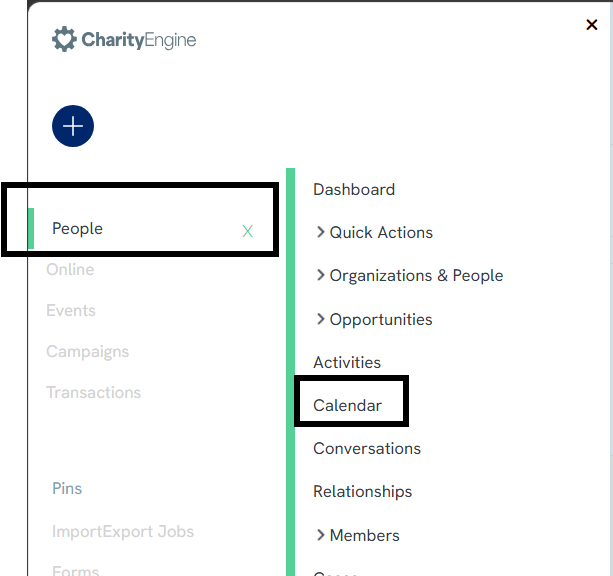
Step 2: Open Calendar Configuration
Click the Configure button located on the top right of the calendar.
Step 3: Select Record Types
Choose the record types that should be displayed on the calendar.
Available options include:
-
Activities
-
Events
-
Volunteer Posts
- Initiatives
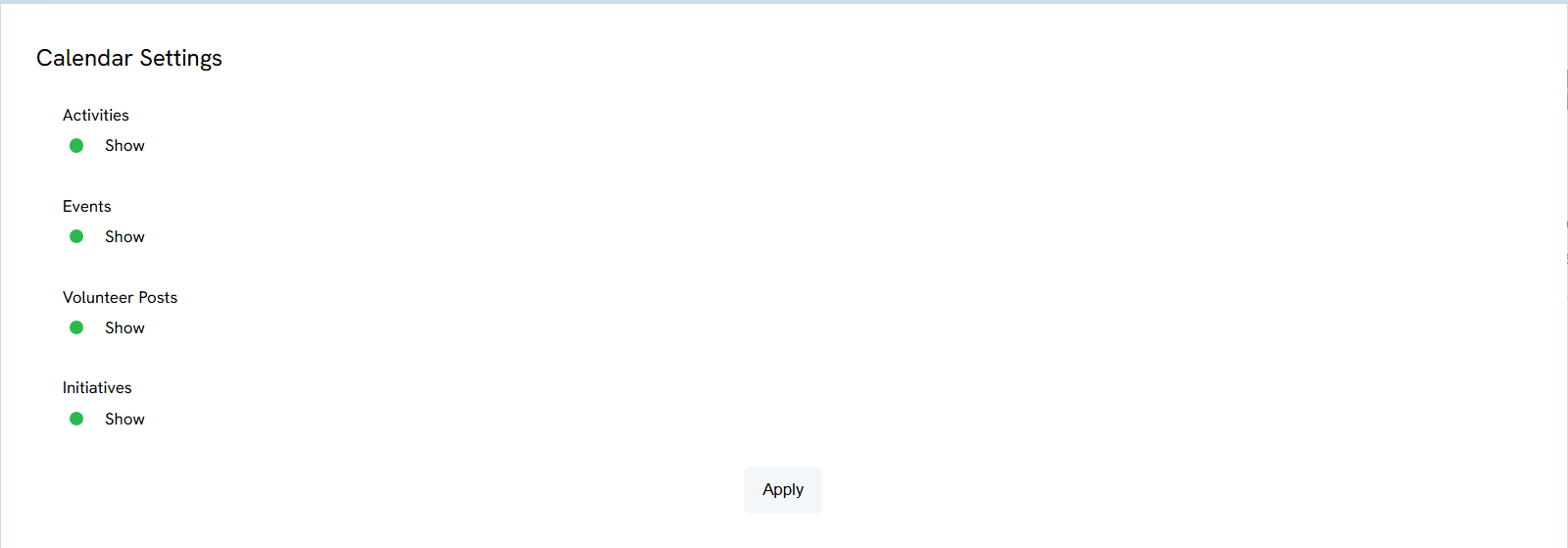
Step 4: Save Configuration
Save the configuration settings to refresh the calendar and display the selected record types.
Instructions: Create Records from the Calendar
Step 1: Access the Calendar
Navigate to People > Calendar.
Step 2: Click Add
Select the + button on the top right of the calendar.
Step 3: Choose a Record Type
Select the type of record to create based on available options and user permissions.
Examples may include:
-
Activity
-
Event
-
Volunteer Post
-
Initiative
Step 4: Complete Record Details
Enter the required information for the selected record type.
Step 5: Save the Record
Save the new record. Once saved, the item will appear on the calendar according to the selected display configuration.
Benefits of Volunteer Integration
The addition of volunteer posts to the calendar provides organizations with improved visibility into volunteer scheduling and engagement activities.
Key benefits include:
-
Centralized visibility of volunteer opportunities and organizational activities
-
Improved scheduling coordination across departments
-
Reduced need to switch between multiple screens to review upcoming commitments
-
Faster record creation directly from the calendar
-
More personalized calendar views through configurable display settings
Outcome
After completing these steps, users will be able to view volunteer posts alongside activities, events, and initiatives within the calendar. Users can customize their calendar display through the Configure option and create new records directly from the calendar using the Add button, providing a more streamlined scheduling and planning experience.
FAQ & Further Reading
Q. Can users hide certain record types from the calendar?
A. Yes. The Configure option allows users to select which record types are displayed on the calendar.
Q. What record types can be displayed on the calendar?
A. Depending on permissions and configuration, users can display Activities, Events, Volunteer Posts, and Initiatives.
Q. Can records be created directly from the calendar?
A. Yes. The Add button allows users to create supported records without navigating away from the calendar screen.
Q. Will newly created records automatically appear on the calendar?
A. Yes. Records will appear on the calendar when they meet the display criteria established through the calendar configuration settings.
Articles
- People App
- Events, Auctions & Volunteers
- People App: Creating a New Person Contact from an Organization Record
- People App: Managing Contact Status Types and Priority
- People App: How to Easily Bulk Update Contacts (Groups, Solicitors, Activities, Opt Ins, etc.)
- Sending Email Campaigns from the Contact Listing Screen
- CharityEngine Best Practices for Employees and Volunteers Who Leave an Organization
- Contact Records: Creating Custom Field Groups and Custom Fields
- Campaign - Surveys: How to Create a Poll & Survey Form and How to View the Results
- API Configuration: How to Configure your WealthEngine API Key
- Data Governance: Updating Contact Records Through the Transaction or Contact Screen
- Communication: How to Send Messages from Listing Screens
- Contact App: How to Add (and Delete) a Solicitor to a Contact Record
- Contact Management: Contacts Who Are Online Now
- Memberships: How to Create & Manage a New Member - A Comprehensive Guide
- Contact Records: Addresses
- People App: Contact Emails
- Volunteers App: How to Set up and Leverage Volunteers App in CharityEngine
- People App: How to Add Badges to a Contact Record
- Printing the Contact Summary Page
- People App: How to Identify and Use the Outlook & Constituent Ranking
- People App: Record Page Overview
- Configuration: Configuring Systemic Salutations
- Contact : Notes
- Contacts: Files
- Contacts - Editing Contact Record Panels
- People App: Quick Actions
- Opportunities & Moves Management: Comprehensive Guide for Set Up, Configuration & Reporting
- People App: How to Create and Manage Household Contact Records
- Data Importing: How to Import Contact - Organization Data
- Data Importing: How to Import Contact - Household Data
- People App: Adding Contacts to Your Basket for Exporting
- People App: A Guide to the CharityEngine Projects Feature
- People App: Relationships & Connections
- Queries: What Can I Do with Queries - Creating A Comm List including People, Households, Orgs
- People App: How to Create and Manage Organization Contact Records
- Reports & Analytics: How to Use the Constituent Density Report
- Auctions App: Creating, Managing, and Closing an Online Auction
- People App: How to Create and Manage People Contact Records
- People App: How To Set Your User Preferences
- People App: People, Households, & Organizations Search
- Online: Online Constituent Portal Configuration
- People: Creating & Adding Tags or Groups
- Events: A Comprehensive Walk Through for Events Set-Up
- Data Importing: How to Import Contact - People Data
- Data Importing: Contacts & Use of Contact Matching
- Workflow & Automation: Data Governance – Contact Management (Merge, Delete, Inactive)
- Sending Tracked Emails
- People App: How to Create and Manage Activities
- Contacts: How to Create and Manage People Contact Records
- People App: How to Create, Use and Manage Cases
- People App: Updating Donor Passwords
- Configuration: How to Configure for a Fiscal Year and Downstream Reporting
- Contacts: How to Create a New Affiliate/Chapters
- Contacts: Deleting Contacts in Bulk
- New Features & Enhancements
- Event Ticket Soft Credits
- Volunteer Sign-Up Forms Display Shift Details
- Introducing CharityEngine CoPilot
- Event Detail - Funds Raised Reporting
- Event Duplication Process
- Deleting Activities
- Online Event Guest Management
- Events - Early Bird Tickets
- Events - Quick Start Guide
- Event Dashboard
- Reordering Form Fields
