Introduction
Use the Transaction Management page to review and update transaction details, such as attribution information or assigning a transaction to a sustainer account. This article provides an overview of each tab and the options available when managing a transaction.
Table of Contents
Instructions: Accessing a Transaction
Under Transactions App > Transactions > Search & Manage, locate the transaction to manage. Click on the blue ID, or hover over the three dots to the right of the listing screen and select Manage.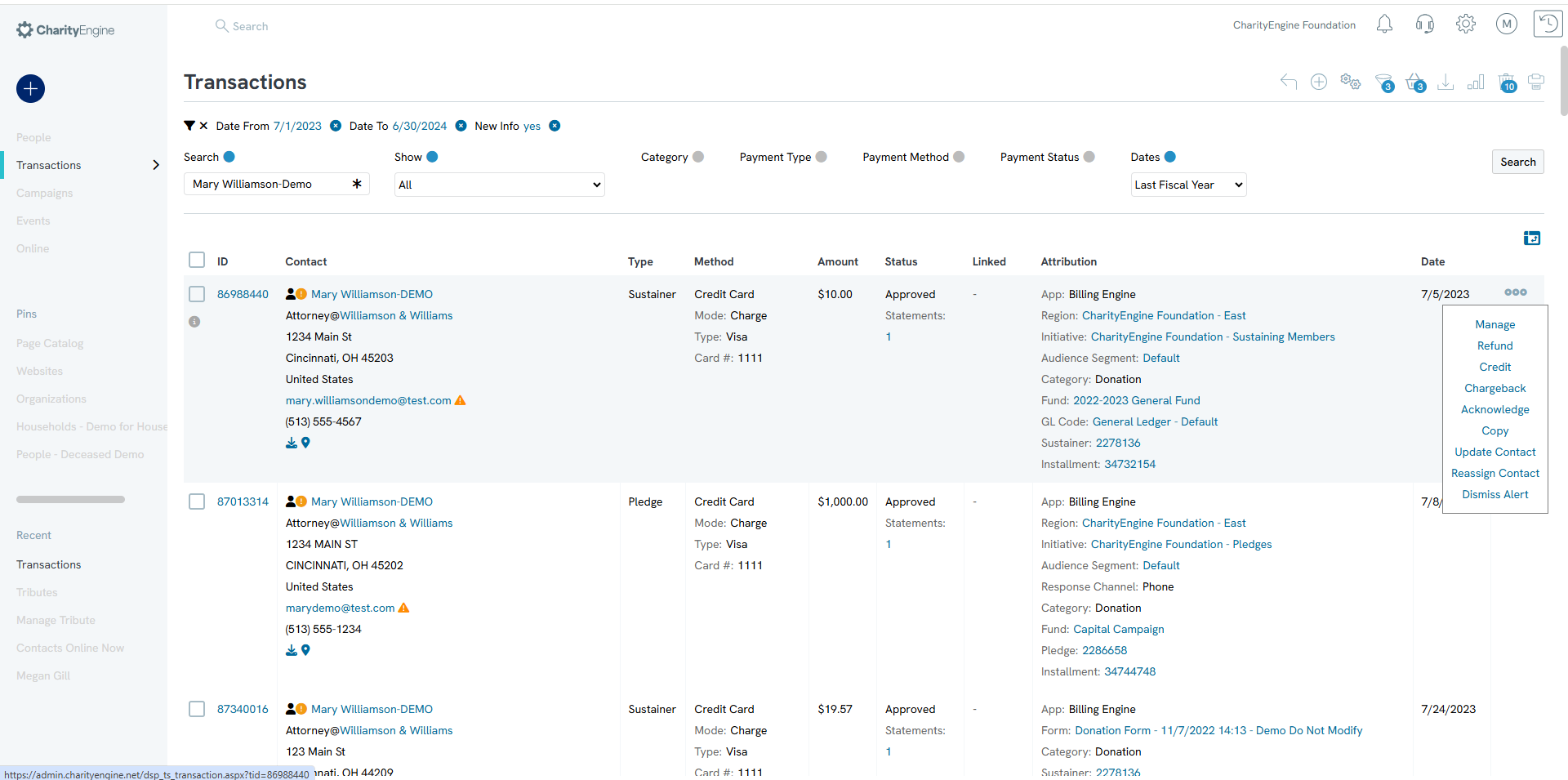
NOTE: The orange symbol next to the contact information indicates that new contact data has been detected. If a contact was entered twice or other information was processed similarly, the orange symbol will prompt an update. Clicking it provides a link to update or dismiss the suggestion. Dismissing it will remove the symbol without changes.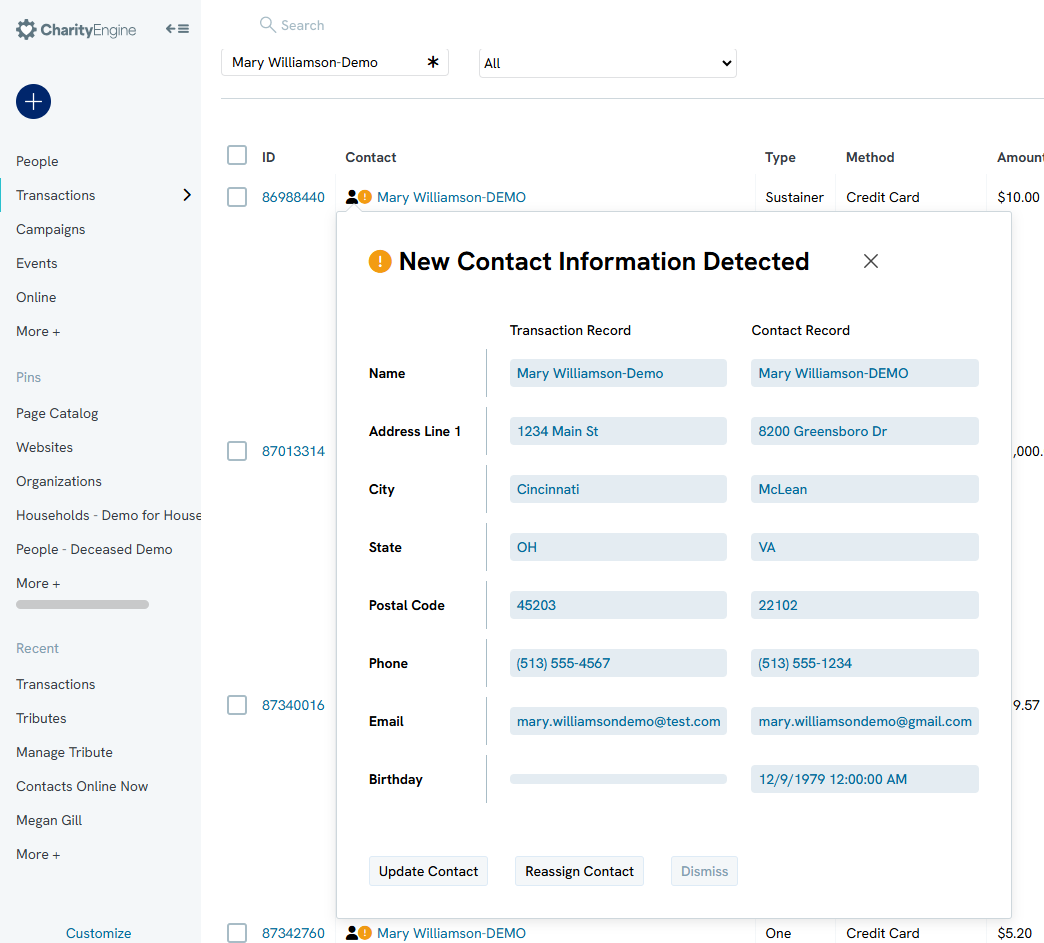
Detail Tab
General Tab
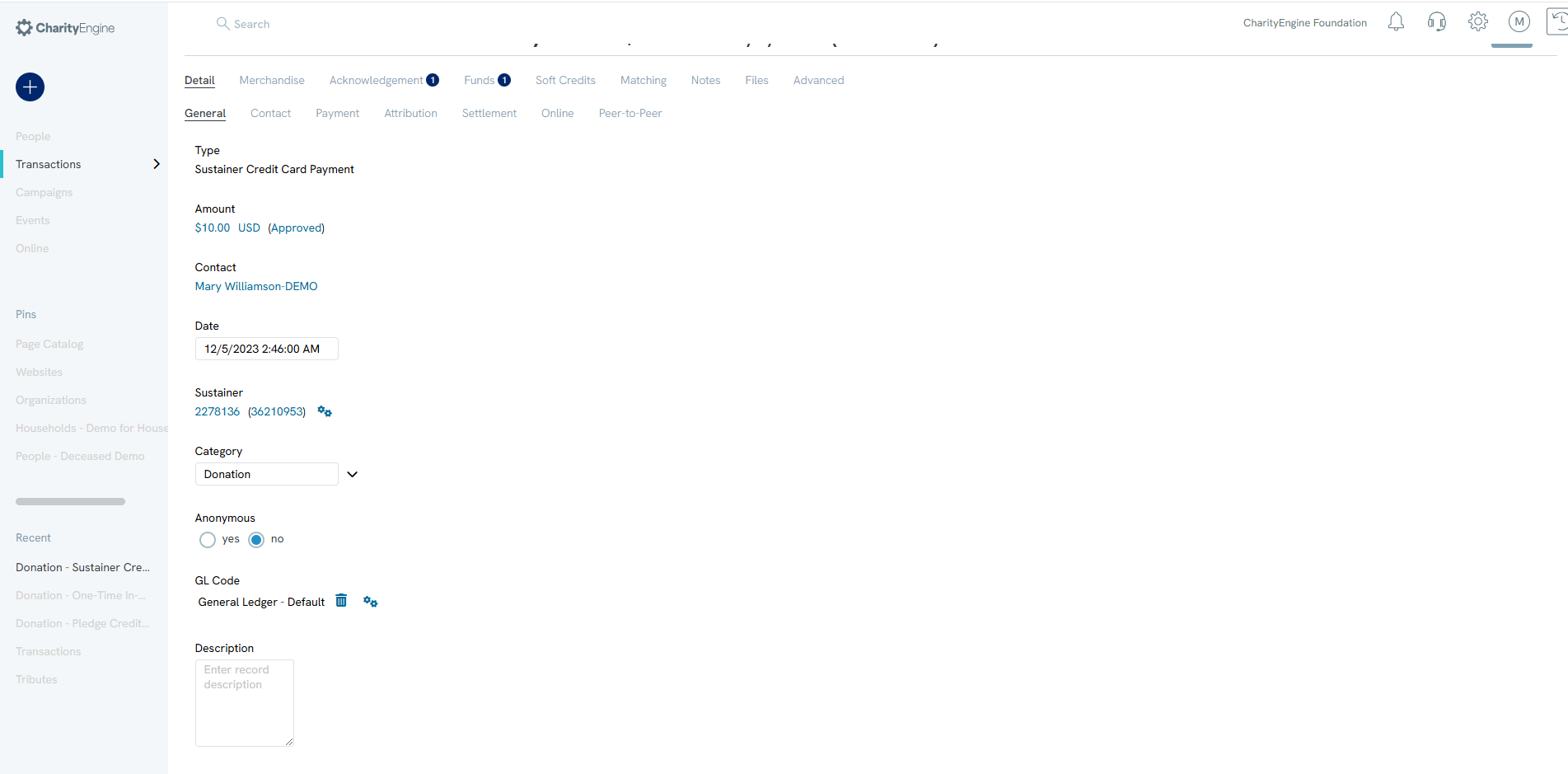
The page will default to the General subtab under the Detail tab.
Type: Displays the type of donation (One-Time, Sustainer, etc.). Other transaction types may show fields for invoices or installments.
Amount: Displays the amount, currency, and payment status (Confirmed, Approved, Unconfirmed/Declined). Approved means funds are pending, while Confirmed indicates the funds were received.
Contact: The CharityEngine Contact ID associated with the transaction.
Date: The transaction date.
Account: If linked to a sustainer, pledge, or membership, the related account will appear here.
Category: Type of financial record.
Anonymous: Indicated whether the transaction was made anonymously.
GL Code: Assigned general ledger code, if applicable.
Contact Subtab
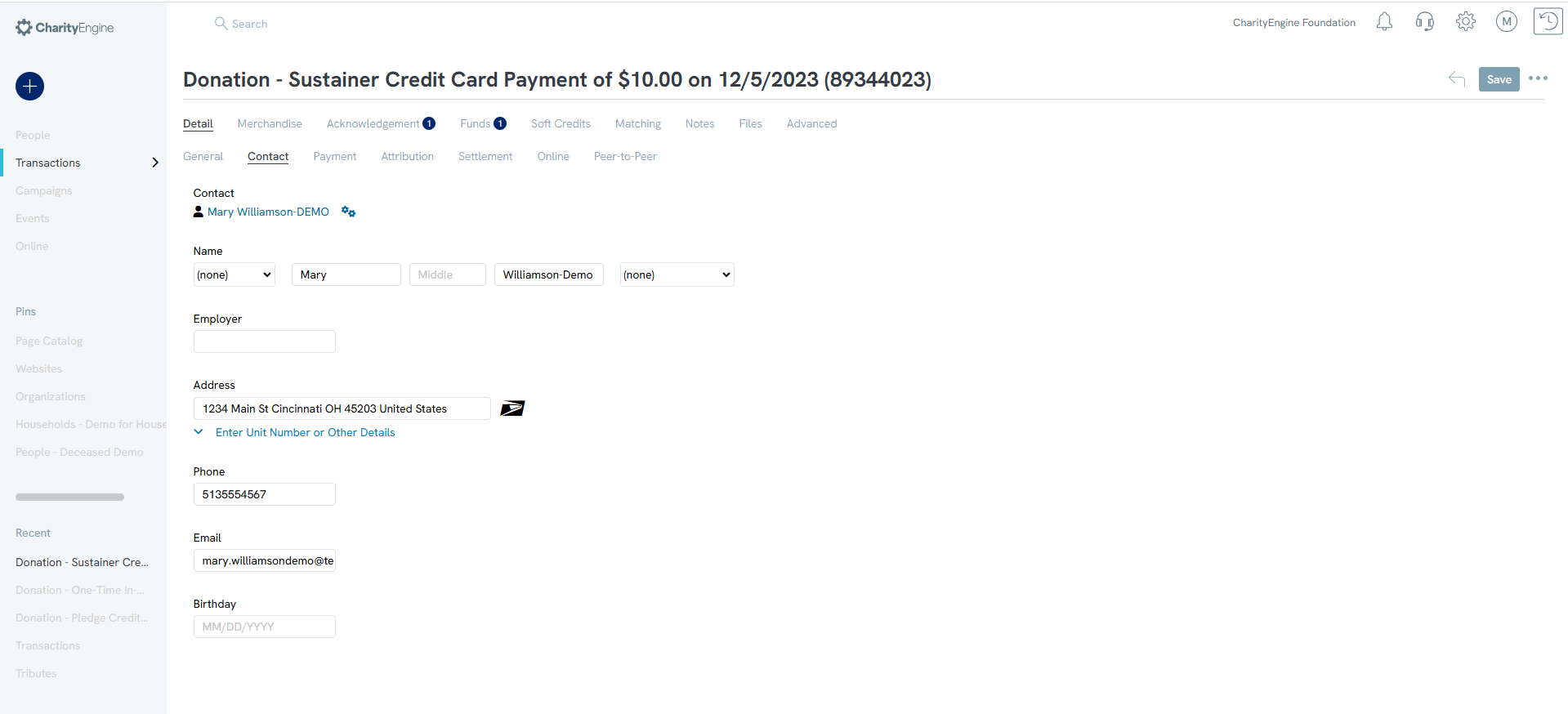
Under the Detail tab, the Contact subtab holds all details for the contact linked to this transaction. This data can be updated anytime.
Contact: CharityEngine Contact record. Use Actions dropdown to modify.
Name: Name of the associated contact.
Employer: Contact's employer.
Address: Transaction address. Click the dropdown to view more. Use the USPS icon to sync the address (rates may apply).
Phone: Phone number associated with the transaction.
Email: Email associated with the transaction.
NOTE: Updating contact info here affects only this transaction. To update the full contact record, use the Contacts App.
Actions Gear
Next to the Contact field, you'll see an Actions gear icon that allows you to change the contact associated with the transaction. Hover over the Actions icon and click Change when the option appears. A form will display where you can select the contact type and enter the necessary information. If the contact already exists in the system, click Search, enter part of the contact’s name or details, and the system will suggest matching contacts.
NOTE: You must click the Search button to generate suggestions.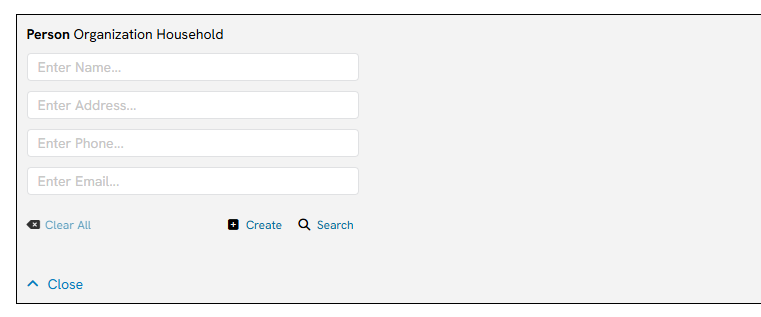
Payment Subtab
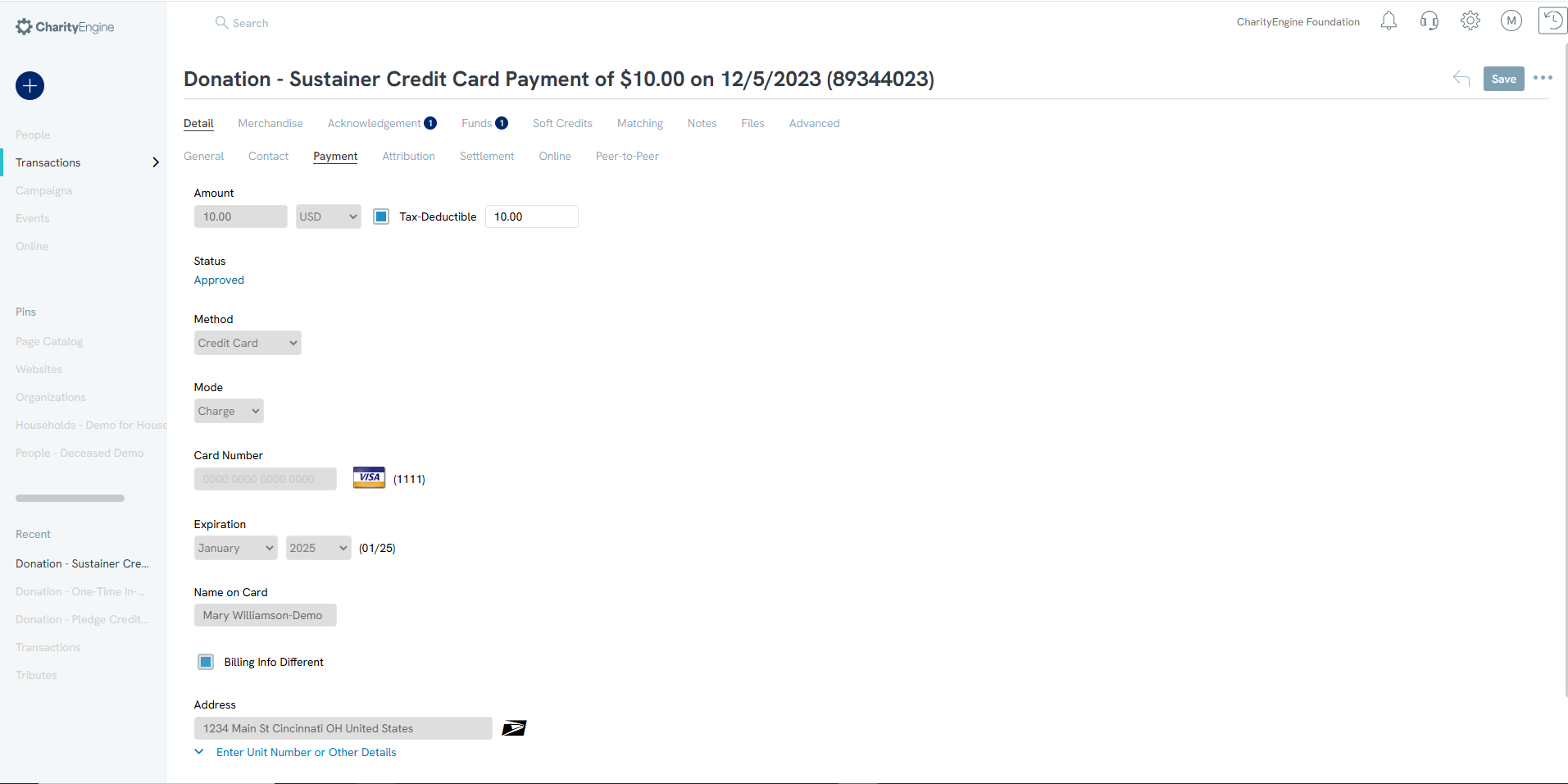
This subtab contains payment and billing information. The view changes depending on the payment method.
Tax-Deductible: Tax-deductible amount allocation.
Status: Reflects processing status (Approved, Declined, or Pending). Checks or manual entries can show Confirmed or Unconfirmed.
Method: Displays the payment method.
NOTE: Credit card transactions cannot be edited but can be voided if still pending.
Attribution Subtab
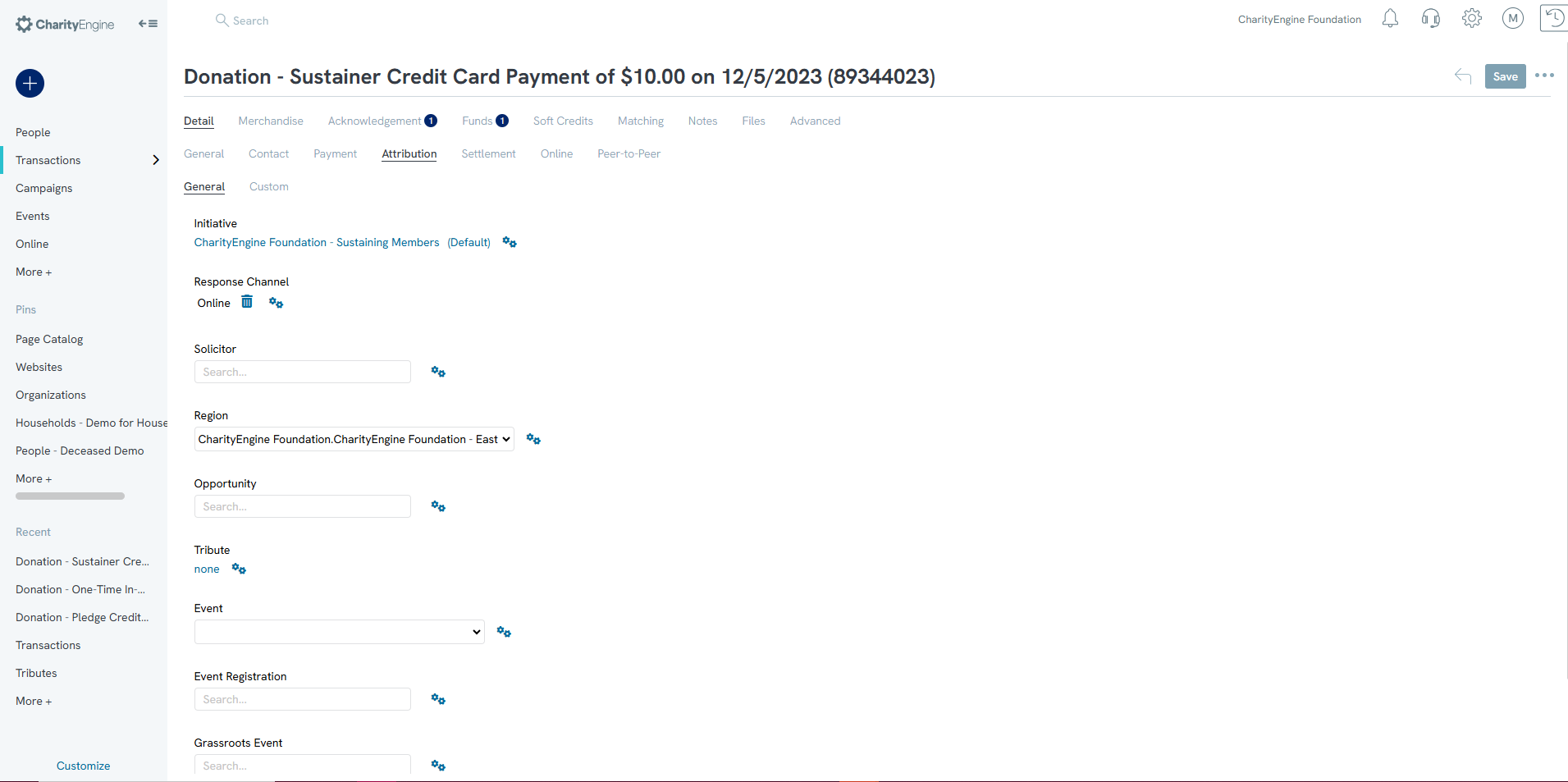
Use this subtab to manage attribution details associated with the transaction.
Initiative: Linked campaign or initiative.
Response Channel: Source attribution (e.g. email, direct mail).
Solicitor: Assigned solicitor, if applicable.
Region: Regional attribution, if applicable.
Opportunity: Related Opportunity ID, if applicable.
Tribute: Linked Tribute Account, if applicable.
NOTE: You can add attributions after the transaction has been created.
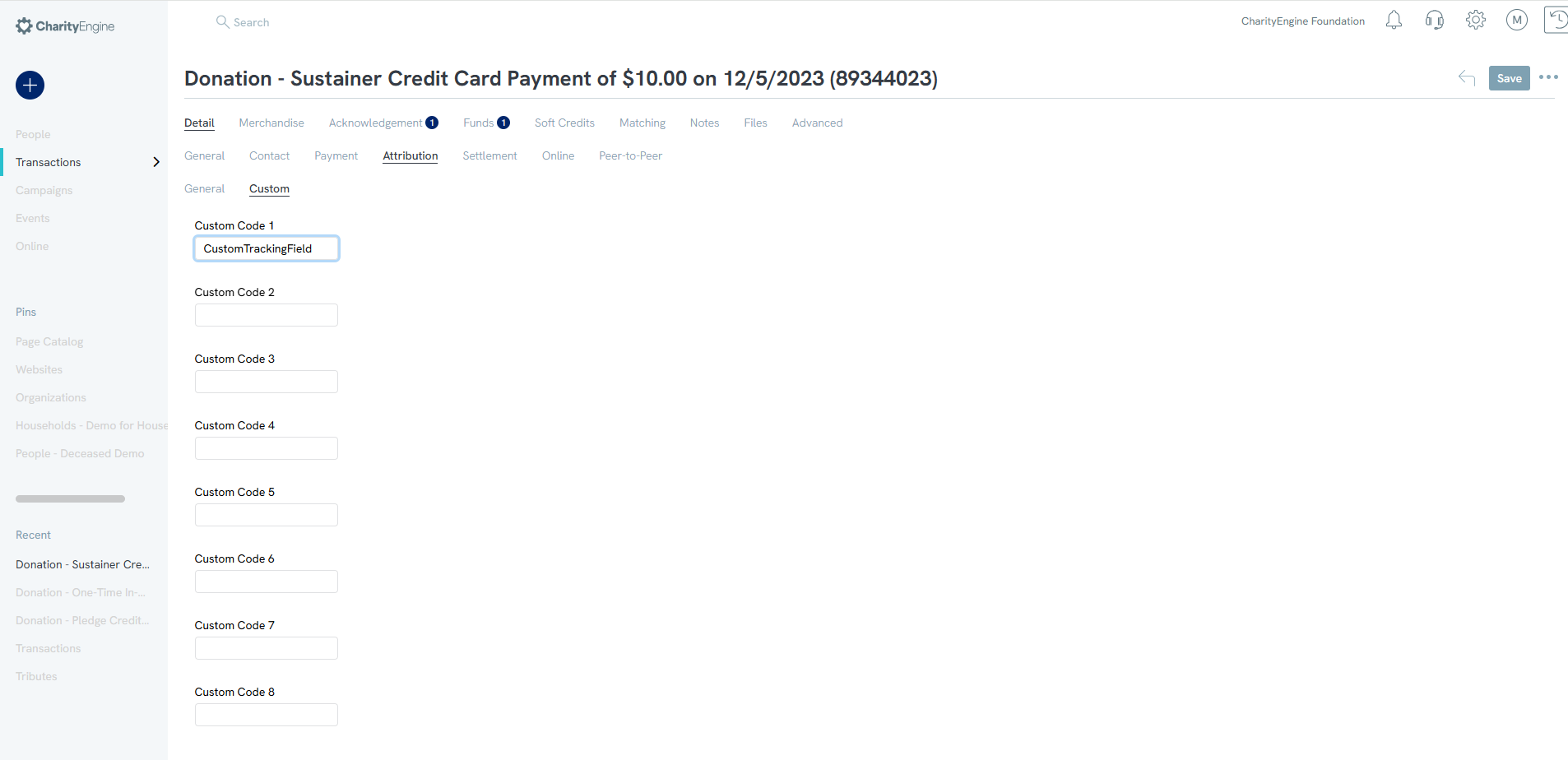
Attributions Custom Section:
Allows users to allocate 8 custom codes for use with transactional records.
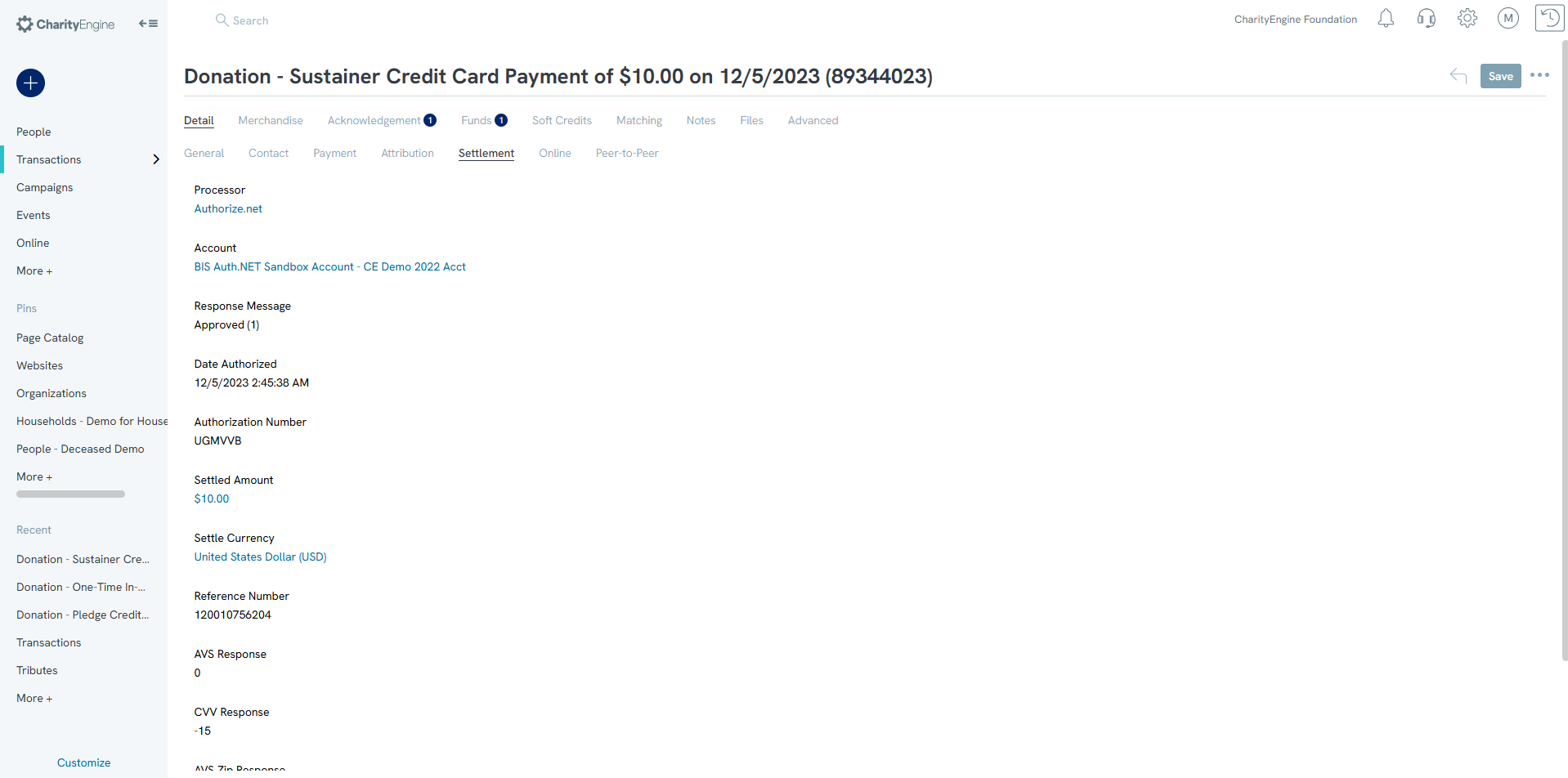
Settlement Subtab
Displays payment gateway processing details for credit card, ACH, or PayPal/Venmo transactions.
Online Subtab
Displays online campaign information associated with the transaction.
Web Form: The originating web form.
Event Microsite: Linked Peer-to-Peer fundraising microsite.
Hide Online: Hides the donor's gift on public sites.
Display Name As: Donor's preferred display name.
IP Address: IP address of the donor.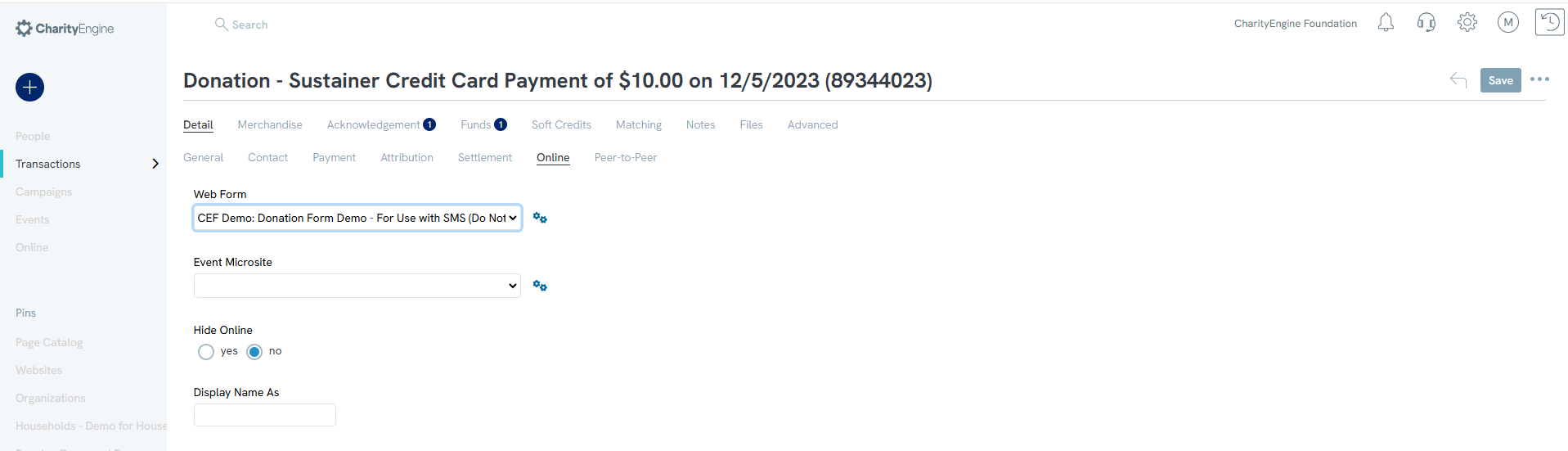
Peer-to-Peer Subtab
Shows whether the donation is associated with a Peer-to-Peer page or team. If a relationship has not yet been established, it can be added manually.
NOTE: New Peer-to-Peer pages CANNOT be created on this subtab. Peer-to-Peer pages can be created by clicking Online > New Peer-to-Peer.
Acknowledgement Tab
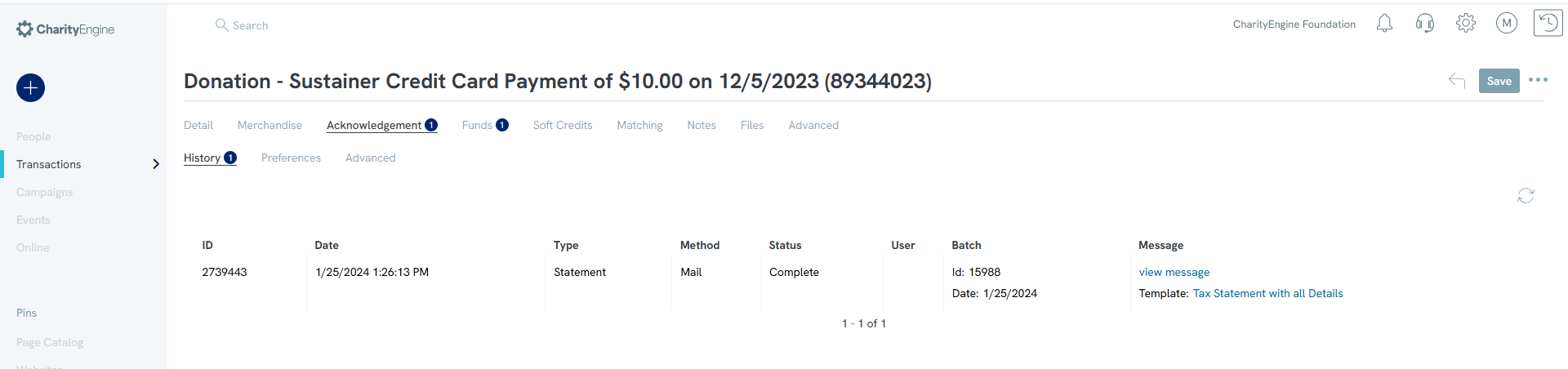
History Subtab
Displays a history of acknowledgements sent for the transaction, including:
- Sent date
- Type (e.g., receipt or tax letter)
- Delivery method
- Status
- Message preview (click to view full message)
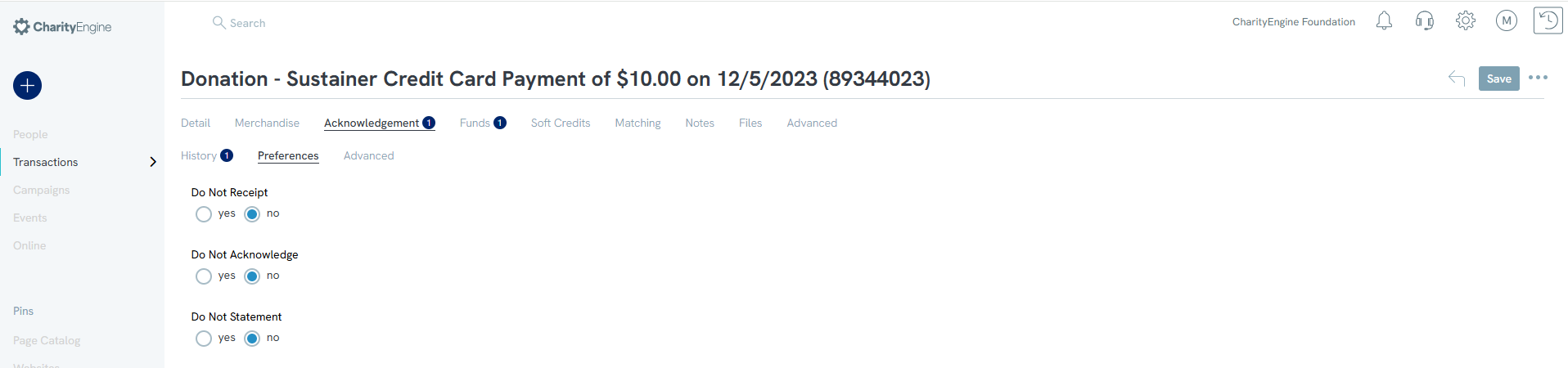
Preferences Subtab
This subtab contains three preference toggles. Set each option to Yes or No as needed.
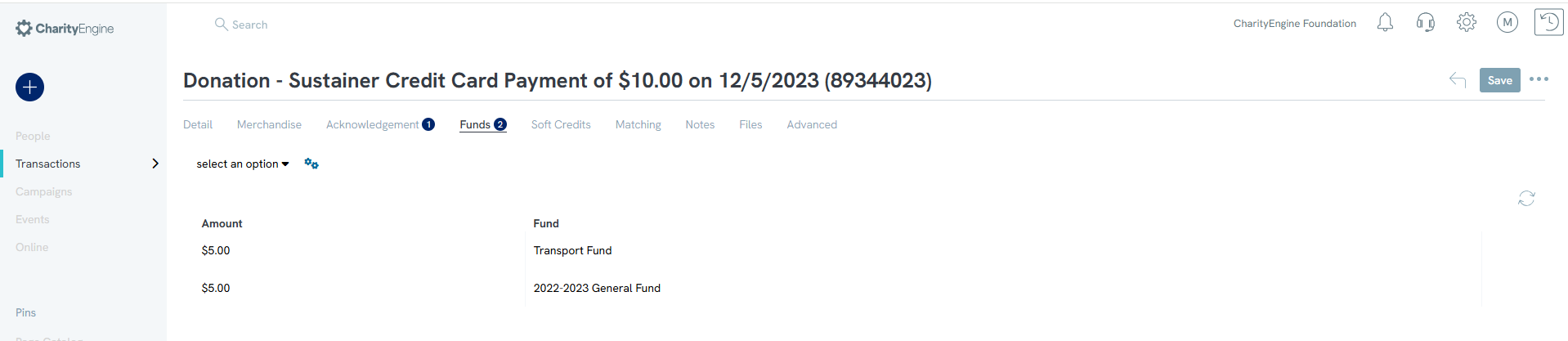
Funds Tab
Fund assignment can be manual or automatic via web form. Multiple fund entries are supported.
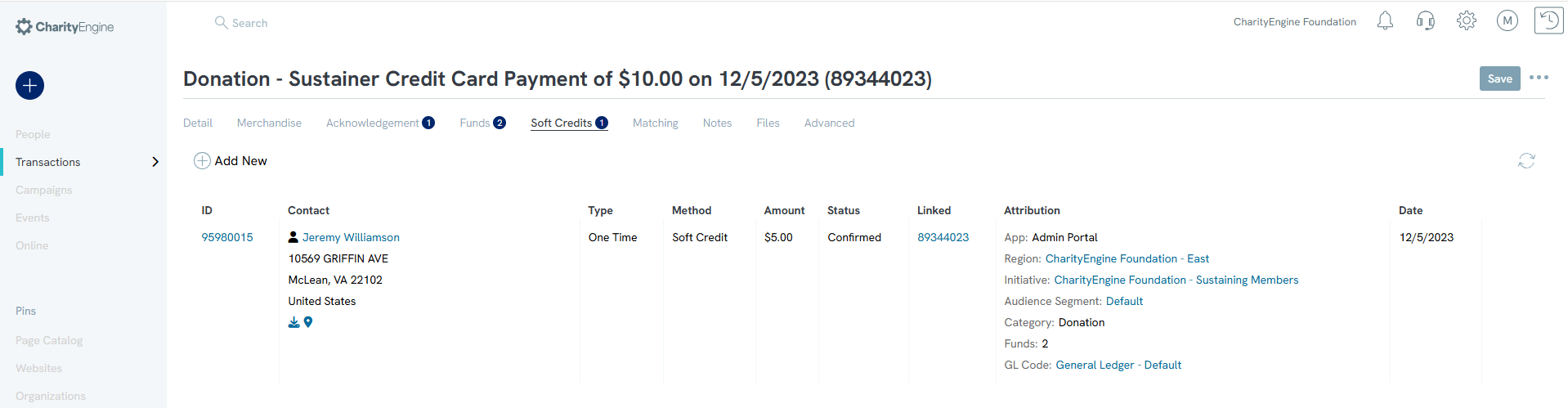
Soft Credits Tab
Assign one or more soft credits associated with the primary (hard credit) transaction.
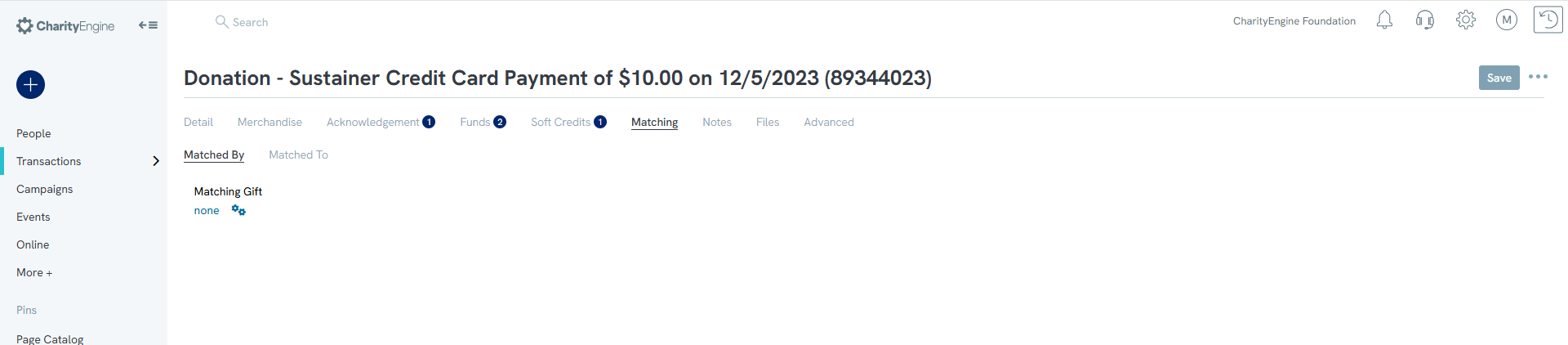
Matching Tab
Link matching gifts from companies or organizations for attribution and tracking.
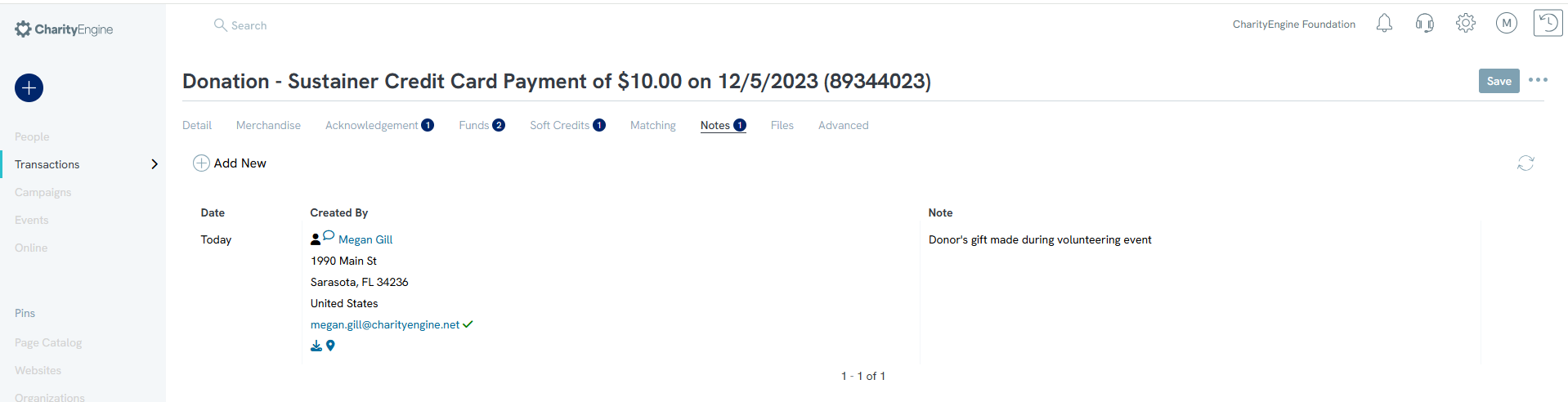
Notes & Files Tab
Add internal notes and upload files related to the transaction.
Advanced Tab
Contains fields used for integrations or synchronization with external accounting software, such as QuickBooks.

