Introduction
The CharityEngine Excel Connector allows users to connect Microsoft Excel directly to saved CharityEngine queries, eliminating the need to manually export reports. Instead of working with static spreadsheets, users can create live workbooks that refresh with the latest CharityEngine data whenever needed.
This integration simplifies recurring reporting, custom dashboards, and data analysis while reducing manual effort.
Table of Contents
Prerequisites
Before using the Excel Connector, ensure the following:
-
The CharityEngine Excel Connector has been downloaded from the Microsoft Store.
-
At least one saved CharityEngine query has been created.
Install the Excel Connector
The CharityEngine Excel Connector is available through Microsoft Excel's Add-ins marketplace.
To install the Excel Connector:
- Open Microsoft Excel.
- Select File > Account.
- Select Get Add-ins.
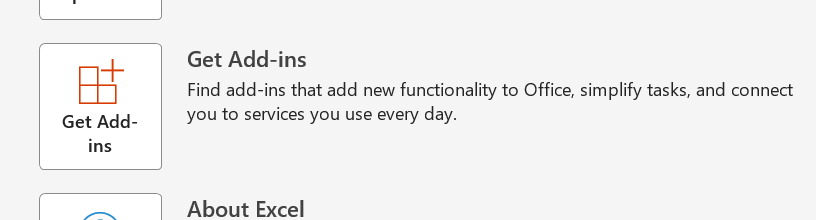
- In the search bar, search for"CharityEngine".
- Locate the CharityEngine Excel Connector and select Add.

- Once installed, return to your workbook. The connector will be available within Excel and ready to connect to your CharityEngine queries.
After installation, proceed to the next section to connect a worksheet to a CharityEngine query.
Connect a Worksheet to a CharityEngine Query
Step 1
Open Microsoft Excel and the workbook where you want to load CharityEngine data.
Step 2
Select Sync Data from CRM.
Step 3
Log into your CharityEngine instance using your CharityEngine username and password.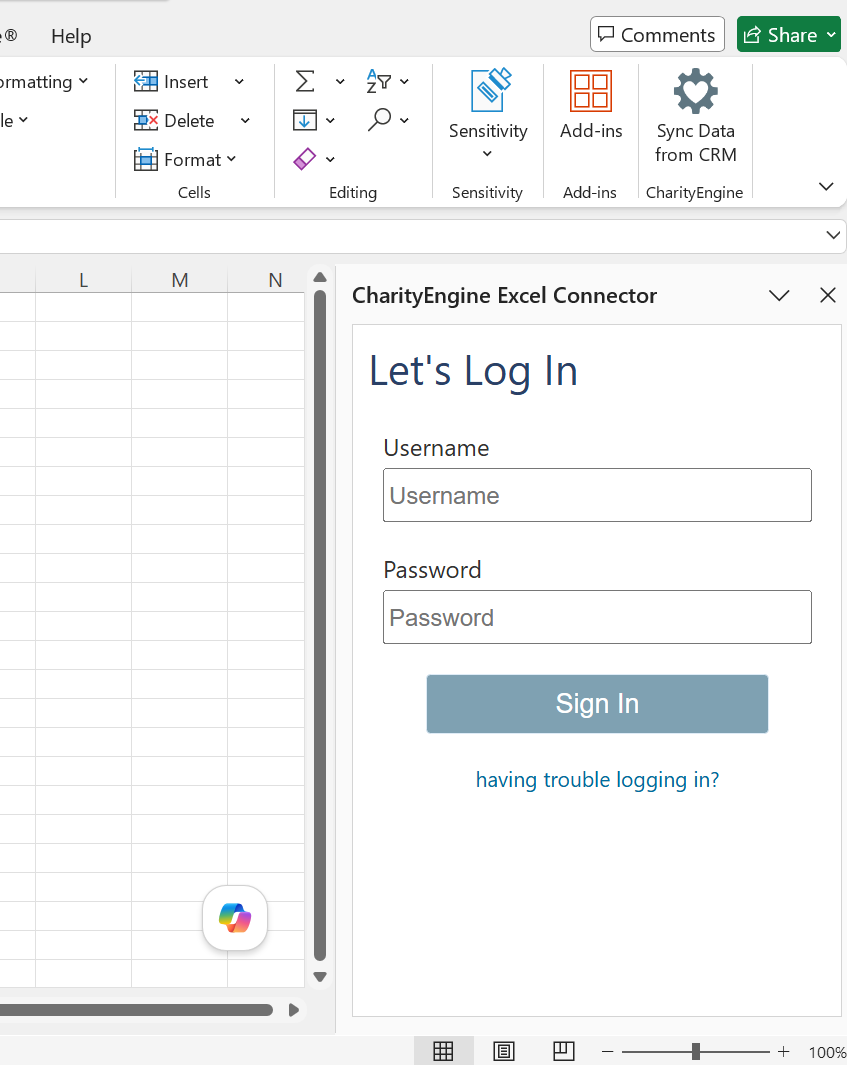
Step 4
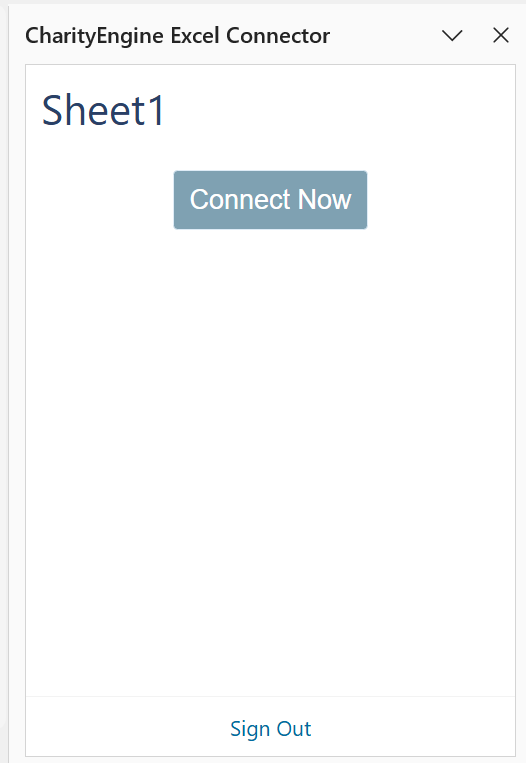
Navigate to the sheet you want to generate the query on.
Select "Connect Now".
Step 5
Enter the Query ID or Query Name of the saved CharityEngine query.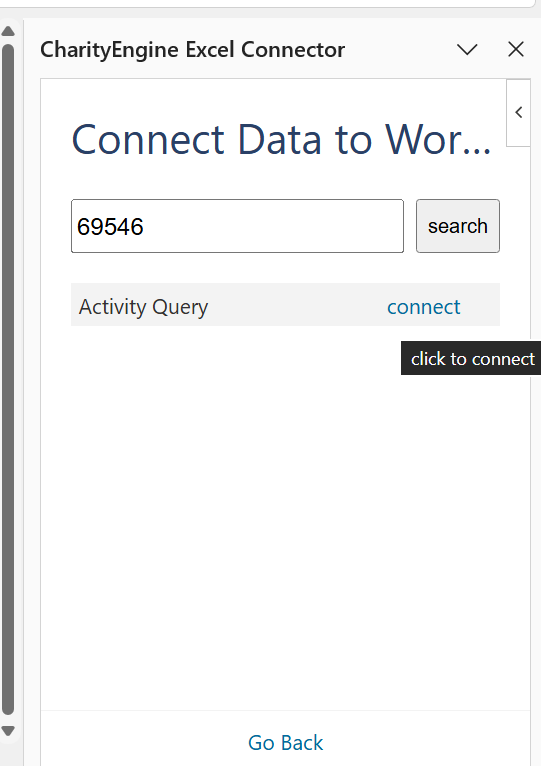
To locate the Query ID/Name in CharityEngine, navigate to:
Automation & Workflow App > General > Queries
Locate the desired query and copy its Query ID.
Step 6
Search for the dataset and select Connect.
Step 7
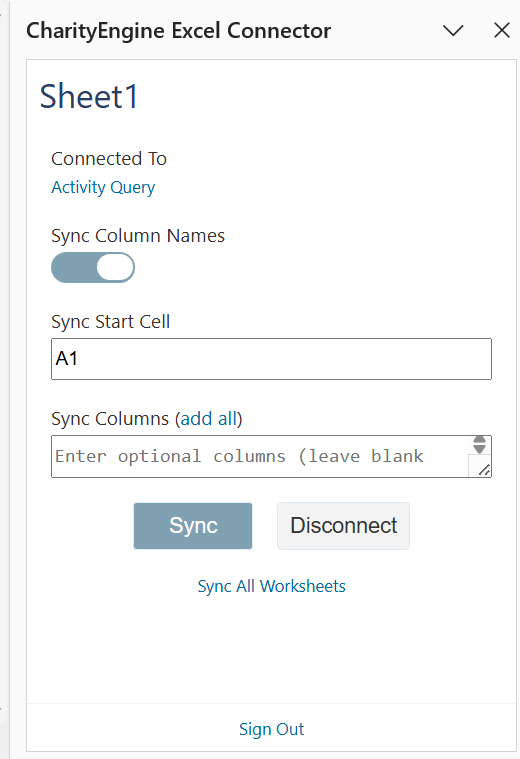
Configure your import options.
Available options include:
-
Synchronize column names
-
Select the starting cell for the imported data (for example, A1)
-
Include optional columns, if desired
Step 8
Select Sync.
The worksheet is populated with the selected query results.
Refresh Data
One of the primary benefits of the Excel Connector is the ability to refresh existing workbooks without recreating reports.
When CharityEngine data changes, users can simply select Sync to retrieve the latest data.
Users may:
-
Refresh the current worksheet individually.
-
Select Sync All Workbooks to refresh every connected worksheet within the workbook.
Add Additional Worksheets
A workbook can contain multiple worksheets, each connected to a different CharityEngine query.
To add another report:
-
Create a new worksheet.
-
Select Sync Data from CRM.
-
Connect the worksheet to another saved CharityEngine query.
-
Sync the data.
This allows multiple reports to exist within a single workbook, making it easy to build dashboards and consolidated reports.
Best Practices
For the best experience when using the Excel Connector:
-
- Begin with a single saved query while becoming familiar with the connector.
- Build focused, well-organized queries before connecting them to Excel.
- Use the Refresh feature instead of manually exporting reports.
- Organize related queries into separate worksheets within the same workbook.
- Use multiple connected worksheets to build dashboards and recurring reports.
Outcome
After completing these steps, users can connect Microsoft Excel directly to saved CharityEngine queries and create workbooks that stay up to date with the latest CharityEngine data. Refreshing reports requires only a few clicks, reducing manual exports and streamlining ongoing reporting processes.
FAQ & Further Reading
Q. What data can be connected to Excel?
A. The Excel Connector connects Excel worksheets to saved CharityEngine queries.
Q. Can I connect more than one query?
A. Yes. Each worksheet can be connected to a different saved query, allowing multiple reports within the same workbook.
Q. How do I update my spreadsheet with the latest CharityEngine data?
A. Select Sync to refresh the current worksheet or Sync All Workbooks to refresh every connected worksheet in the workbook.
Q. Where do I find the Query ID?
A. Navigate to Automation & Workflow App > General > Queries and locate the Query ID for the saved query you want to connect.
