Microsoft Single Sign-On (SSO) allows users to securely access CharityEngine using their Microsoft credentials. This feature enhances account security while simplifying the login experience for users.
Prerequisite
Please note: Access to Microsoft SSO depends on your contract. If this feature is not currently enabled, reach out to your account manager for availability and pricing. If included, follow the steps below to configure Microsoft SSO.
How to Enable Microsoft SSO
To configure Microsoft SSO for your CharityEngine instance:
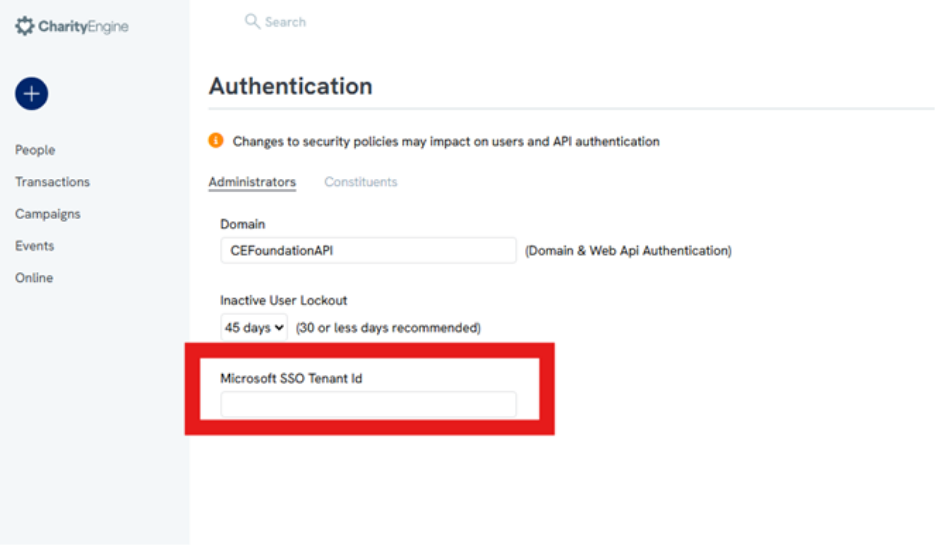
- Navigate to Configuration > Security > Authentication.
- Locate the Microsoft SSO Tenant ID field.
- Enter your organization’s Microsoft Tenant ID.
- For instructions on locating your Tenant ID, refer to Microsoft’s documentation:
How to find your tenant ID – Microsoft Entra | Microsoft Learn - Save your changes.
Important Configuration Details
- The Microsoft Tenant ID is configured per client instance, not per individual user.
- Once the Tenant ID is entered, existing users whose CharityEngine accounts use your organization’s email domain will see a “Sign in with Microsoft” option on the login screen.
- Users can authenticate using their Microsoft credentials without entering a separate CharityEngine password.
New Users Logging in with Microsoft SSO
If a user at your organization does not already have a CharityEngine account and attempts to log in using Microsoft SSO:
- The user will be directed to a blank CharityEngine instance.
- An administrator can then:
- Navigate to User Accounts
- Locate the newly created user record
- Assign the appropriate roles and permissions
Once roles are assigned, the user will have access based on their permissions.
